addtowallet.co
Create PassFeaturesPricingAPIBlog
Sign InGet Started Free
All guides▾
  • Guide10 reasons why incorporating Mobile Wallet Passes into your mobile strategy is essential
  • Guide5 Reasons why your store needs a wallet pass
  • GuideAdvantages of using Google and Apple wallet pass in businesses
  • GuideBest practices to design an amazing wallet pass
  • GuideBoost Engagement with Interactive Wallet Passes in Magazines
  • GuideConvert Pdf To Pass Using AddToWallet
  • GuideCreate Apple wallet pass for free
  • GuideCreate Apple Wallet passes for Your Business
  • GuideCreate Google wallet pass for free
  • GuideCreating Apple and Google Wallet Passes
  • GuideCreate Wallet Passes with the AddToWallet Zapier Integration
  • GuideDifferences between Apple and Google wallet
  • GuideEnhance audience interaction with wallet passes in Newspapers
  • GuideHidden Form Fields: Dynamic Expiry for Wallet Passes
  • GuideHow Google and Apple Wallet Pass Works
  • How-toHow to Add Amelia Booking Passes to Apple Wallet & Google Wallet
  • How-toHow to Add an Add to Wallet Button to Your Website
  • How-toHow to Add an Apple Wallet Button Easily
  • How-toHow to Add Bookly Booking Passes to Apple Wallet & Google Wallet
  • How-toHow to Add Location to Wallet Passes
  • How-toHow to Add Team Members to Your Account
  • How-toHow to Add Simply Schedule Appointments Bookings to Apple Wallet & Google Wallet
  • How-toHow to Add The Events Calendar Tickets to Apple Wallet & Google Wallet
  • How-toHow to Add LatePoint Appointments to Apple Wallet & Google Wallet
  • How-toHow to Add Sugar Calendar Tickets to Apple Wallet & Google Wallet
  • How-toHow to configure notifications for Apple & Google wallet passes
  • How-toHow to create a business pass for Apple and Google wallet
  • How-toHow to Create a wallet pass?
  • How-toHow to create a wallet pass using Zapier Integration?
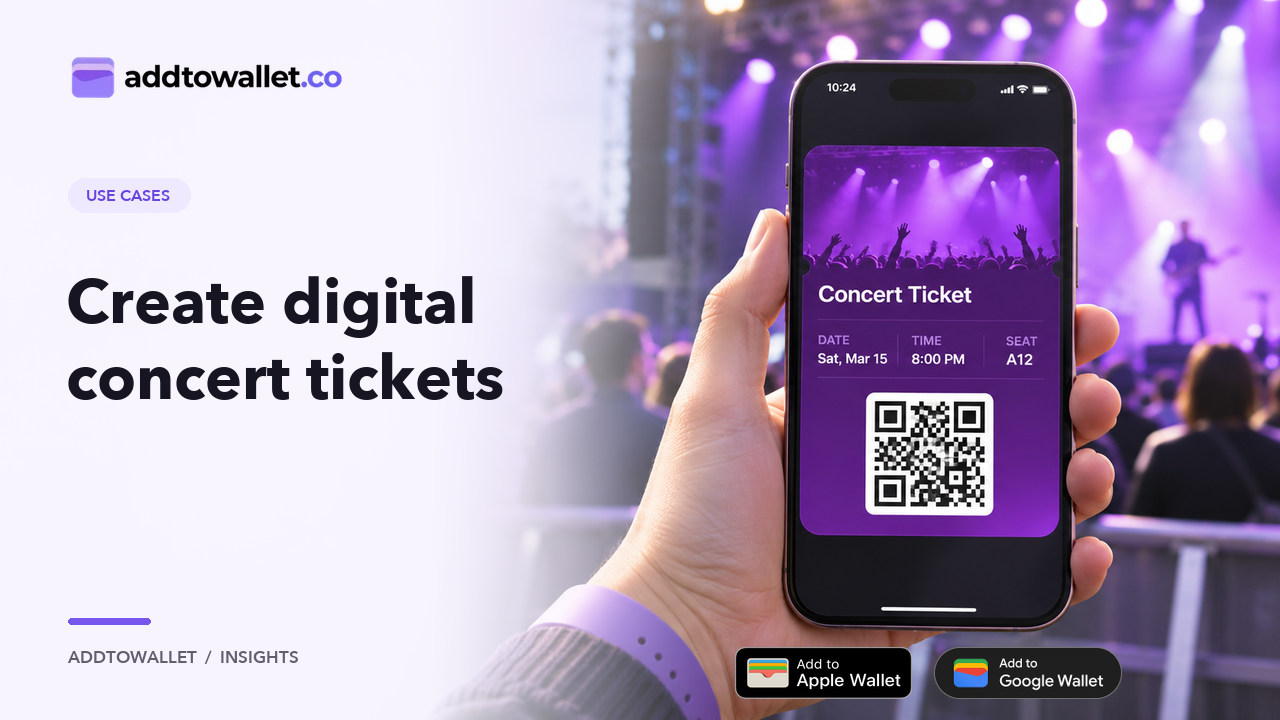
  • How-toHow to create digital Concert Tickets with AddToWallet.co
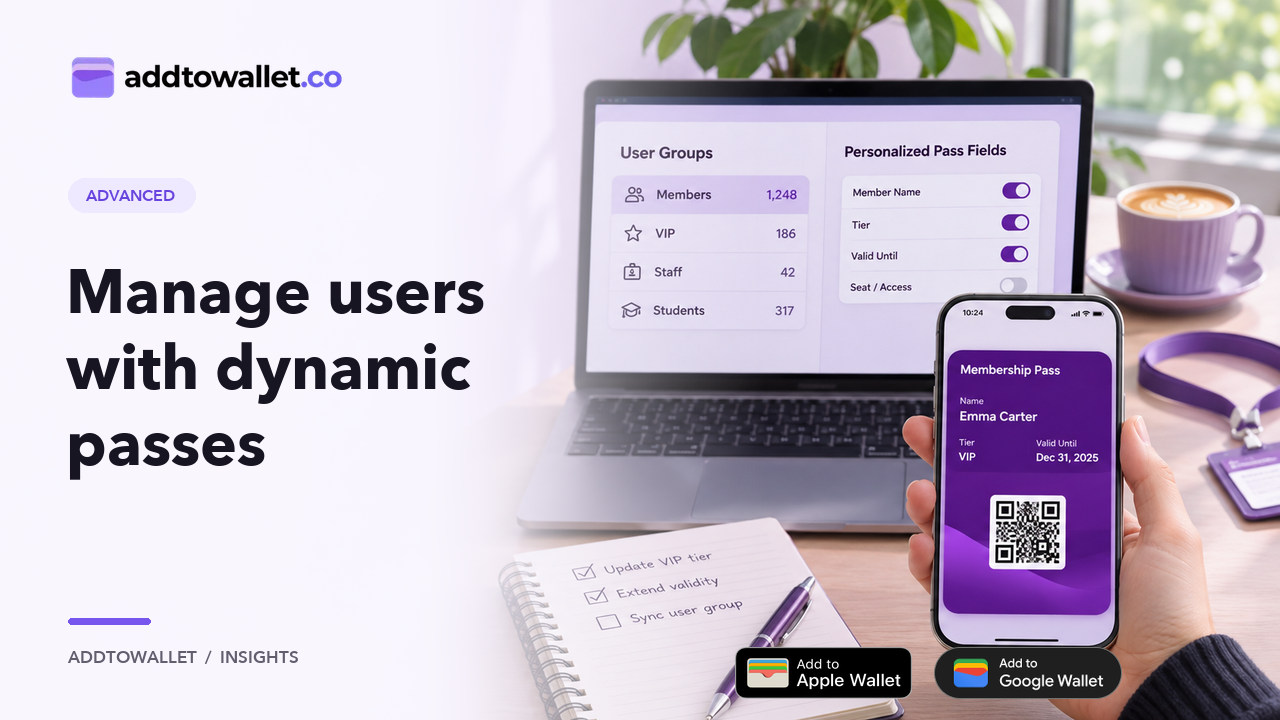
  • How-toHow to create dynamic passes and manage users in AddToWallet
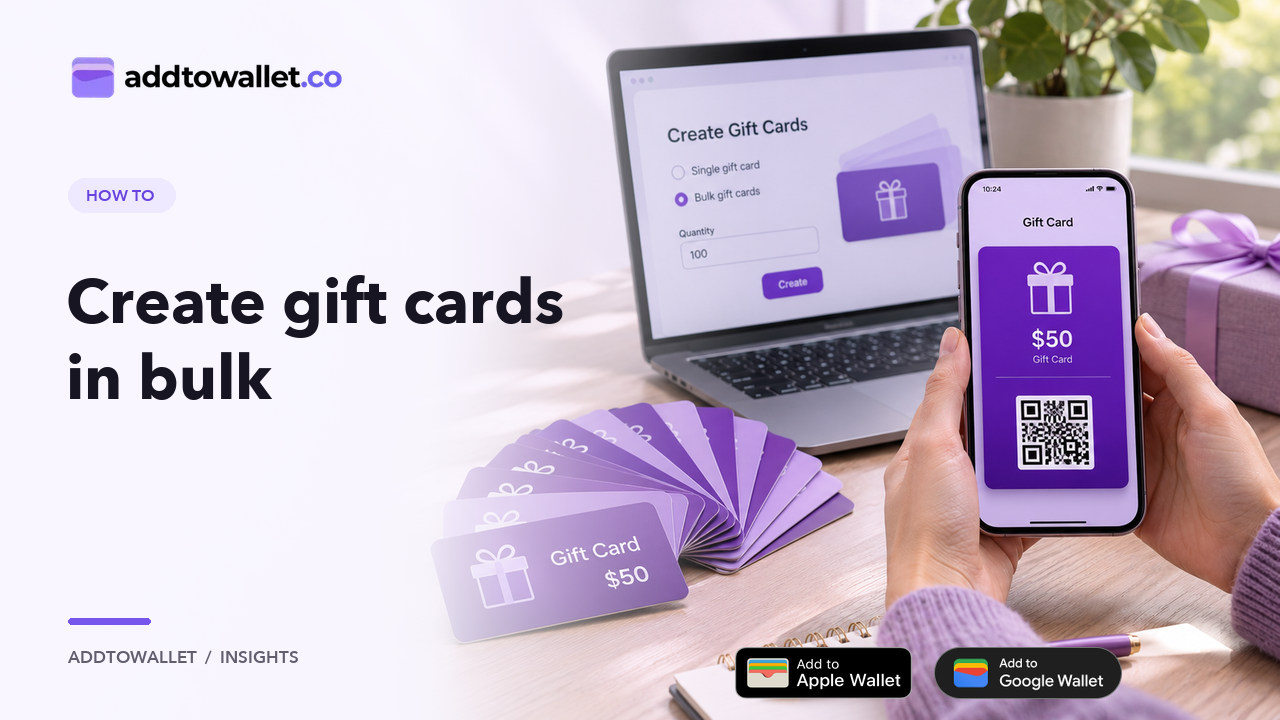
  • How-toHow To Create Gift Cards in Bulk
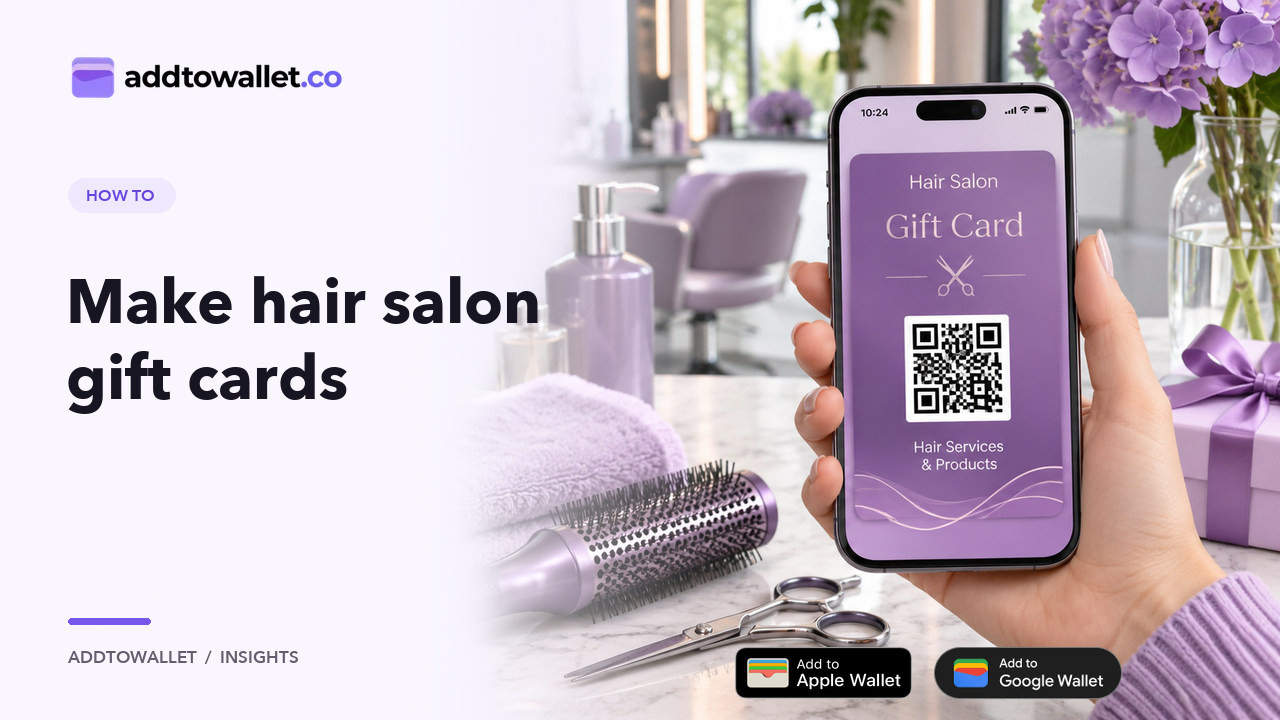
  • How-toHow to Create Hair Salon Gift Cards in Minutes
  • How-toCreate Loyalty Wallet Pass Using AddToWallet
  • How-toHow to Create Mobile Wallet Passes Using Google Sheets
  • How-toHow to Create & Scan Dynamic Wallet Passes Using AddToWallet
  • How-toHow To Distribute Google or Apple Wallet Pass
  • How-toHow to duplicate a wallet pass?
  • How-toHow to embed Google Wallet or Apple Wallet button on Shopify
  • How-toHow to embed Google wallet or Apple wallet button on Squarespace
  • How-toHow to embed Google Wallet or Apple Wallet button on Weebly
  • How-toHow to embed Google Wallet or Apple wallet button on Wix
  • How-toHow to embed Google Wallet or Apple Wallet button on WordPress
  • How-toHow to Generate JSON for Apple & Google Wallet Passes
  • How-toHow to generate leads using Google wallet or Apple wallet Pass wallet pass?
  • How-toHow to Use AddToWallet Node on N8N
  • How-toHow to integrate make.com with AddToWallet.co?
  • How-toHow to Secure Wallet Passes with Access Code Protection
  • How-toHow to Send Notifications Using Wallet Pass
  • How-toHow to Set Up Custom Domains with AddToWallet
  • How-toHow to Share Wallet Passes Using Flyers
  • How-toHow to test Apple Wallet beacons
  • How-toAddToWallet Order Pass App on Shopify
  • How-toHow to create dynamic wallet pass
  • How-toHow to Use Webhooks with AddToWallet
  • GuideOur Audience Asked for Wallet Tickets AddToWallet.co Delivered
  • GuideCreate Wallet Passes from Form Responses
  • GuideWallet Pass Generator for Google Sheets
  • GuideWallet Passes for Wedding Invitations

How-to

How to Add Sugar Calendar Tickets to Apple Wallet & Google Wallet

By AddToWallet Team·Published November 15, 2026·Updated November 5, 2026·6 min read

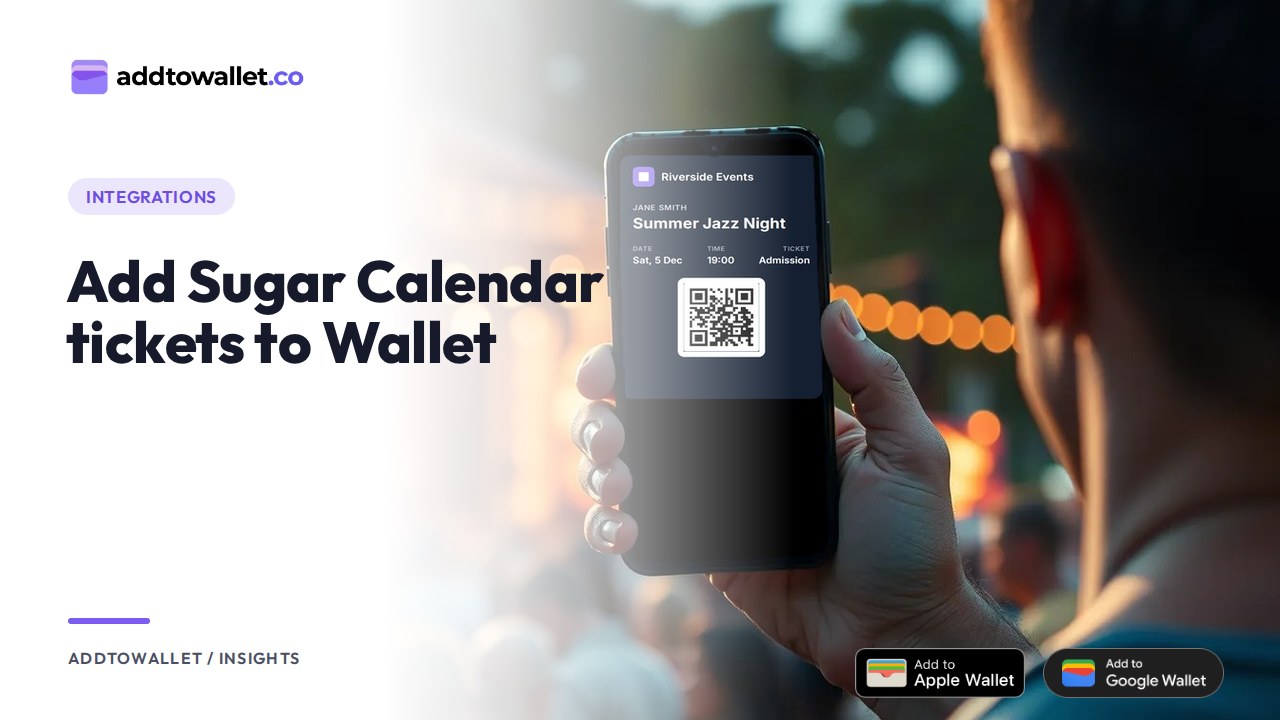
AddToWallet now lets you connect Sugar Calendar with WordPress and give attendees easy access to their tickets through Apple Wallet or Google Wallet.

With AddToWallet for Sugar Calendar, every ticket sold through Sugar Calendar can go straight into the attendee’s wallet: the event, date, time and location, with a barcode carrying Sugar Calendar’s own ticket code and a reminder before the event starts. The plugin itself is free; each pass uses one AddToWallet credit. This guide takes you from install to the first ticket in a few minutes.

What You Need

  • A WordPress site with Sugar Calendar (Lite or Pro) 3.12 or later, selling tickets, with a Payment Success Page set (Sugar Calendar › Settings › Payments). Sugar Calendar creates one when ticketing is first set up.
  • An AddToWallet account. Each pass uses one credit from your account.

1. Download the Plugin from AddToWallet

Open the Sugar Calendar connector page in your AddToWallet dashboard (Integrations › Sugar Calendar) and click Download plugin. You get a .zip file. Keep it zipped.
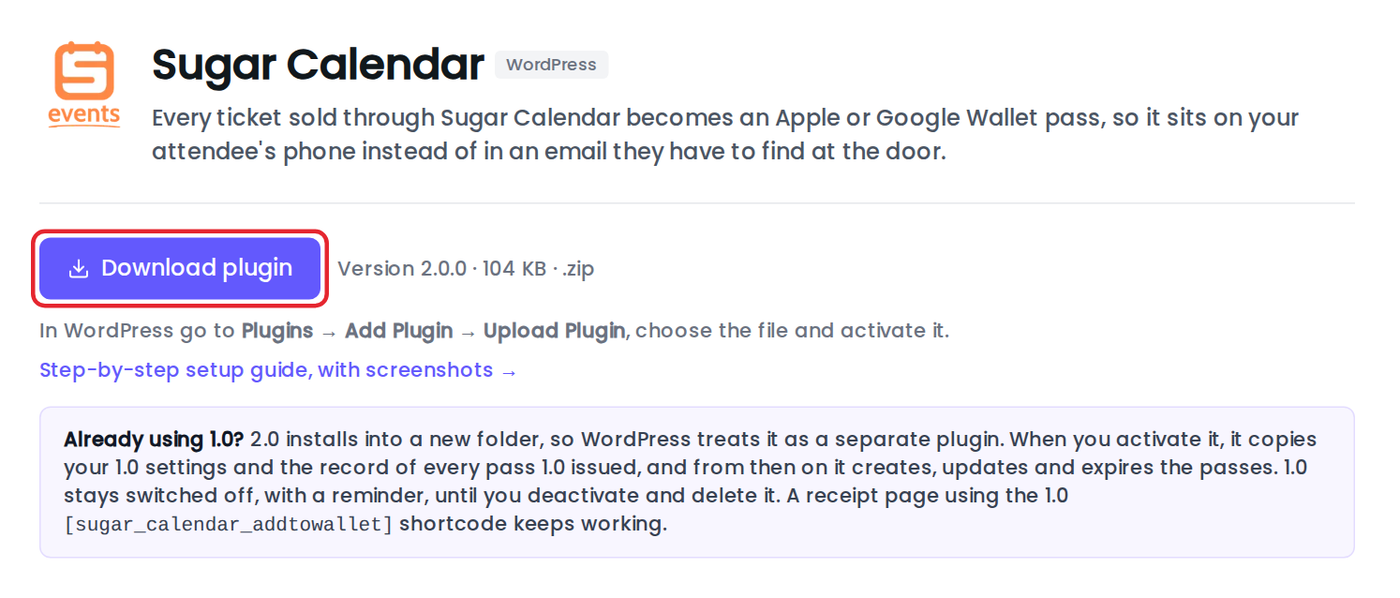
The Sugar Calendar connector page in AddToWallet with the Download plugin button

2. Upload It to WordPress

In WordPress, go to Plugins › Add Plugin and click Upload Plugin at the top. Choose the .zip you downloaded (1), click Install Now (2), then Activate Plugin.
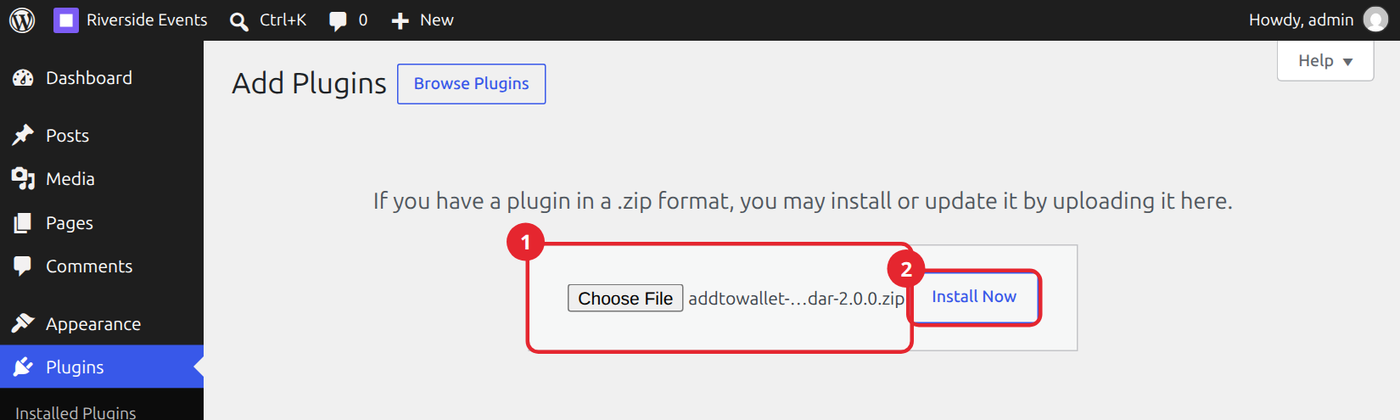
WordPress Upload Plugin screen with the AddToWallet zip chosen and the Install Now button

An AddToWallet item appears in your WordPress sidebar. Everything lives on that one screen, in four tabs: Pass design, Tickets & passes, Settings and Help.
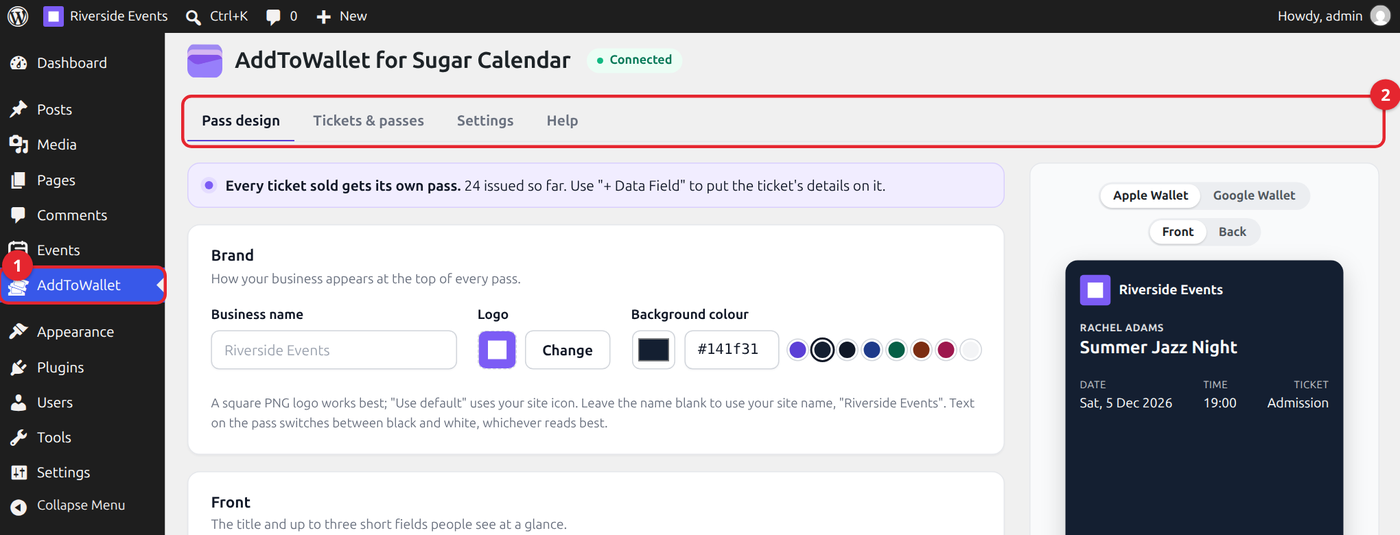
The AddToWallet menu item and the plugin’s four tabs

Using the older AddToWallet for Sugar Calendar 1.0 plugin? Version 2.0 installs into a new folder, so WordPress lists it as a separate plugin. When you activate it, it copies your settings and the record of every pass the old plugin issued, then takes over. Deactivate and delete the old plugin afterwards; until you do, it stays switched off so customers never see two sets of buttons. A receipt page that uses the old [sugar_calendar_addtowallet] shortcode keeps working.

3. Connect Your AddToWallet Account

Copy your API key from the top of the sidebar in your AddToWallet dashboard, paste it into API key and click Connect. The plugin checks the key with AddToWallet before saving it.
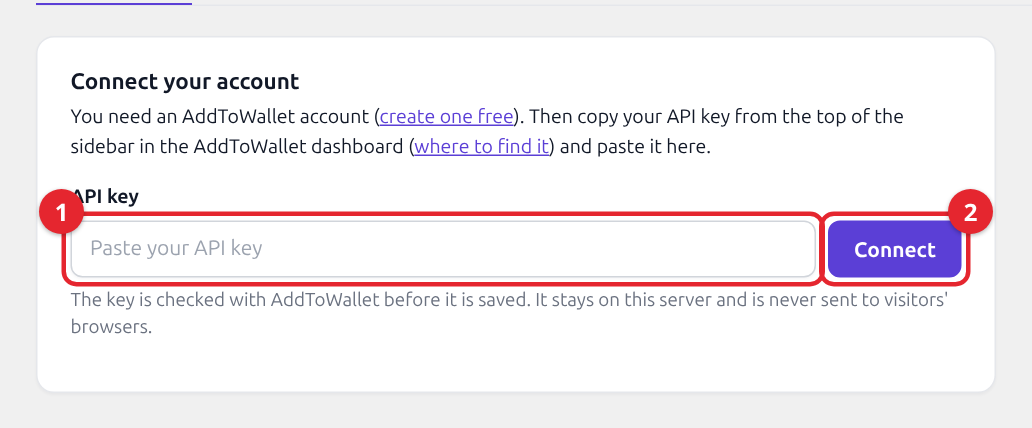
Pasting the AddToWallet API key and clicking Connect

The key stays on your server. Your visitors’ browsers never see it.

4. Design the Pass

The Pass design tab is a visual editor. Everything you change shows up straight away in the live preview on the right, filled in with your latest real ticket.
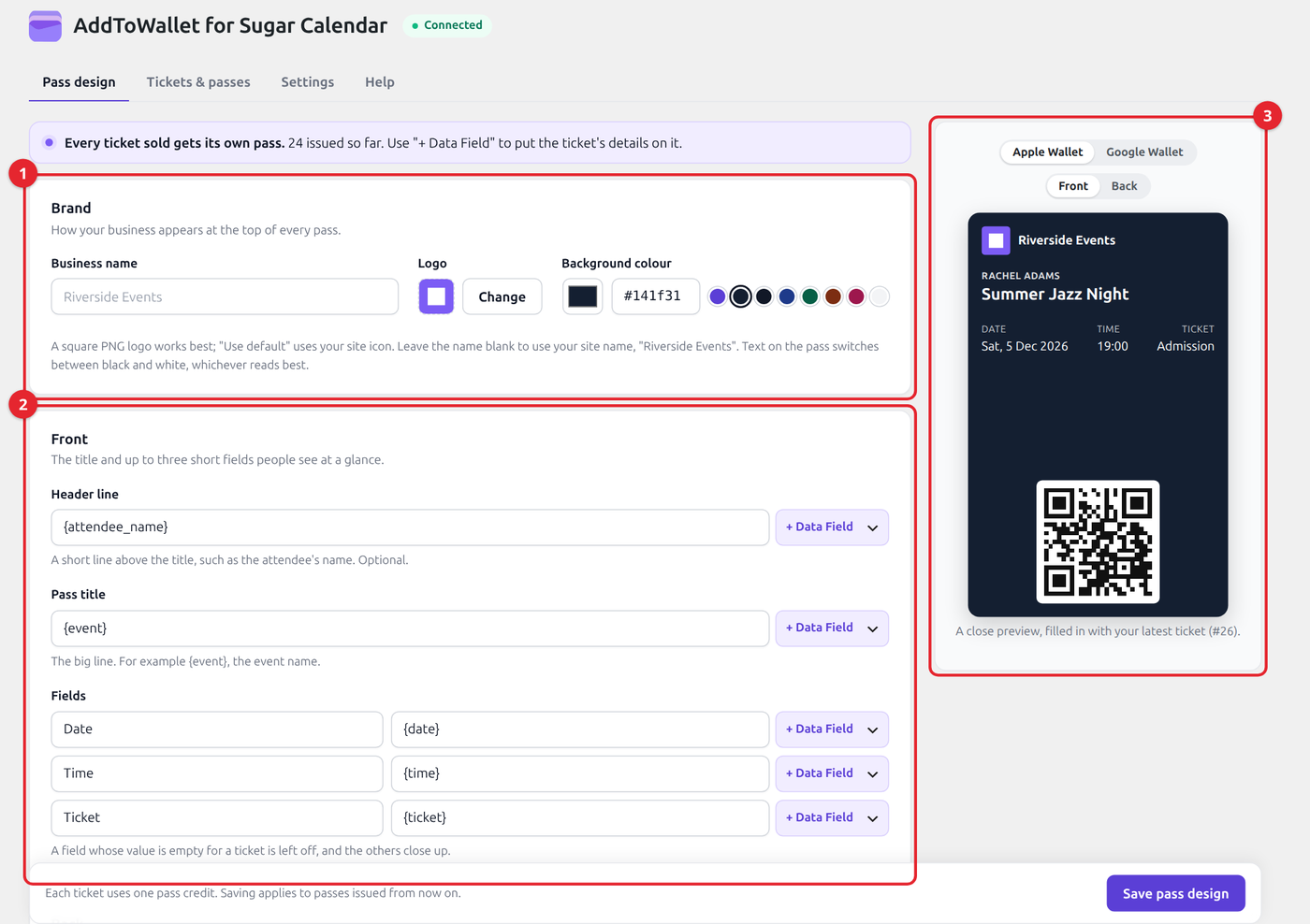
The Pass design tab: brand, front of the pass and live preview
  • Brand (1): your business name, logo and background colour. Leave the name blank to use your site name.
  • Front (2): a header line, the pass title and up to three short fields.
  • Preview (3): switch between Apple Wallet and Google Wallet, front and back.

Use + Data Field next to any line to put the ticket’s own details on the pass: the attendee’s name, the event, ticket type, date, start and end time, venue or location and its address, event page, ticket code, ticket and order numbers, the price paid and more. Each pass is filled in with that attendee’s ticket.
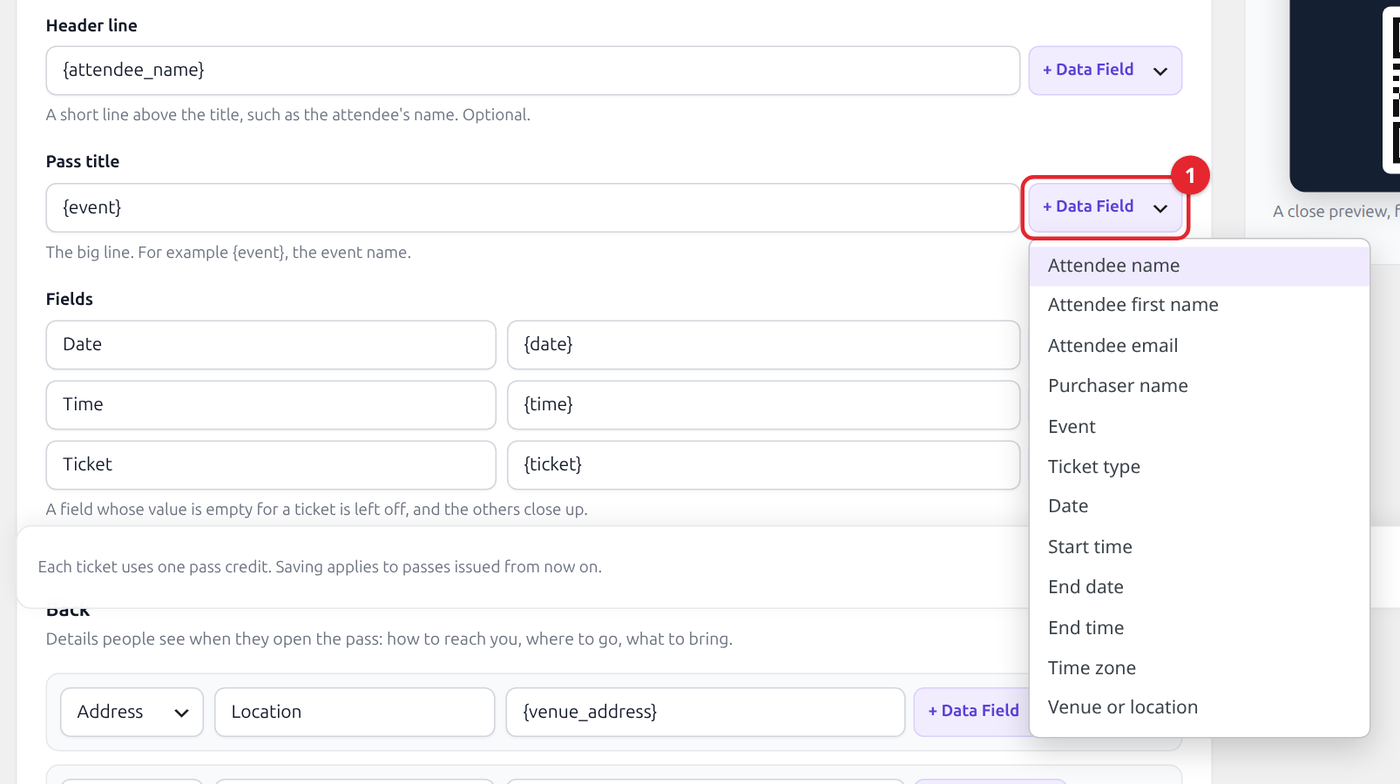
The + Data Field menu listing ticket details you can put on the pass

The Back of the pass is for the things people look up on the night. By default it shows the event location (tap it to open the map), a link to the event page, and your email address. Add or remove sections as you like.
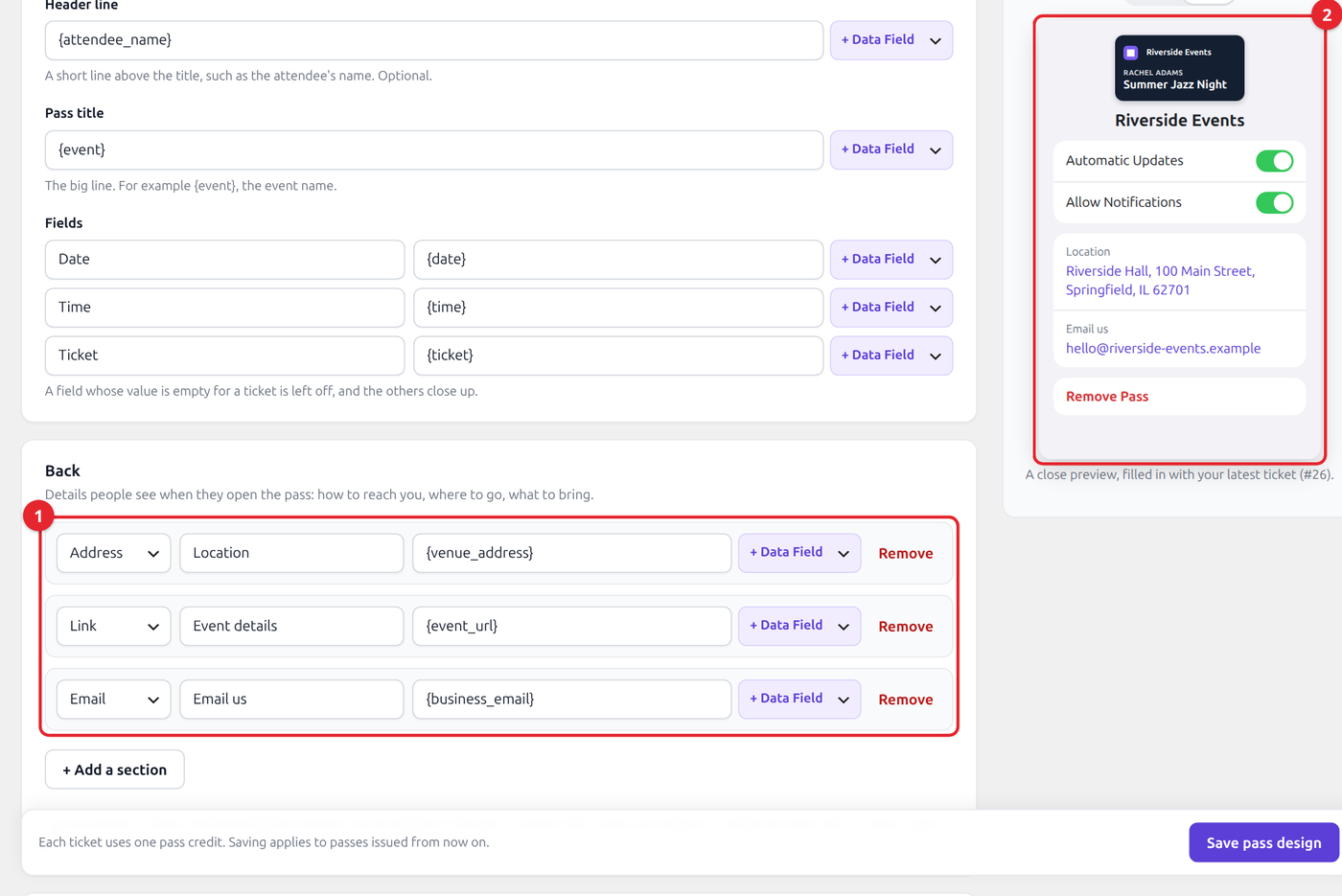
Back of the pass: location, event link and email address, with the Apple Wallet back preview

Switch the preview to Google Wallet to check how the same pass looks on Android.
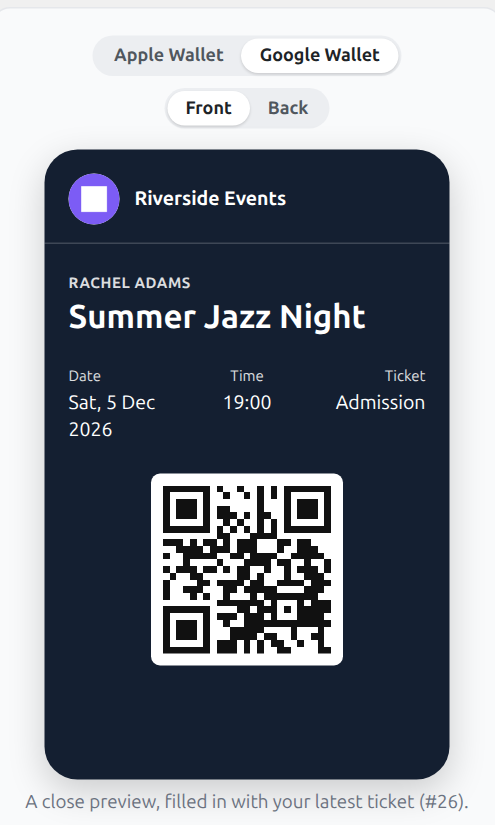
Google Wallet preview of the pass

Further down are a hero image (with a different image per event, if you like), the barcode format, and the Wallet reminder before the event. Click Save pass design when you are happy.

5. Choose Which Orders Get Passes

On the Settings tab you decide which orders get passes (1) and what expires them (2). By default, Paid orders get passes, which covers free tickets too: Sugar Calendar marks an order Paid when checkout completes. Refunded and trashed orders, trashed or deleted tickets, and deleted events expire theirs. You can also issue passes for orders you set to Pending, though they may never be paid. The same tab shows how many pass credits you have left, and warns you if Sugar Calendar has no Payment Success Page.
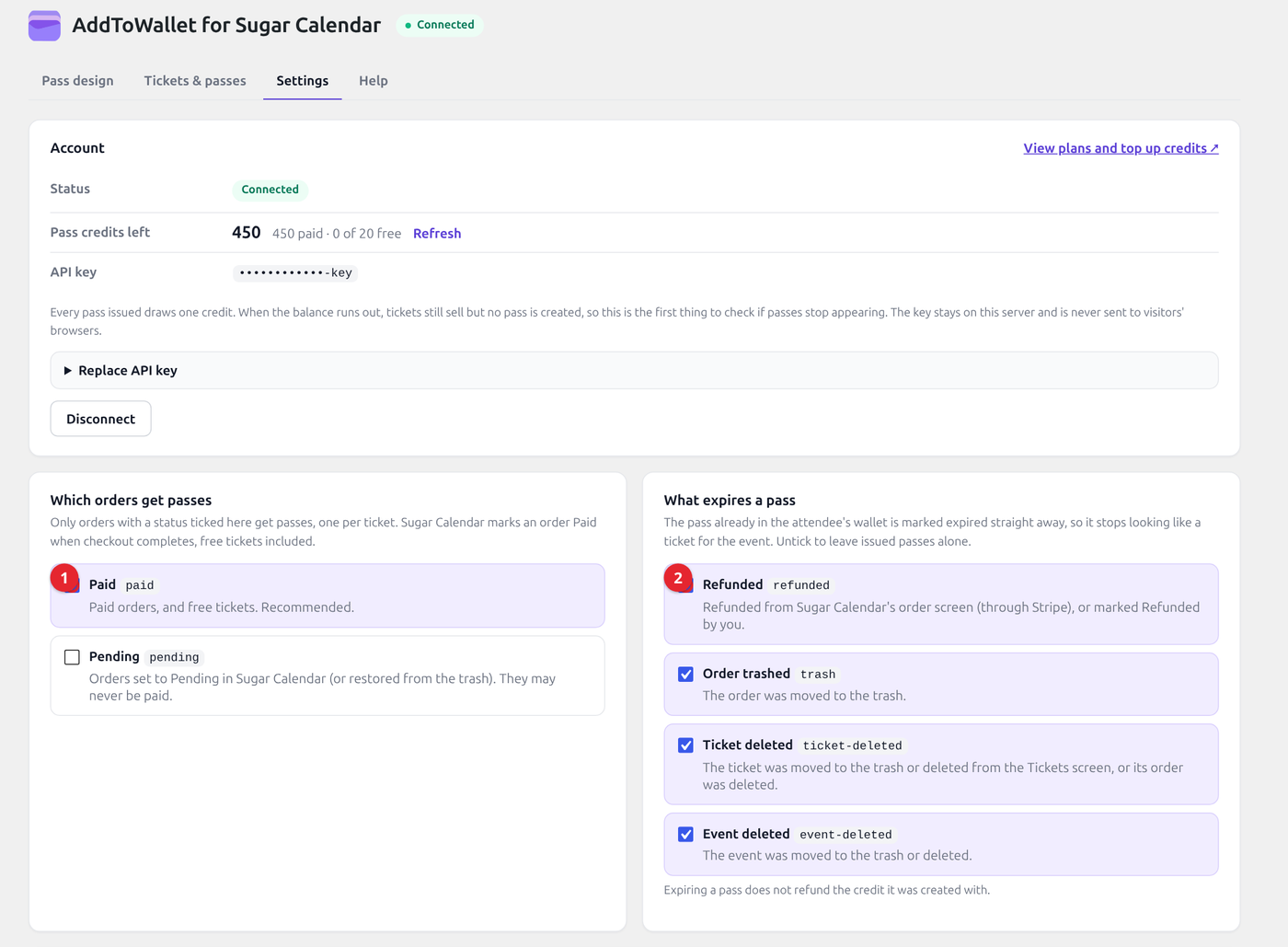
Settings: which orders get passes and what expires them, and the credit balance

6. What Your Attendees See

People buy tickets exactly as before. On Sugar Calendar’s ticket receipt, right under their order, they now get Add to Apple Wallet and Add to Google Wallet buttons. An order for several tickets gets one pass per ticket, each labelled with the attendee’s name, because each person needs their own barcode at the door.
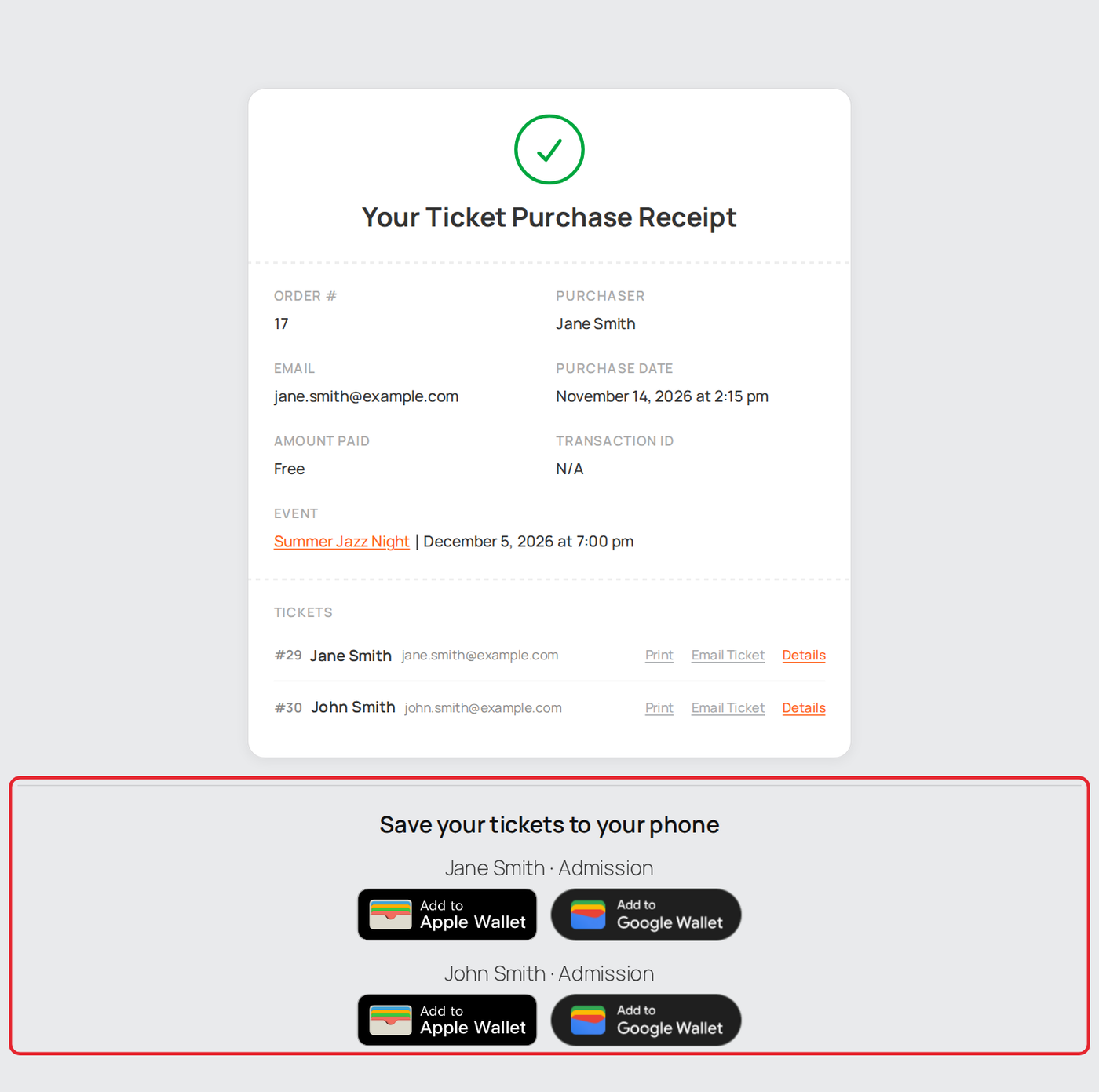
Sugar Calendar ticket receipt with Add to Apple Wallet and Add to Google Wallet buttons for each ticket

The barcode carries the ticket code Sugar Calendar prints on the ticket and in the ticket email, so staff can compare the two at the door. Reloading or sharing the receipt never creates a second pass for the same ticket. To place the buttons somewhere else on the page, use the [atw_sc_wallet_passes] shortcode.

7. Refunds, Deleted Tickets and Changes Are Handled for You

When an order is refunded or moved to the trash, when a ticket is trashed or deleted, or when the event is deleted, the pass in the attendee’s wallet is marked expired straight away. When the event moves, changes location, or anything else on the pass changes, the pass is updated to match, without using another credit. This all happens on your server, so nobody needs to have a page open.

8. Keep Track of Every Pass

The Tickets & passes tab lists every ticket with its order status and its pass: issued, updated, expired, or why one was not issued. Search by attendee name or ticket number.
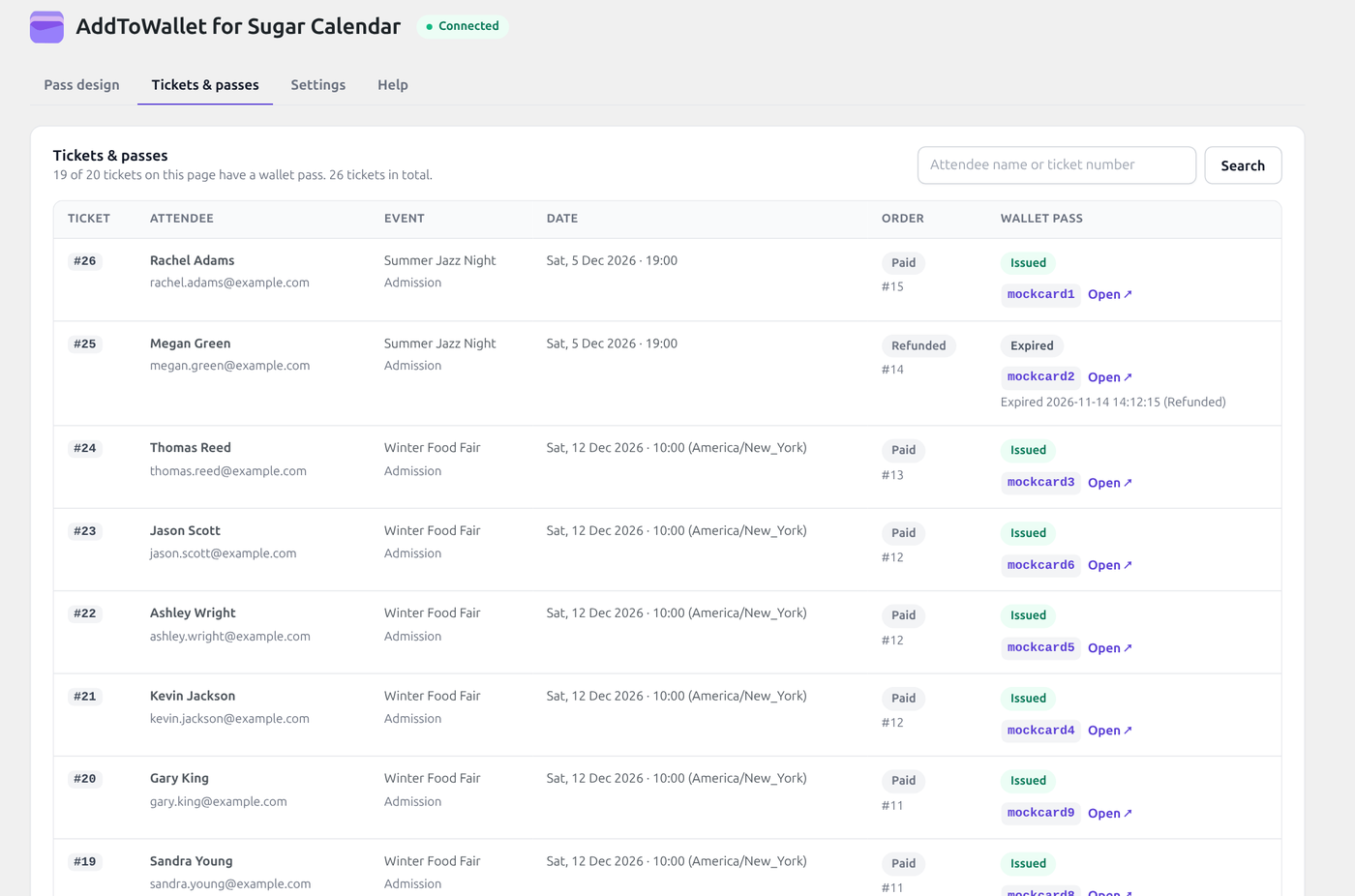
Tickets & passes: every ticket with the state of its wallet pass

Frequently Asked Questions

No buttons appear after checkout. What should I check?
Usually one of three things: Sugar Calendar has no Payment Success Page (Sugar Calendar › Settings › Payments), so buyers never see a receipt; you are out of credits; or the order has a status you do not issue passes for. The Tickets & passes tab shows which one it is.

The buttons are missing on an old receipt link.
Sugar Calendar’s receipt links last 72 hours. After that it emails the buyer a fresh link, and the buttons work there.

Do RSVPs get a pass?
Not yet. Passes are issued for tickets, free or paid.

Does expiring a pass refund the credit?
No. Each pass uses one credit when it is created; updates and expiry are free.

That’s it. Download the plugin, connect your account, and every ticket you sell can live in your attendees’ wallets.

Get AddToWallet for Sugar Calendar

All guides

  • Guide10 reasons why incorporating Mobile Wallet Passes into your mobile strategy is essential
  • Guide5 Reasons why your store needs a wallet pass
  • GuideAdvantages of using Google and Apple wallet pass in businesses
  • GuideBest practices to design an amazing wallet pass
  • GuideBoost Engagement with Interactive Wallet Passes in Magazines
  • GuideConvert Pdf To Pass Using AddToWallet
  • GuideCreate Apple wallet pass for free
  • GuideCreate Apple Wallet passes for Your Business
  • GuideCreate Google wallet pass for free
  • GuideCreating Apple and Google Wallet Passes
  • GuideCreate Wallet Passes with the AddToWallet Zapier Integration
  • GuideDifferences between Apple and Google wallet
  • GuideEnhance audience interaction with wallet passes in Newspapers
  • GuideHidden Form Fields: Dynamic Expiry for Wallet Passes
  • GuideHow Google and Apple Wallet Pass Works
  • How-toHow to Add Amelia Booking Passes to Apple Wallet & Google Wallet
  • How-toHow to Add an Add to Wallet Button to Your Website
  • How-toHow to Add an Apple Wallet Button Easily
  • How-toHow to Add Bookly Booking Passes to Apple Wallet & Google Wallet
  • How-toHow to Add Location to Wallet Passes
  • How-toHow to Add Team Members to Your Account
  • How-toHow to Add Simply Schedule Appointments Bookings to Apple Wallet & Google Wallet
  • How-toHow to Add The Events Calendar Tickets to Apple Wallet & Google Wallet
  • How-toHow to Add LatePoint Appointments to Apple Wallet & Google Wallet
  • How-toHow to Add Sugar Calendar Tickets to Apple Wallet & Google Wallet
  • How-toHow to configure notifications for Apple & Google wallet passes
  • How-toHow to create a business pass for Apple and Google wallet
  • How-toHow to Create a wallet pass?
  • How-toHow to create a wallet pass using Zapier Integration?
  • How-toHow to create digital Concert Tickets with AddToWallet.co
  • How-toHow to create dynamic passes and manage users in AddToWallet
  • How-toHow To Create Gift Cards in Bulk
  • How-toHow to Create Hair Salon Gift Cards in Minutes
  • How-toCreate Loyalty Wallet Pass Using AddToWallet
  • How-toHow to Create Mobile Wallet Passes Using Google Sheets
  • How-toHow to Create & Scan Dynamic Wallet Passes Using AddToWallet
  • How-toHow To Distribute Google or Apple Wallet Pass
  • How-toHow to duplicate a wallet pass?
  • How-toHow to embed Google Wallet or Apple Wallet button on Shopify
  • How-toHow to embed Google wallet or Apple wallet button on Squarespace
  • How-toHow to embed Google Wallet or Apple Wallet button on Weebly
  • How-toHow to embed Google Wallet or Apple wallet button on Wix
  • How-toHow to embed Google Wallet or Apple Wallet button on WordPress
  • How-toHow to Generate JSON for Apple & Google Wallet Passes
  • How-toHow to generate leads using Google wallet or Apple wallet Pass wallet pass?
  • How-toHow to Use AddToWallet Node on N8N
  • How-toHow to integrate make.com with AddToWallet.co?
  • How-toHow to Secure Wallet Passes with Access Code Protection
  • How-toHow to Send Notifications Using Wallet Pass
  • How-toHow to Set Up Custom Domains with AddToWallet
  • How-toHow to Share Wallet Passes Using Flyers
  • How-toHow to test Apple Wallet beacons
  • How-toAddToWallet Order Pass App on Shopify
  • How-toHow to create dynamic wallet pass
  • How-toHow to Use Webhooks with AddToWallet
  • GuideOur Audience Asked for Wallet Tickets AddToWallet.co Delivered
  • GuideCreate Wallet Passes from Form Responses
  • GuideWallet Pass Generator for Google Sheets
  • GuideWallet Passes for Wedding Invitations
addtowallet.co

AddToWallet is a Mobile Wallet Pass creator to design custom Apple & Google Wallet passes for coupons, deals, gift cards, and loyalty cards.

Use Cases

  • Insurance
  • Fund raising
  • Fan-clubs
  • Restaurant
  • Higher Education

Solutions

  • Loyalty Pass
  • Coupons
  • Gift Cards
  • Event Tickets
  • Google Wallet
  • WalletPassBuilder

Company

  • FAQs
  • Blog
  • Product Updates
  • Privacy policy
  • Terms & conditions
  • Trust Center
© 2026 Hazelnut Ventures LLC