






































How-to
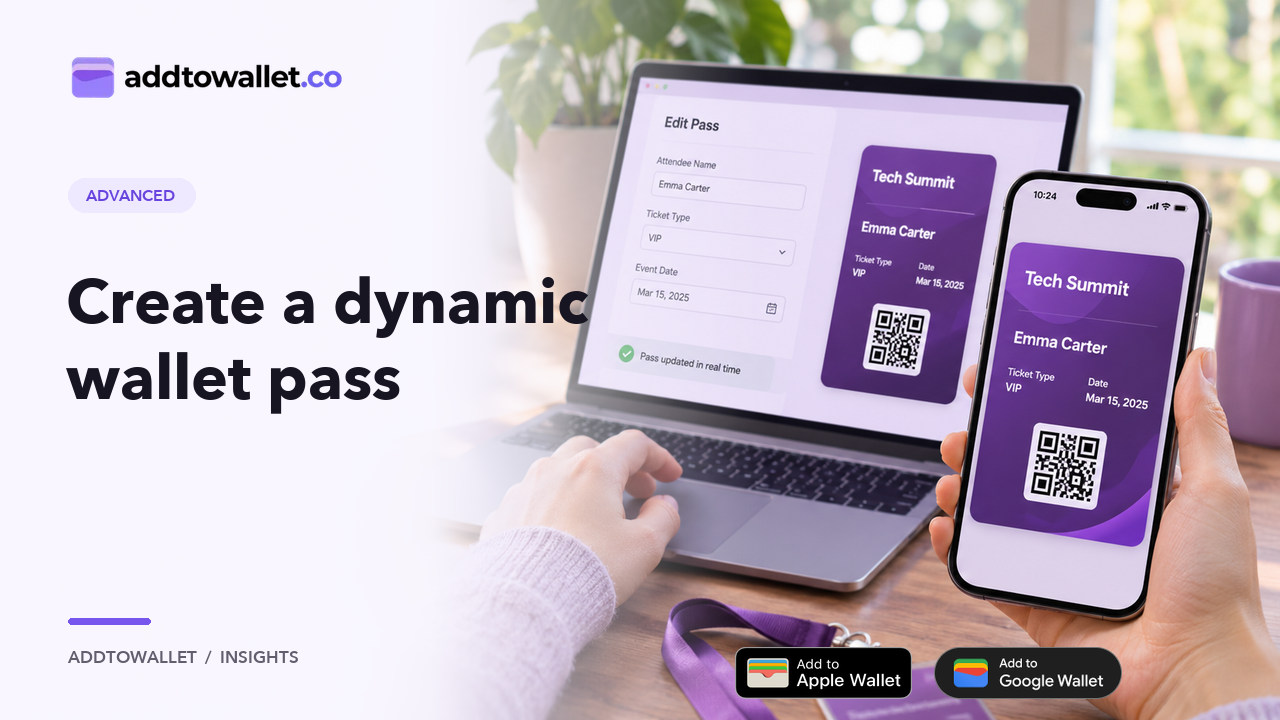
How to create dynamic wallet pass
By AddToWallet TeamPublished Updated 2 min read
How to enter dynamic mode?
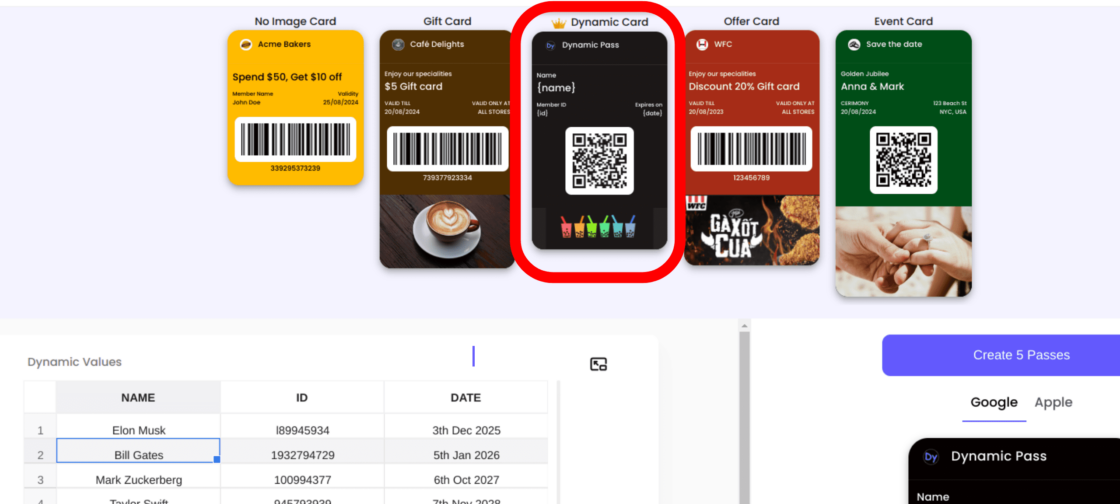
- Click on the dynamic card in the templates . this action will reveal an editable grid at the top of the form.
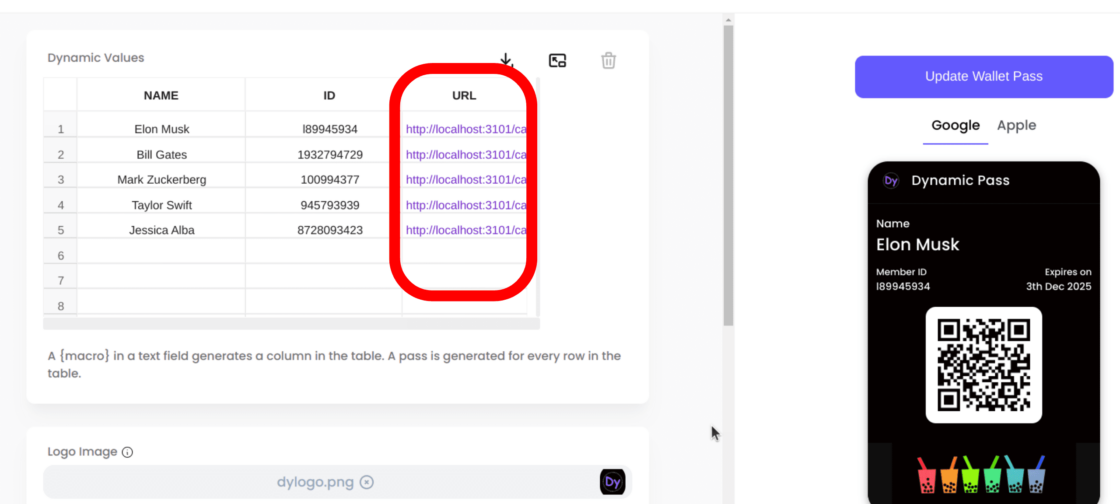
- The rows are pre-filled with sample data you can click on each row to preview the card with the macros contained within
- A {macro} in a text field generates a column in the table. A pass is generated for every row in the table.
01
Dynamic Mode
How to edit dynamic grid?
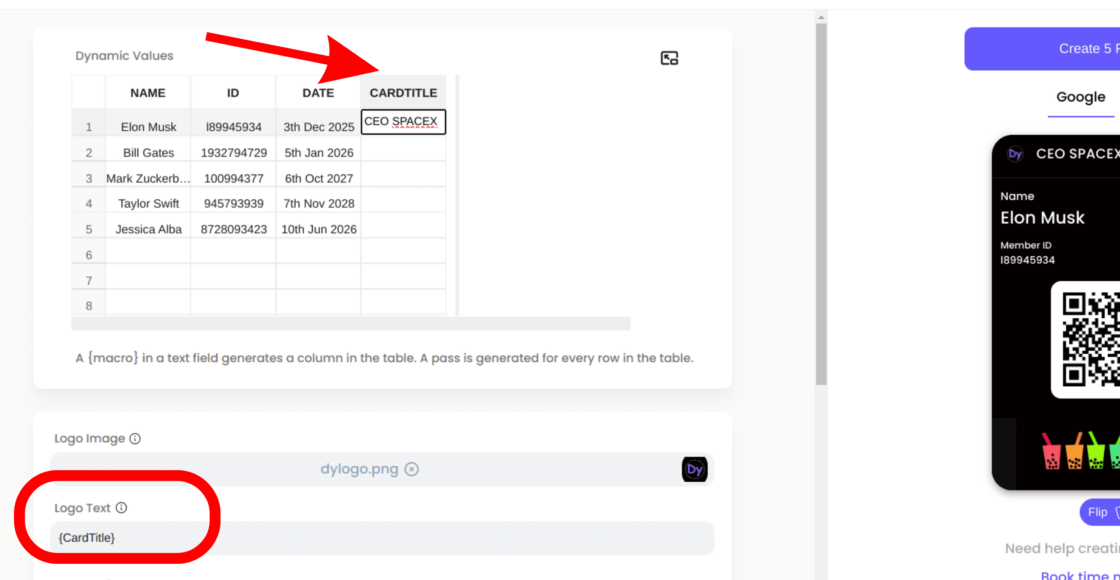
- A {macro} in a text field generates a column in the table. A pass is generated for every row in the table.
- To remove a column from the grid simply remove the {macro} from the from the text field in the form below.
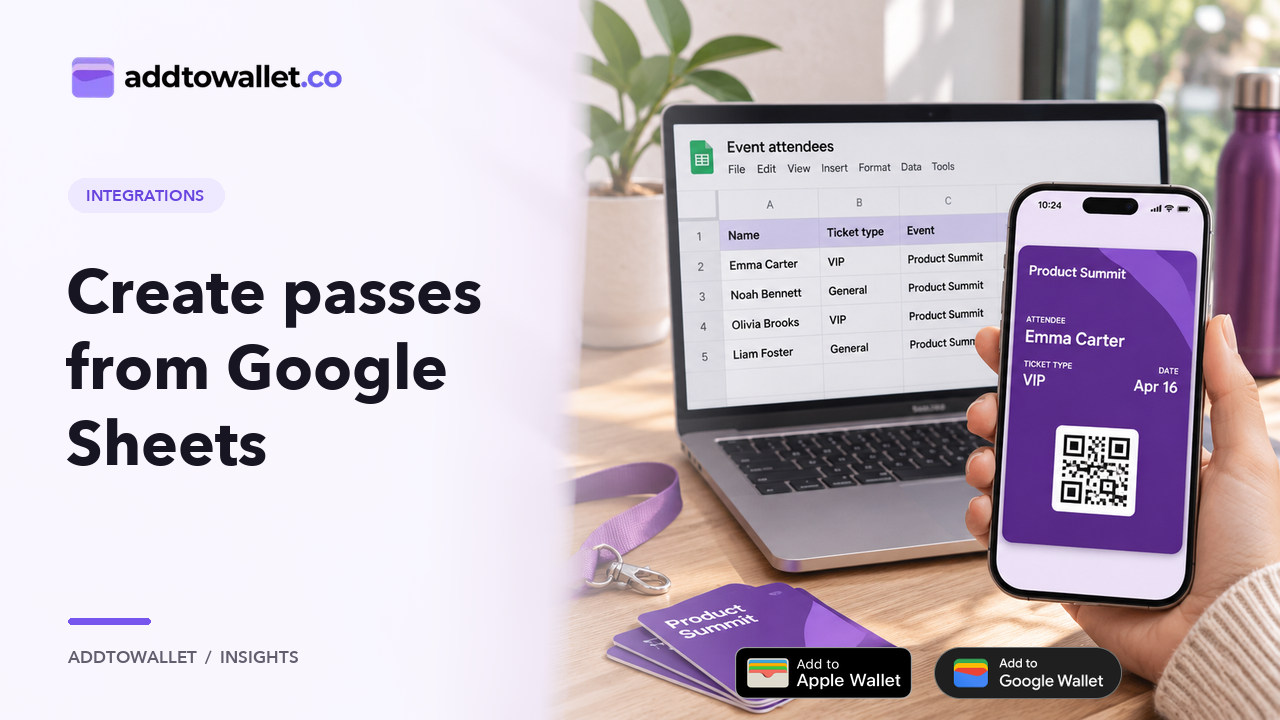
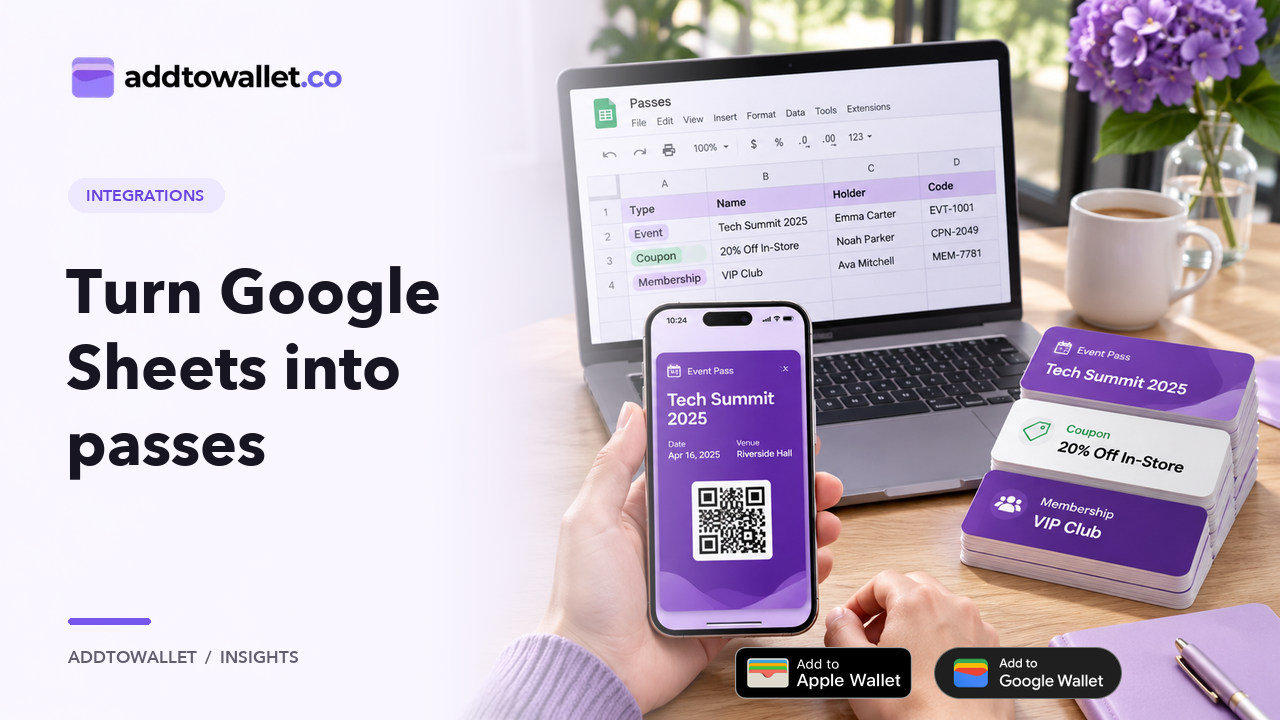
- You can click on individual cell to edit its data and save it by pressing enter or you can just copy paste the data from a spreadsheet into the grid.
- Click on expand table to view the grid in full screen mode.
02
Edit
How to generate/update dynamic wallet pass?
- Click on create passes to create all passes in one go. URLs for each pass is generated
- You can click on export button to export data in the grid in the form of a CSV file .
- To delete all passes in the grid click on the delete button
- After making edits suitable to your needs . Click on the update wallet Pass Button.
03
generate/update