addtowallet.co
Create PassFeaturesPricingAPIBlog
Sign InGet Started Free
All guides▾
  • Guide10 reasons why incorporating Mobile Wallet Passes into your mobile strategy is essential
  • Guide5 Reasons why your store needs a wallet pass
  • GuideAdvantages of using Google and Apple wallet pass in businesses
  • GuideBest practices to design an amazing wallet pass
  • GuideBoost Engagement with Interactive Wallet Passes in Magazines
  • GuideConvert Pdf To Pass Using AddToWallet
  • GuideCreate Apple wallet pass for free
  • GuideCreate Apple Wallet passes for Your Business
  • GuideCreate Google wallet pass for free
  • GuideCreating Apple and Google Wallet Passes
  • GuideCreate Wallet Passes with the AddToWallet Zapier Integration
  • GuideDifferences between Apple and Google wallet
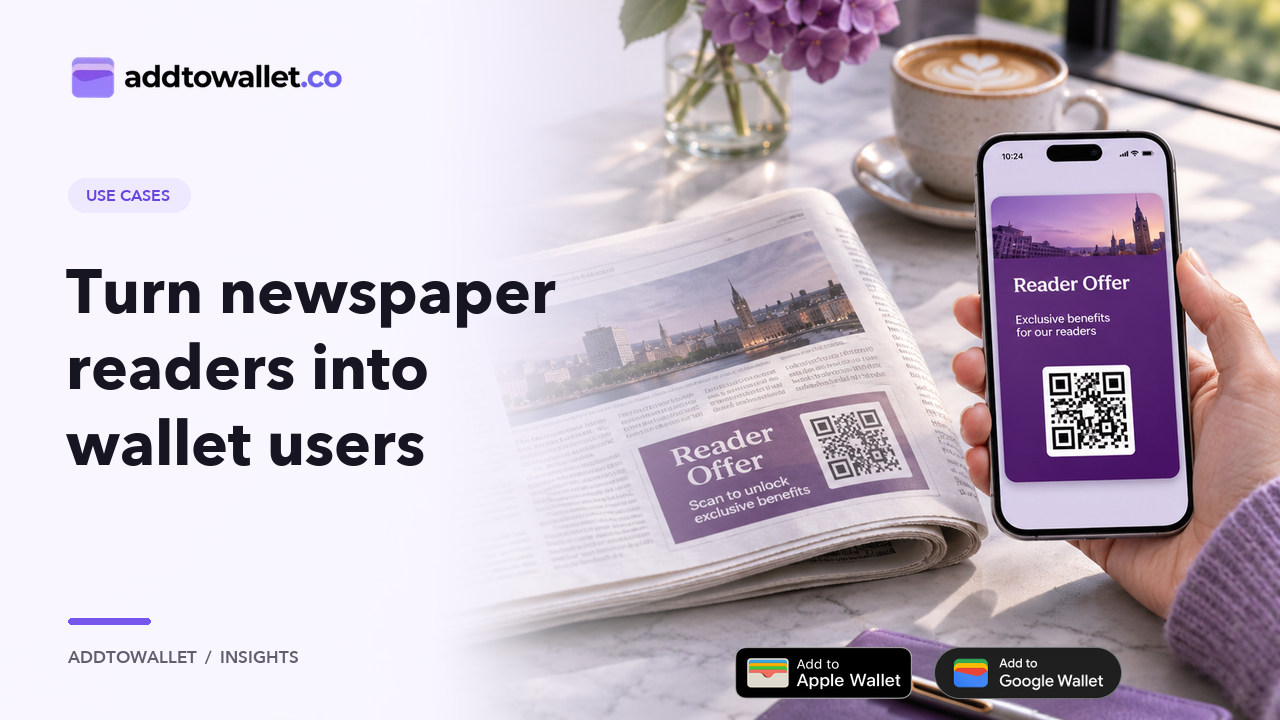
  • GuideEnhance audience interaction with wallet passes in Newspapers
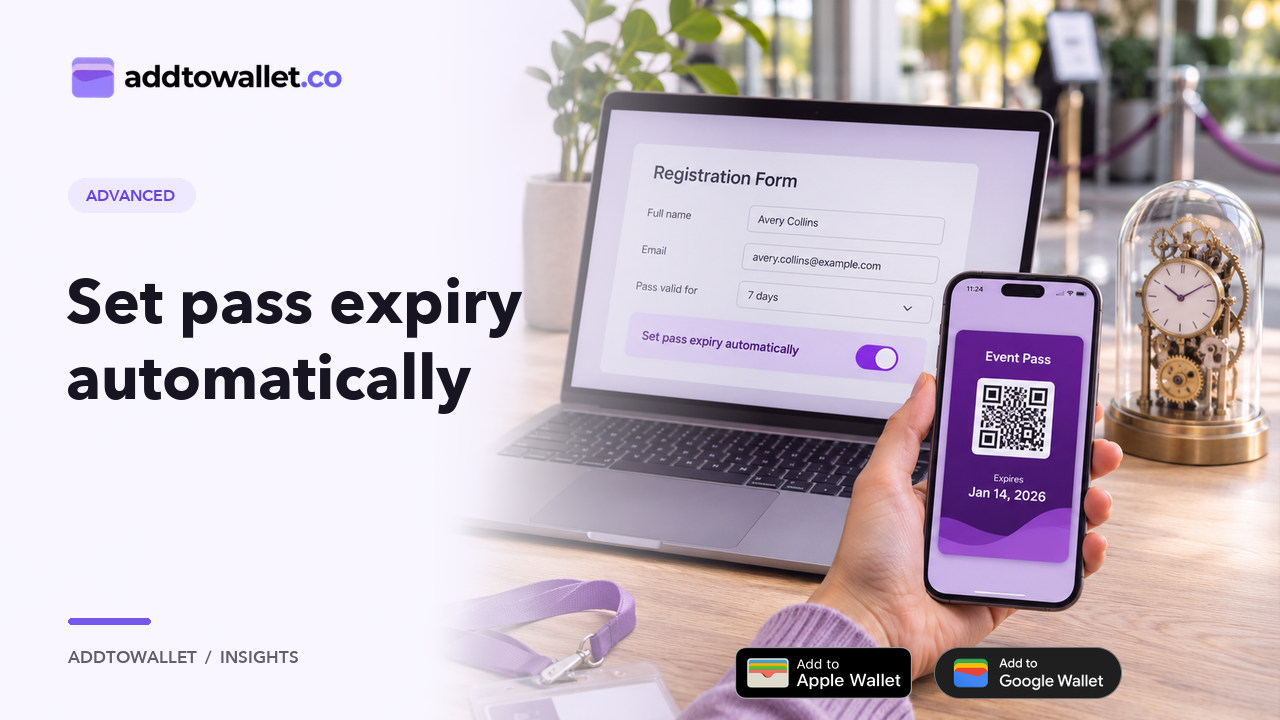
  • GuideHidden Form Fields: Dynamic Expiry for Wallet Passes
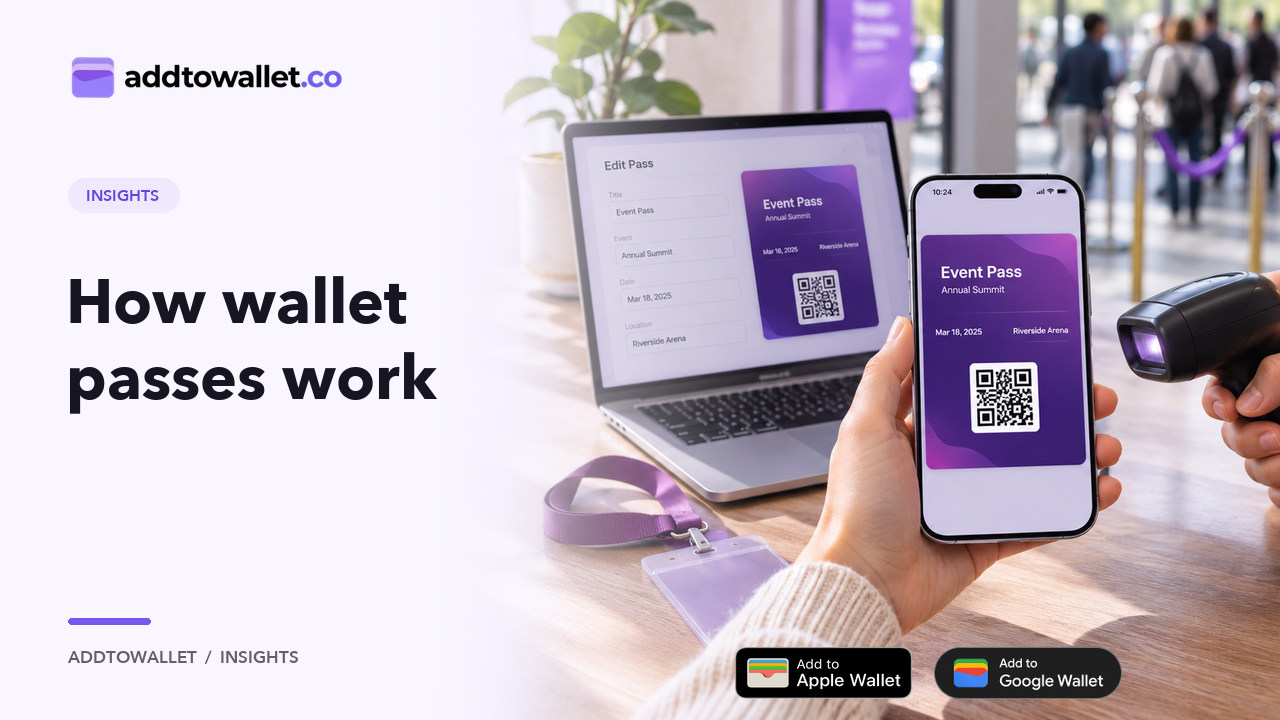
  • GuideHow Google and Apple Wallet Pass Works
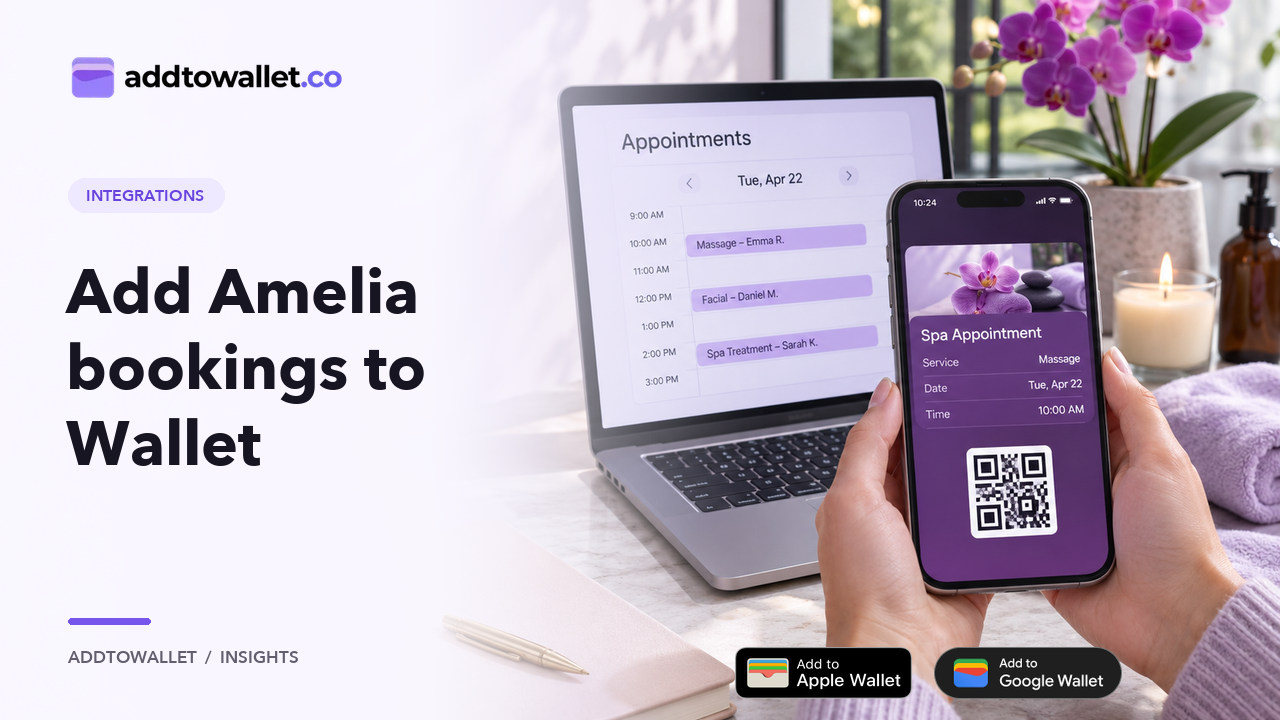
  • How-toHow to Add Amelia Booking Passes to Apple Wallet & Google Wallet
  • How-toHow to Add an Add to Wallet Button to Your Website
  • How-toHow to Add an Apple Wallet Button Easily
  • How-toHow to Add Bookly Booking Passes to Apple Wallet & Google Wallet
  • How-toHow to Add Location to Wallet Passes
  • How-toHow to Add Team Members to Your Account
  • How-toHow to Add Simply Schedule Appointments Bookings to Apple Wallet & Google Wallet
  • How-toHow to Add The Events Calendar Tickets to Apple Wallet & Google Wallet
  • How-toHow to Add LatePoint Appointments to Apple Wallet & Google Wallet
  • How-toHow to Add Sugar Calendar Tickets to Apple Wallet & Google Wallet
  • How-toHow to configure notifications for Apple & Google wallet passes
  • How-toHow to create a business pass for Apple and Google wallet
  • How-toHow to Create a wallet pass?
  • How-toHow to create a wallet pass using Zapier Integration?
  • How-toHow to create digital Concert Tickets with AddToWallet.co
  • How-toHow to create dynamic passes and manage users in AddToWallet
  • How-toHow To Create Gift Cards in Bulk
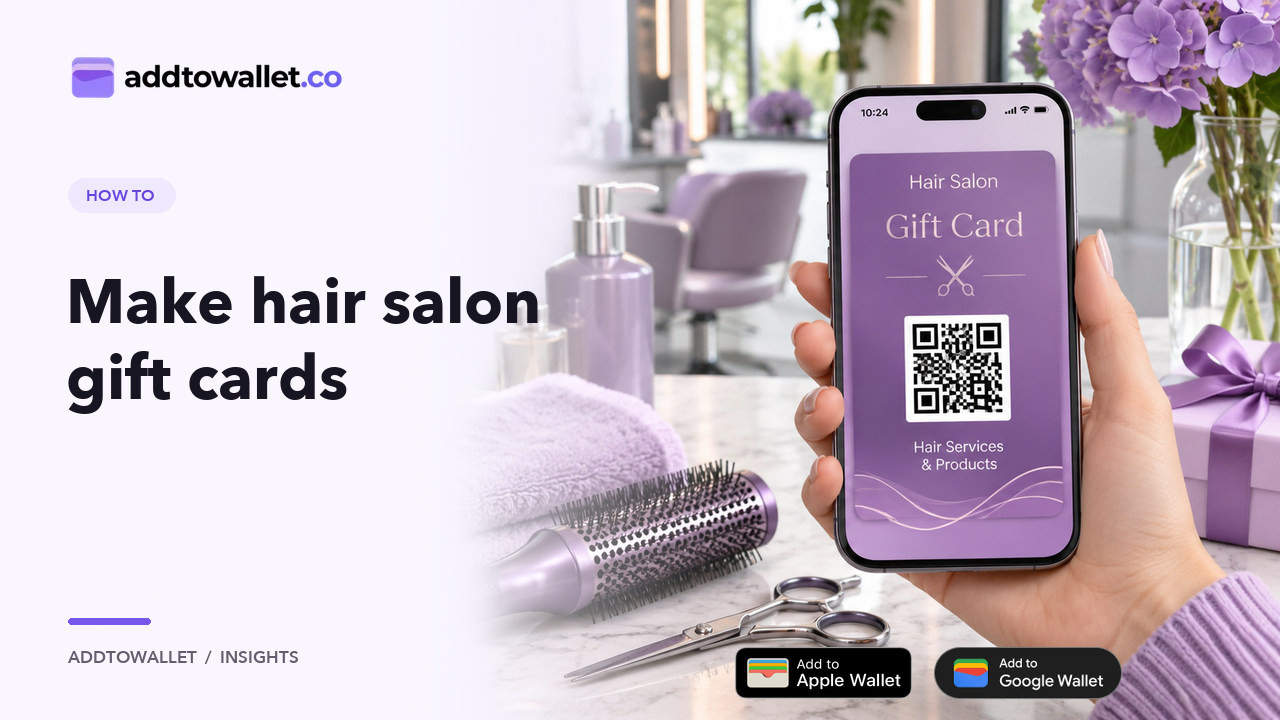
  • How-toHow to Create Hair Salon Gift Cards in Minutes
  • How-toCreate Loyalty Wallet Pass Using AddToWallet
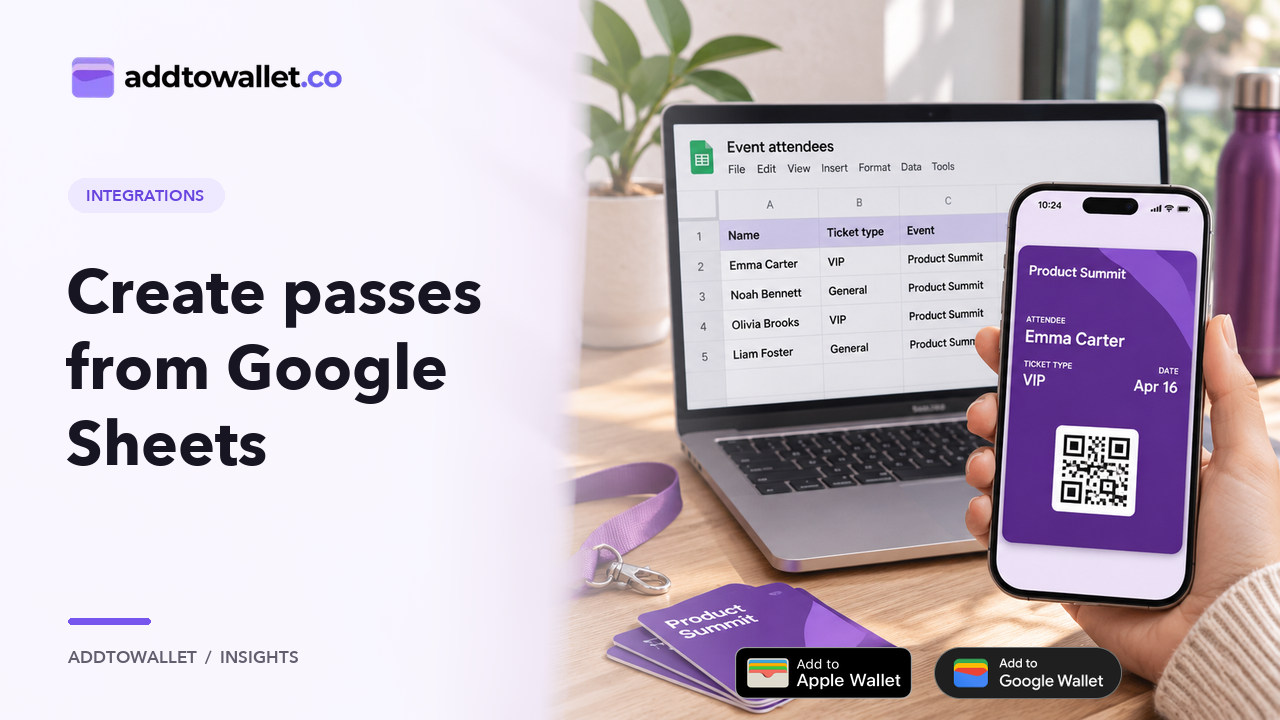
  • How-toHow to Create Mobile Wallet Passes Using Google Sheets
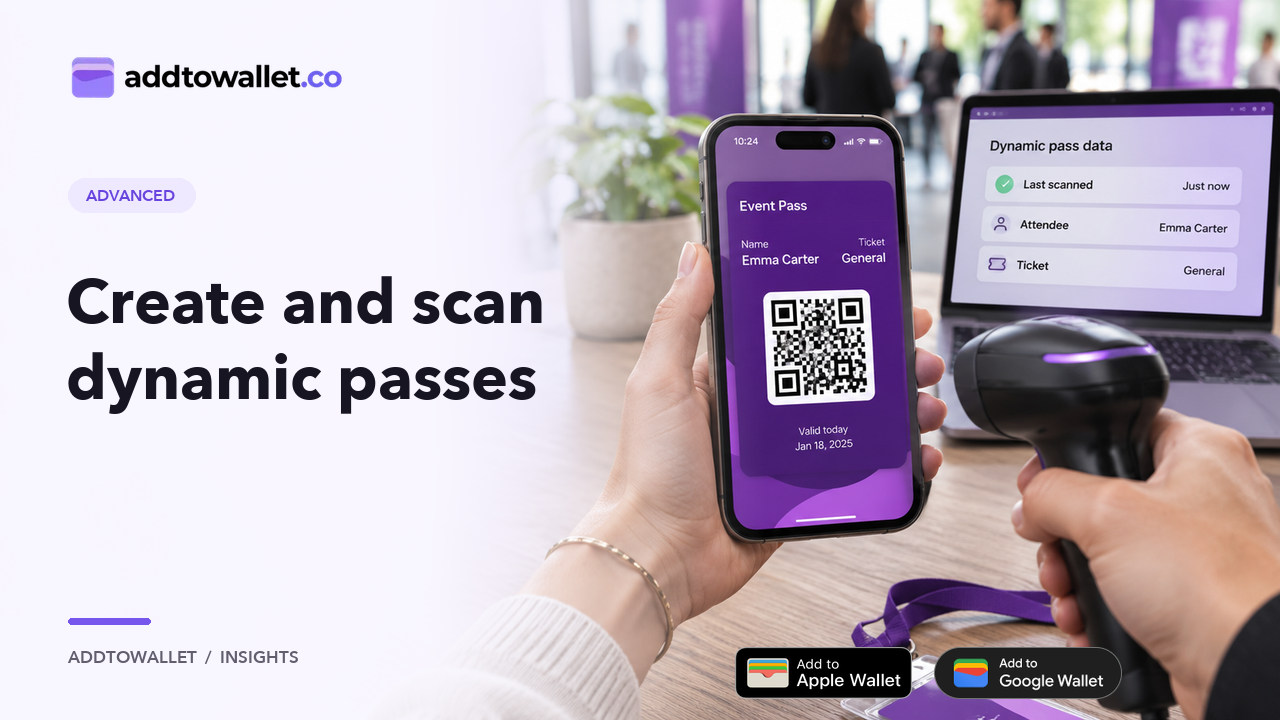
  • How-toHow to Create & Scan Dynamic Wallet Passes Using AddToWallet
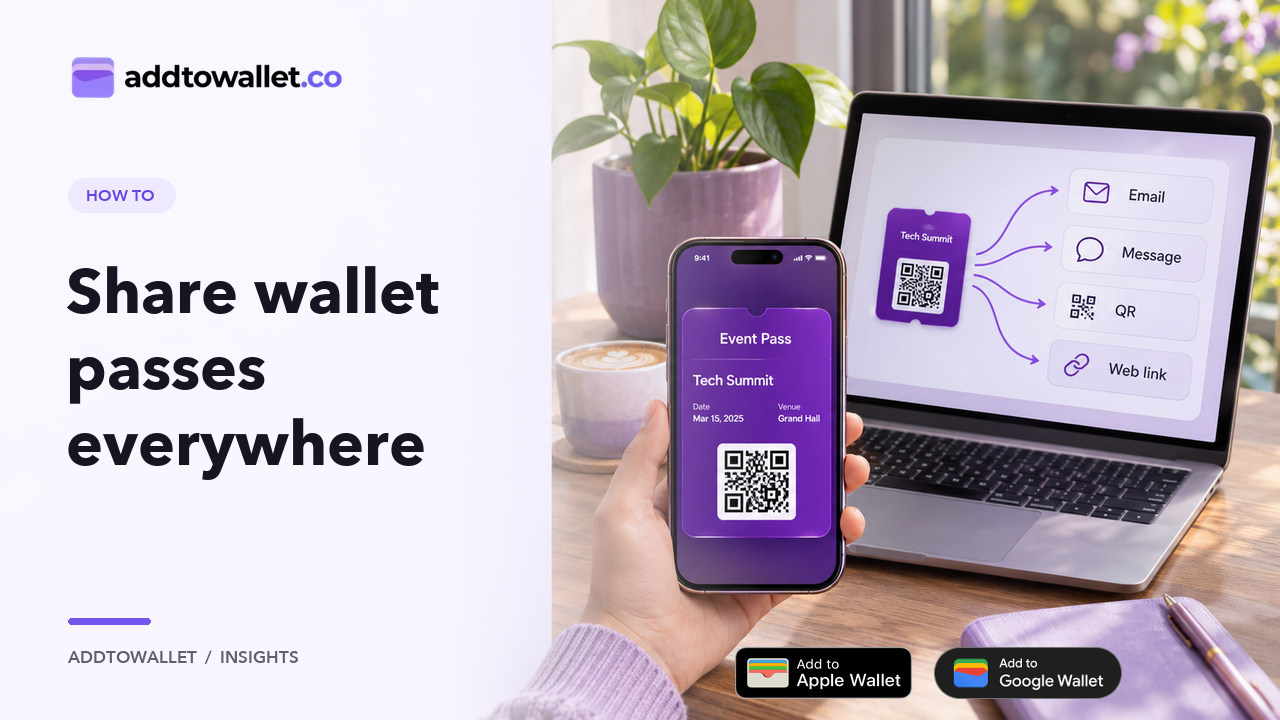
  • How-toHow To Distribute Google or Apple Wallet Pass
  • How-toHow to duplicate a wallet pass?
  • How-toHow to embed Google Wallet or Apple Wallet button on Shopify
  • How-toHow to embed Google wallet or Apple wallet button on Squarespace
  • How-toHow to embed Google Wallet or Apple Wallet button on Weebly
  • How-toHow to embed Google Wallet or Apple wallet button on Wix
  • How-toHow to embed Google Wallet or Apple Wallet button on WordPress
  • How-toHow to Generate JSON for Apple & Google Wallet Passes
  • How-toHow to generate leads using Google wallet or Apple wallet Pass wallet pass?
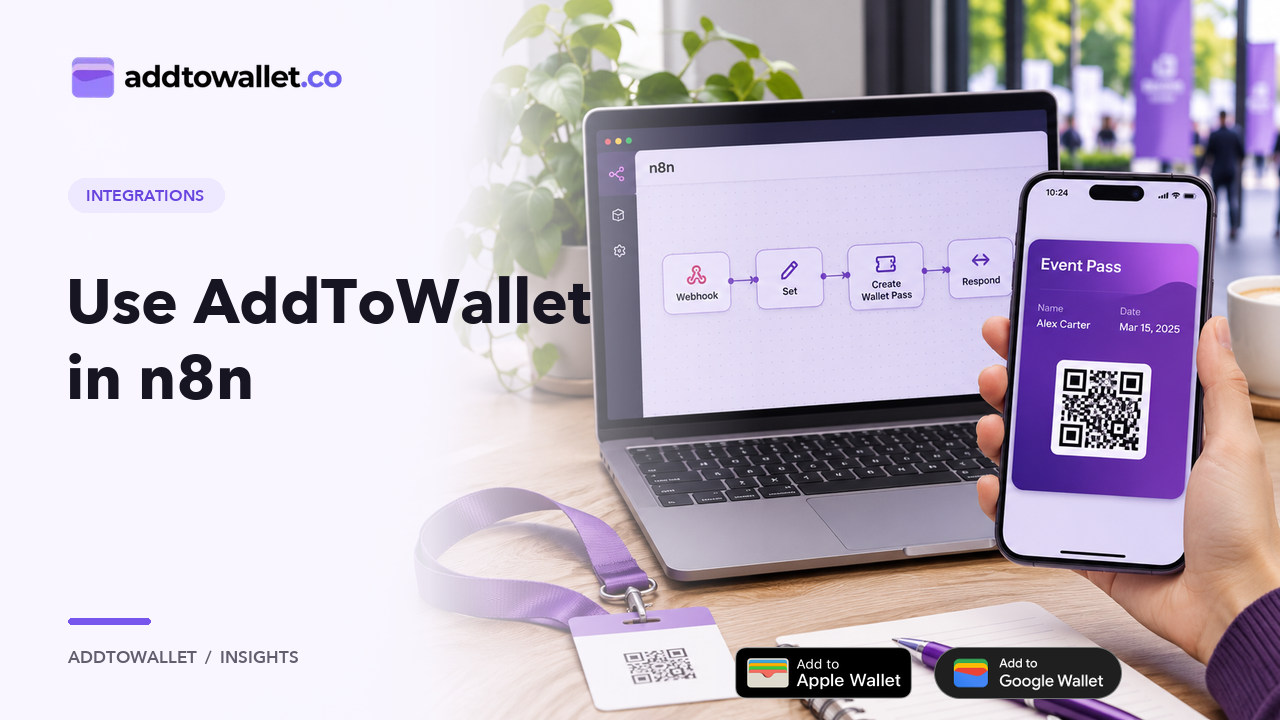
  • How-toHow to Use AddToWallet Node on N8N
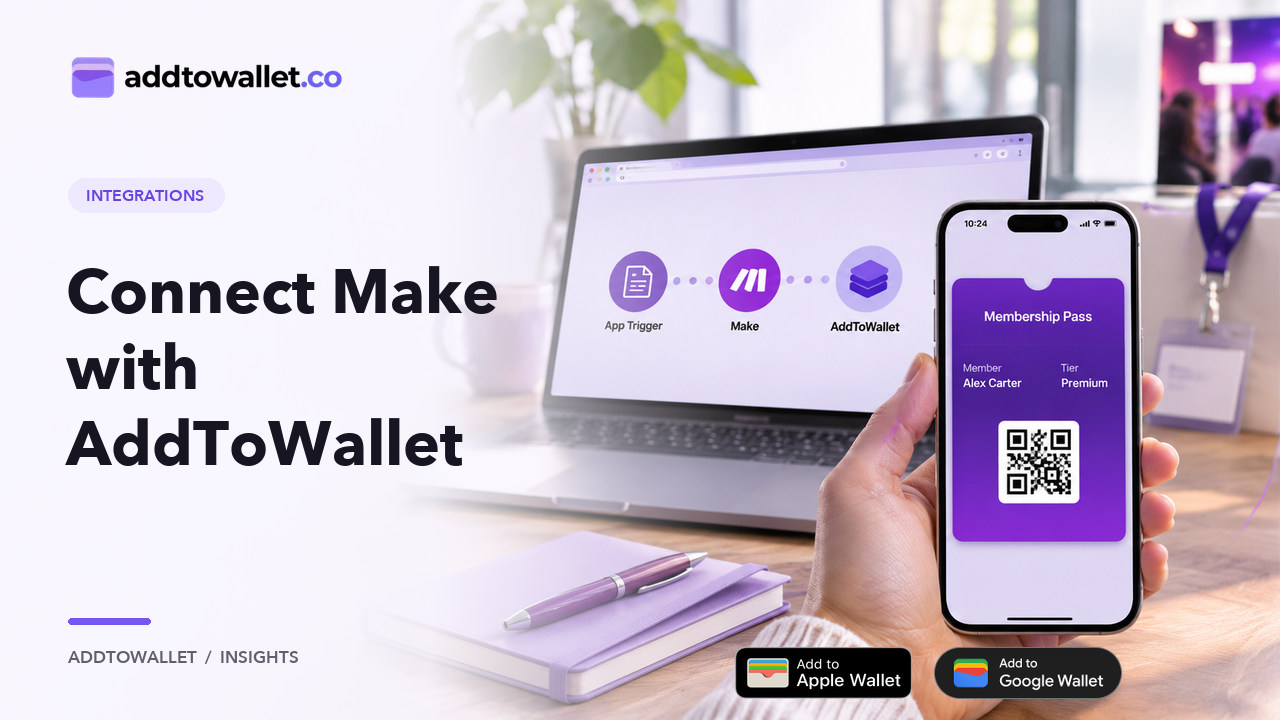
  • How-toHow to integrate make.com with AddToWallet.co?
  • How-toHow to Secure Wallet Passes with Access Code Protection
  • How-toHow to Send Notifications Using Wallet Pass
  • How-toHow to Set Up Custom Domains with AddToWallet
  • How-toHow to Share Wallet Passes Using Flyers
  • How-toHow to test Apple Wallet beacons
  • How-toAddToWallet Order Pass App on Shopify
  • How-toHow to create dynamic wallet pass
  • How-toHow to Use Webhooks with AddToWallet
  • GuideOur Audience Asked for Wallet Tickets AddToWallet.co Delivered
  • GuideCreate Wallet Passes from Form Responses
  • GuideWallet Pass Generator for Google Sheets
  • GuideWallet Passes for Wedding Invitations

How-to

Create Loyalty Wallet Pass Using AddToWallet

By AddToWallet Team·Published April 26, 2025·Updated November 5, 2026·4 min read

Say Goodbye to Paper Loyalty Cards

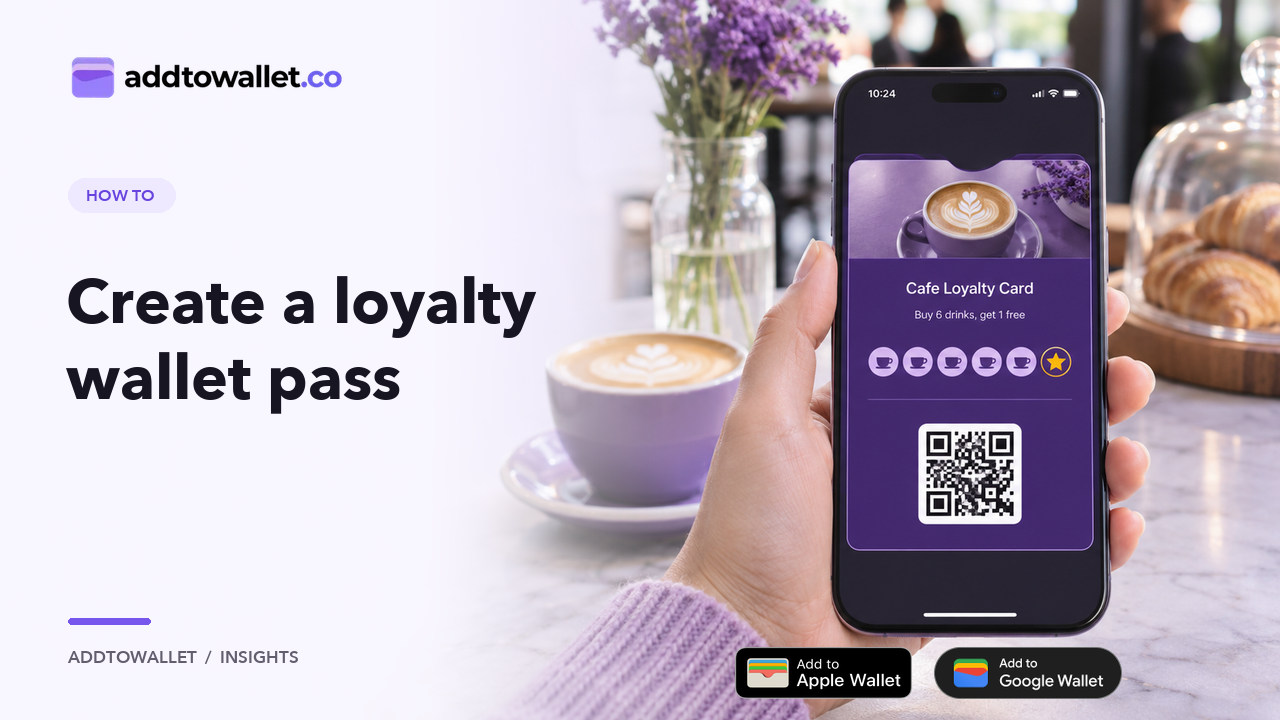
Traditional paper punch cards are fading fast. With digital loyalty programs powered by addtowallet.co, businesses can offer a modern, hassle-free way to reward repeat customers. No more lost, damaged, or forgotten cards—your loyalty program now lives directly in your customers' Apple or Google Wallet.

A Smarter Way to Build Loyalty

Our platform makes it easy to create and manage digital loyalty cards that act just like punch cards only smarter. Customers can collect punches or stamps right from their phones, making it effortless to track progress and redeem rewards.

With digital wallet passes, you can:

  • Send instant rewards and personalized offers
  • Notify customers of special promotions or milestones
  • Deliver real-time updates right to their phones
  • Monitor engagement and usage with real-time reporting

Why Digital Loyalty Wins

Moving to digital loyalty passes brings big benefits to small and growing businesses.

For your business:

  • Cut printing costs and operational overhead
  • Gain customer insights through engagement tracking
  • Reward users instantly, remotely, and at scale
  • Prevent fraud and reduce manual errors

For your customers:

  • Cut printing costs and operational overhead
  • Gain customer insights through engagement tracking
  • Reward users instantly, remotely, and at scale
  • Prevent fraud and reduce manual errors

How to Create a Digital Loyalty Card with AddToWallet

Follow these simple steps to design and launch your own digital loyalty (stamp) pass:

Step 1: Choose a Loyalty Pass Template

Navigate to the Pass Templates section.

In Loyalty Pass, select the template that suits you.
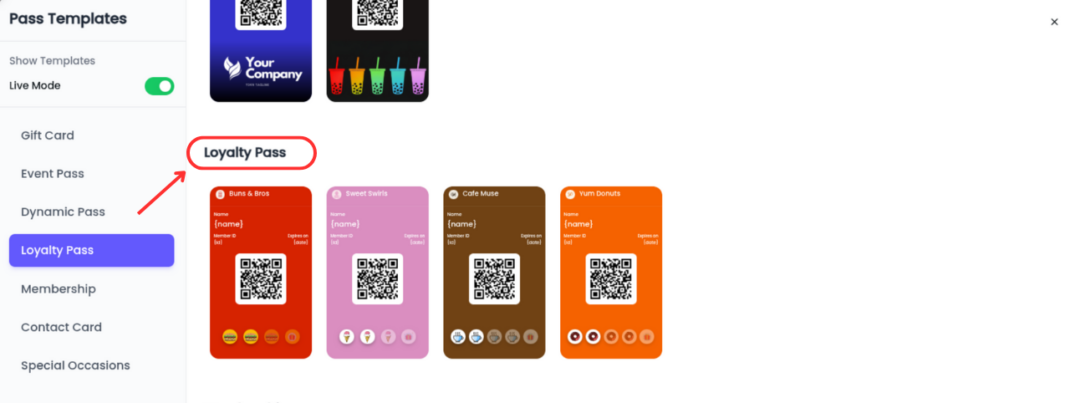
Step 1: Choose a Loyalty Pass Template

Step 2: Customize Your Loyalty Pass Settings

Click on the Loyalty Pass section to personalize how your digital stamp card looks and functions.

Here, you can:

  • Upload your own stamp images (like a coffee cup, star, or your brand logo)
  • Set the initial number of stamps a customer starts with
  • Define the maximum number of stamps needed to complete the pass
  • Choose a background color or image for the stamps
  • Customize the stamp icon background for added visual appeal
  • You can also upload your own stamp icon.
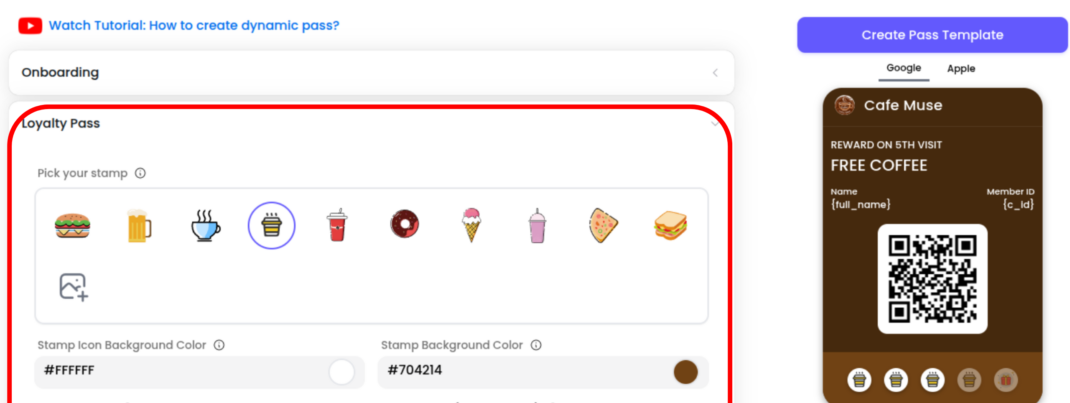
Step 2: Customize Your Loyalty Pass Settings

Step 3: Edit Pass Details

  • Once you've customized your loyalty pass, edit the fields on pass using the pass builder forms below.
  • In each section of pass if there is a dynamic field it will be highlighted at the top of the section also the field will populated in this manner [demo_field].
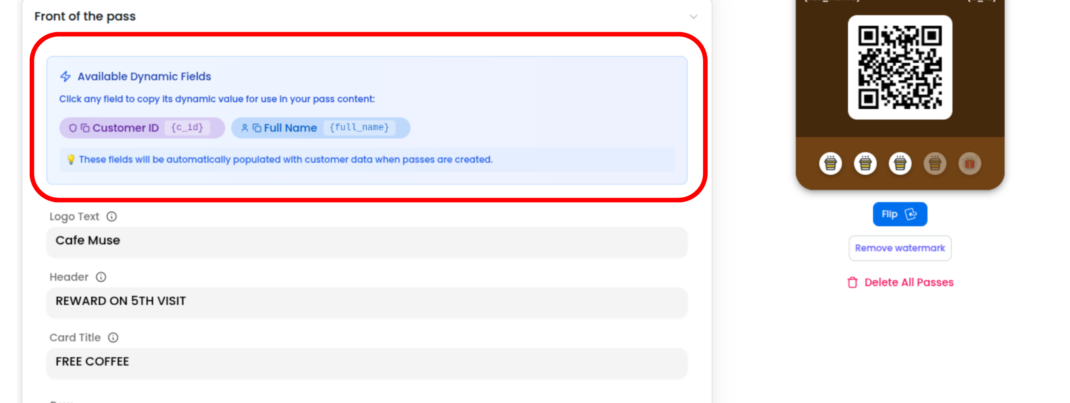
Step 3: Edit Pass Details

Step 4: Create Passes

Once you've customized your loyalty pass, click the "Create Pass Template" button to generate your template

After creation, head over to the linked group to manage the passes.
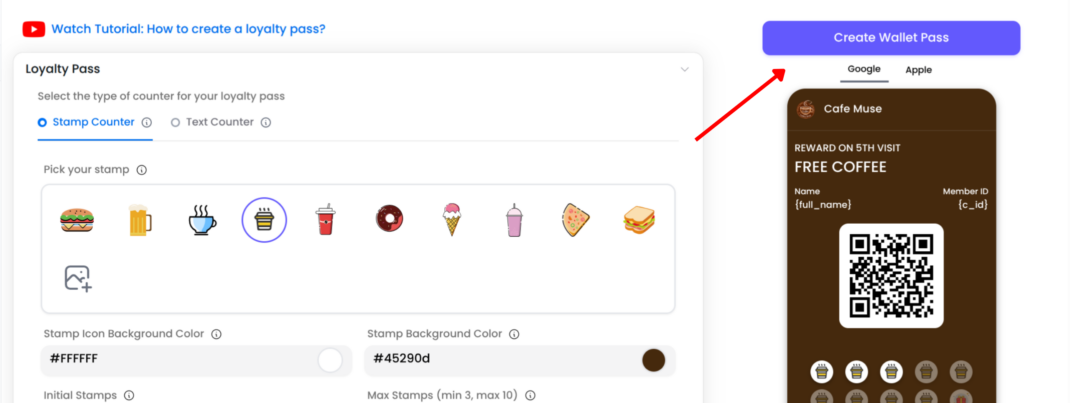
Step 4: Create Passes

Step 5: Share Loyalty Pass Link

  • Now that your template is created, you can click on the “Copy Link” button and share this link with your users for example, anyone signing up for your loyalty program.
  • You can also customize the link by updating the dynamic fields. These fields control what shows up on the pass, based on the mapping you set earlier.
  • So when someone opens the link, their pass is automatically personalized.
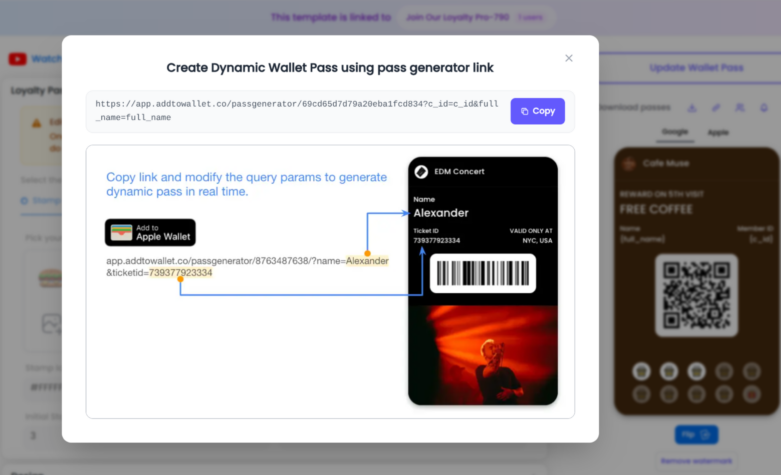
Step 5: Share Loyalty Pass Link

Step 6: Manage, Edit, and Notify Users

Within the group view, you have full control over each user's pass who have saved your loyalty Pass.Here's what you can do:

  • Edit User: Click the edit icon next to a user to update their dynamic values (like name, stamps, etc.)
  • Duplicate Users: Use the copy icon to clone that customer’s data handy for testing or creating similar entries
  • Delete Users: Remove a customer and their pass with a simple click of the trash icon
  • Send Notifications: Click the bell icon on a specific row to notify that user directly,or use the bell icon at the top to send a bulk notification to all users in the group
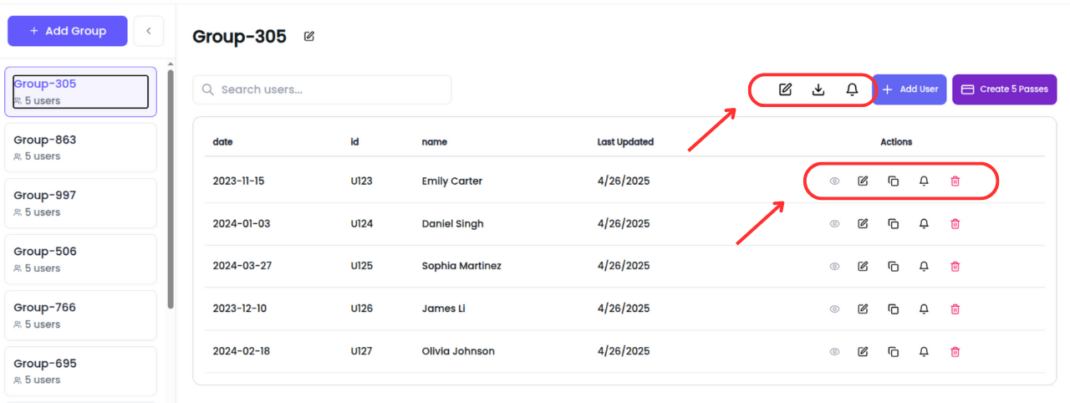
Step 6: Manage, Edit, and Notify Users

Step 7: Scan Pass of your Customer

To update stamp progress (like rewarding a customer for a new purchase):

  • Scan the QR code on the customer's wallet pass , You’ll be redirected to addtowallet.co.
  • Increase or decrease the number of stamps on their pass
  • Click on “Activity” to view a full history of previous updates and changes

📌 Note: Make sure you’re logged into your account to access the scanning feature.
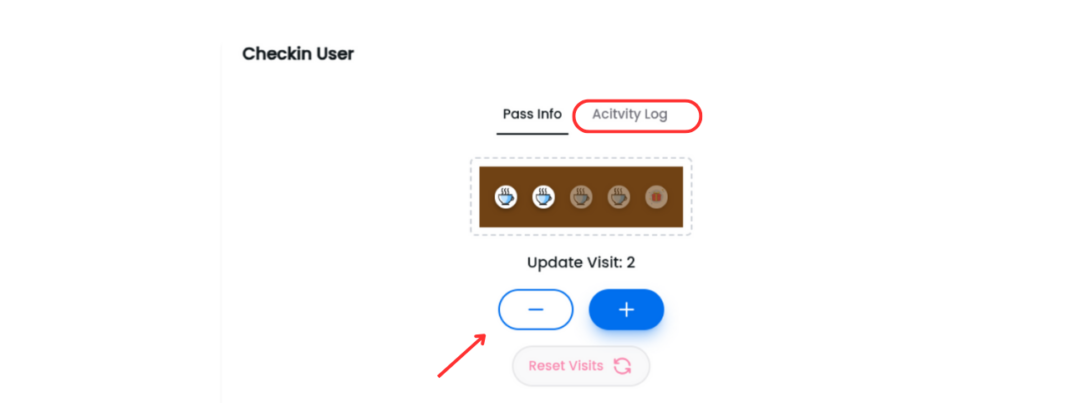
Step 7: Scan Pass of your Customer

You’re All Set to Go Digital with Loyalty!

Creating a digital stamp card with AddToWallet is fast, flexible, and designed to elevate your customer loyalty program. From choosing a template and uploading your data to customizing stamps and managing real-time updates every step is built to save you time and boost engagement.

With features like dynamic notifications, real-time tracking, CRM integrations, and easy scanning, you’re giving your customers a seamless and modern loyalty experience they’ll appreciate.

So go ahead — ditch the paper cards, and start building digital loyalty passes that stand out in Apple and Google Wallet today!

Create Wallet Pass Now

All guides

  • Guide10 reasons why incorporating Mobile Wallet Passes into your mobile strategy is essential
  • Guide5 Reasons why your store needs a wallet pass
  • GuideAdvantages of using Google and Apple wallet pass in businesses
  • GuideBest practices to design an amazing wallet pass
  • GuideBoost Engagement with Interactive Wallet Passes in Magazines
  • GuideConvert Pdf To Pass Using AddToWallet
  • GuideCreate Apple wallet pass for free
  • GuideCreate Apple Wallet passes for Your Business
  • GuideCreate Google wallet pass for free
  • GuideCreating Apple and Google Wallet Passes
  • GuideCreate Wallet Passes with the AddToWallet Zapier Integration
  • GuideDifferences between Apple and Google wallet
  • GuideEnhance audience interaction with wallet passes in Newspapers
  • GuideHidden Form Fields: Dynamic Expiry for Wallet Passes
  • GuideHow Google and Apple Wallet Pass Works
  • How-toHow to Add Amelia Booking Passes to Apple Wallet & Google Wallet
  • How-toHow to Add an Add to Wallet Button to Your Website
  • How-toHow to Add an Apple Wallet Button Easily
  • How-toHow to Add Bookly Booking Passes to Apple Wallet & Google Wallet
  • How-toHow to Add Location to Wallet Passes
  • How-toHow to Add Team Members to Your Account
  • How-toHow to Add Simply Schedule Appointments Bookings to Apple Wallet & Google Wallet
  • How-toHow to Add The Events Calendar Tickets to Apple Wallet & Google Wallet
  • How-toHow to Add LatePoint Appointments to Apple Wallet & Google Wallet
  • How-toHow to Add Sugar Calendar Tickets to Apple Wallet & Google Wallet
  • How-toHow to configure notifications for Apple & Google wallet passes
  • How-toHow to create a business pass for Apple and Google wallet
  • How-toHow to Create a wallet pass?
  • How-toHow to create a wallet pass using Zapier Integration?
  • How-toHow to create digital Concert Tickets with AddToWallet.co
  • How-toHow to create dynamic passes and manage users in AddToWallet
  • How-toHow To Create Gift Cards in Bulk
  • How-toHow to Create Hair Salon Gift Cards in Minutes
  • How-toCreate Loyalty Wallet Pass Using AddToWallet
  • How-toHow to Create Mobile Wallet Passes Using Google Sheets
  • How-toHow to Create & Scan Dynamic Wallet Passes Using AddToWallet
  • How-toHow To Distribute Google or Apple Wallet Pass
  • How-toHow to duplicate a wallet pass?
  • How-toHow to embed Google Wallet or Apple Wallet button on Shopify
  • How-toHow to embed Google wallet or Apple wallet button on Squarespace
  • How-toHow to embed Google Wallet or Apple Wallet button on Weebly
  • How-toHow to embed Google Wallet or Apple wallet button on Wix
  • How-toHow to embed Google Wallet or Apple Wallet button on WordPress
  • How-toHow to Generate JSON for Apple & Google Wallet Passes
  • How-toHow to generate leads using Google wallet or Apple wallet Pass wallet pass?
  • How-toHow to Use AddToWallet Node on N8N
  • How-toHow to integrate make.com with AddToWallet.co?
  • How-toHow to Secure Wallet Passes with Access Code Protection
  • How-toHow to Send Notifications Using Wallet Pass
  • How-toHow to Set Up Custom Domains with AddToWallet
  • How-toHow to Share Wallet Passes Using Flyers
  • How-toHow to test Apple Wallet beacons
  • How-toAddToWallet Order Pass App on Shopify
  • How-toHow to create dynamic wallet pass
  • How-toHow to Use Webhooks with AddToWallet
  • GuideOur Audience Asked for Wallet Tickets AddToWallet.co Delivered
  • GuideCreate Wallet Passes from Form Responses
  • GuideWallet Pass Generator for Google Sheets
  • GuideWallet Passes for Wedding Invitations
addtowallet.co

AddToWallet is a Mobile Wallet Pass creator to design custom Apple & Google Wallet passes for coupons, deals, gift cards, and loyalty cards.

Use Cases

  • Insurance
  • Fund raising
  • Fan-clubs
  • Restaurant
  • Higher Education

Solutions

  • Loyalty Pass
  • Coupons
  • Gift Cards
  • Event Tickets
  • Google Wallet
  • WalletPassBuilder

Company

  • FAQs
  • Blog
  • Product Updates
  • Privacy policy
  • Terms & conditions
  • Trust Center
© 2026 Hazelnut Ventures LLC