

























How-to
How to embed Google Wallet or Apple wallet button on Wix
By AddToWallet TeamPublished Updated 2 min read
How add to google/apple wallet button works?
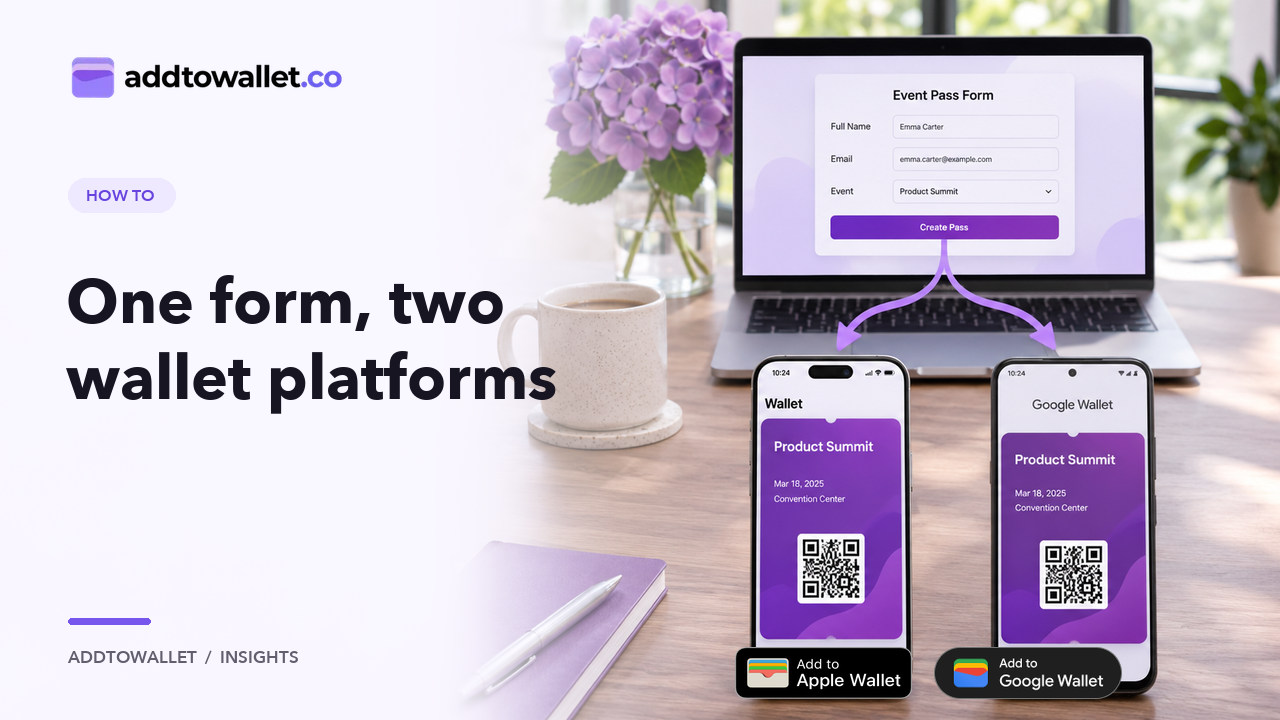
You can embed a dynamic button on your WordPress site that adjusts its appearance based on the user's browser. For instance, if someone is using Safari, the button will display "add to apple wallet " button, and if they're on Chrome it will show "add to google wallet" button. This button will direct users to add a apple or google pass to their wallet that you have created
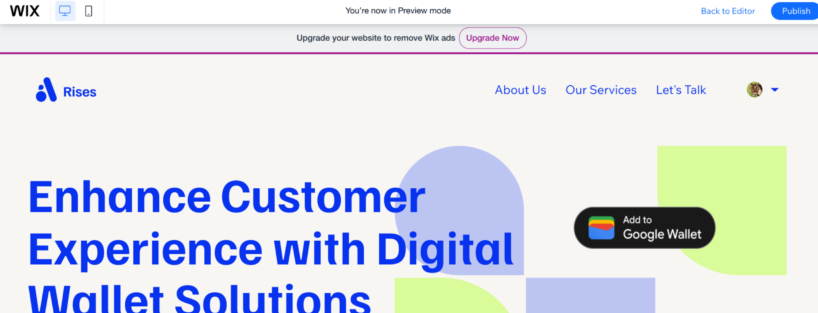
Add to Google Wallet Button (Chrome View)

Add to Apple Wallet Button (Safari View)

How to embed ?
1. Go to the page where you want to add the “Add to Wallet” button. Click on the “Edit” button to open the editor
2. Click on the “+” button on the left side of the screen , select "embed code" and add "embed HTML" block on your webpage
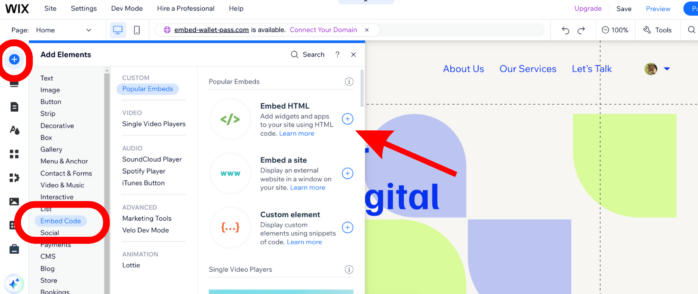
3. Now Click on edit Code a box will appear here , select "Code" here
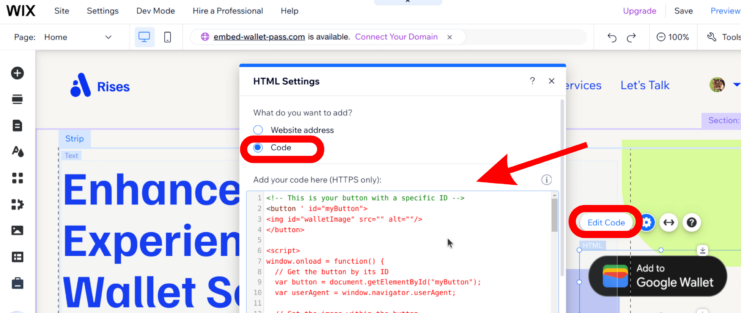
4. Now paste the code snippet given below inside the block that says ("Add your code here")
<script>
window.onload = function() {

  // Paste the pass link here in the button url string
   const buttonUrl="https://app.addtowallet.co/card/........";

  var button = document.getElementById("addToWalletButton");
  var userAgent = window.navigator.userAgent;
  var img = document.getElementById("walletImage");
  if (userAgent.indexOf("Chrome") != -1 && userAgent.indexOf("Safari") != -1 && userAgent.indexOf("Edg") == -1) {
    img.src = "https://s3.amazonaws.com/i.addtowallet.co/assets/Add_to_Google_Wallet_badge.svg.png";
  } else if (userAgent.indexOf("Safari") != -1 && userAgent.indexOf("Chrome") == -1) {
    img.src = "https://s3.amazonaws.com/i.addtowallet.co/assets/add_to_apple_wallet.png";
  } else {
    img.src = "https://s3.amazonaws.com/i.addtowallet.co/assets/Add_to_Google_Wallet_badge.svg.png";
  }
  button.style.background = 'none';
  button.style.border='none';
  button.style.width = '250px';
  button.style.height = '72px';
  img.style.width = '100%';
  img.style.height = '100%';
  button.style.cursor = 'pointer';
  button.onmousedown = function() {
    button.style.transform = 'scale(0.9)';
  }
  button.onmouseup = function() {
    button.style.transform = 'scale(1)';
  }
  button.onclick = function() {
    window.open(buttonUrl, '_blank');
  }
}
</script>
<button id="addToWalletButton">
<img id="walletImage" src="" alt="addToWalletButton"/>
</button>
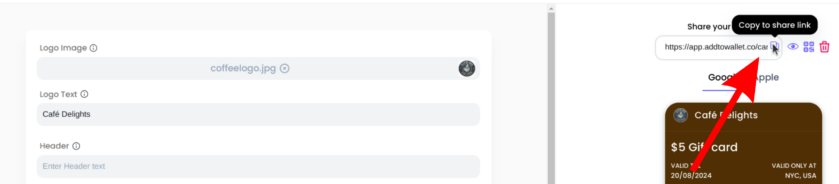
5. Replace the buttonUrl string with the pass url that you have created. You can copy the url after creating a pass and clicking on the copy icon
5. Click on preview button on the top to preview the google or apple add to wallet button on our wix page