

addtowallet.co
Create PassFeaturesPricingAPIBlog
Sign InGet Started Free
All guides▾
  • Guide10 reasons why incorporating Mobile Wallet Passes into your mobile strategy is essential
  • Guide5 Reasons why your store needs a wallet pass
  • GuideAdvantages of using Google and Apple wallet pass in businesses
  • GuideBest practices to design an amazing wallet pass
  • GuideBoost Engagement with Interactive Wallet Passes in Magazines
  • GuideConvert Pdf To Pass Using AddToWallet
  • GuideCreate Apple wallet pass for free
  • GuideCreate Apple Wallet passes for Your Business
  • GuideCreate Google wallet pass for free
  • GuideCreating Apple and Google Wallet Passes
  • GuideCreate Wallet Passes with the AddToWallet Zapier Integration
  • GuideDifferences between Apple and Google wallet
  • GuideEnhance audience interaction with wallet passes in Newspapers
  • GuideHidden Form Fields: Dynamic Expiry for Wallet Passes
  • GuideHow Google and Apple Wallet Pass Works
  • How-toHow to Add Amelia Booking Passes to Apple Wallet & Google Wallet
  • How-toHow to Add an Add to Wallet Button to Your Website
  • How-toHow to Add an Apple Wallet Button Easily
  • How-toHow to Add Bookly Booking Passes to Apple Wallet & Google Wallet
  • How-toHow to Add Location to Wallet Passes
  • How-toHow to Add Team Members to Your Account
  • How-toHow to Add Simply Schedule Appointments Bookings to Apple Wallet & Google Wallet
  • How-toHow to Add The Events Calendar Tickets to Apple Wallet & Google Wallet
  • How-toHow to Add LatePoint Appointments to Apple Wallet & Google Wallet
  • How-toHow to Add Sugar Calendar Tickets to Apple Wallet & Google Wallet
  • How-toHow to configure notifications for Apple & Google wallet passes
  • How-toHow to create a business pass for Apple and Google wallet
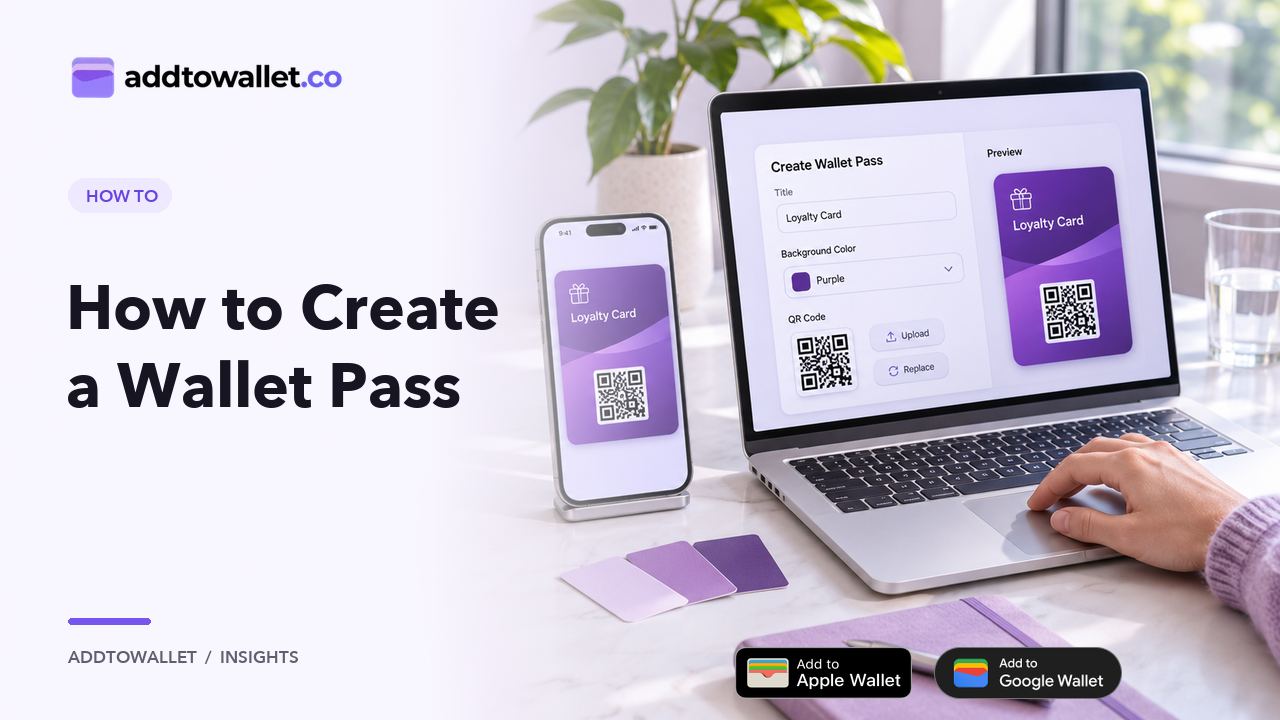
  • How-toHow to Create a wallet pass?
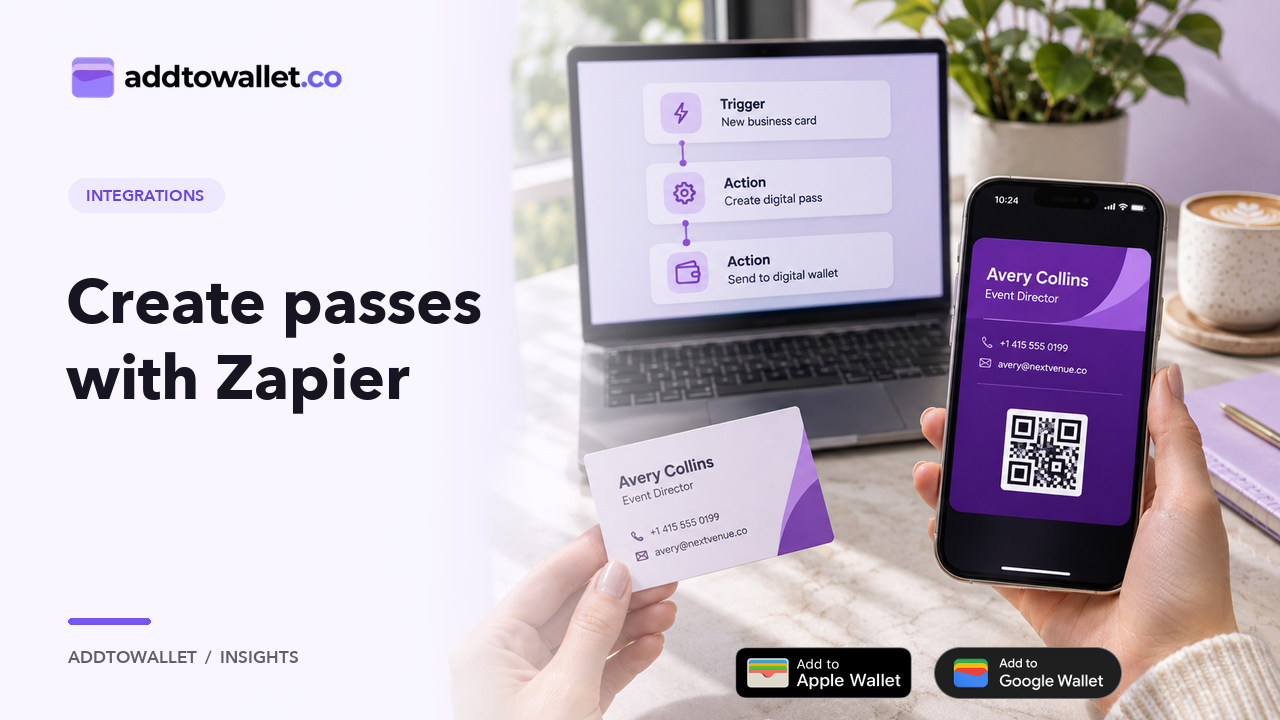
  • How-toHow to create a wallet pass using Zapier Integration?
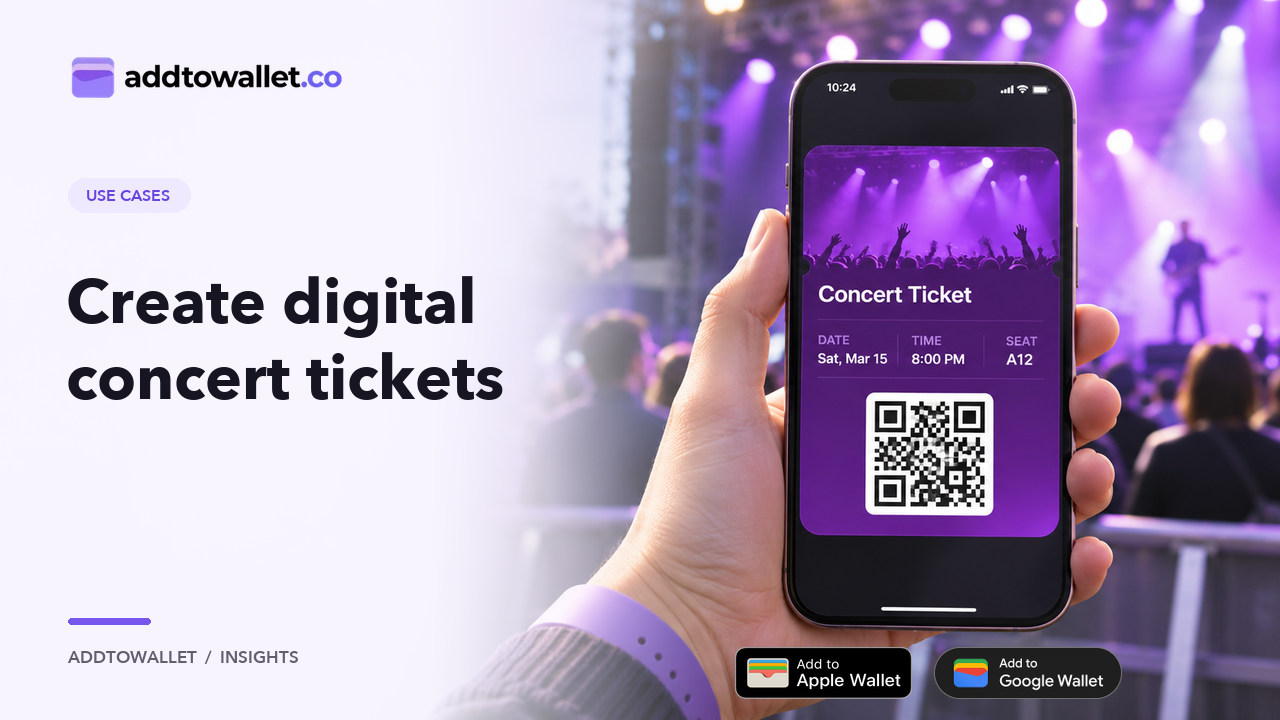
  • How-toHow to create digital Concert Tickets with AddToWallet.co
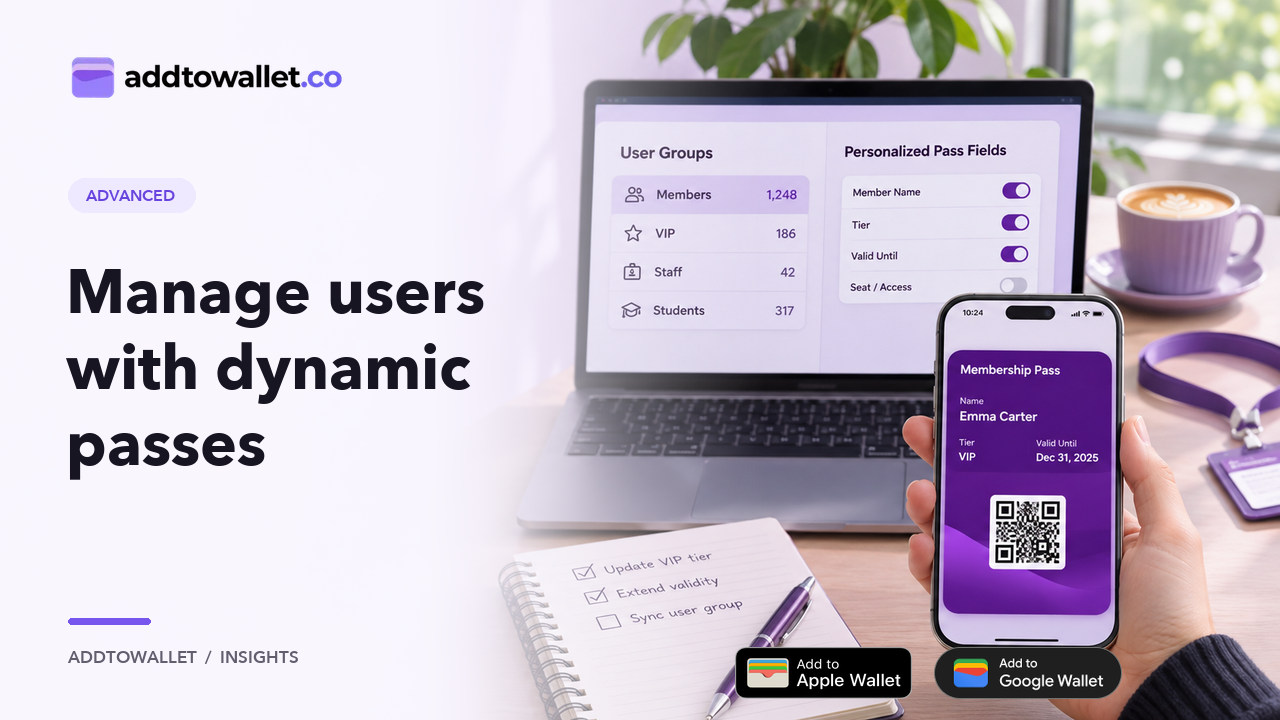
  • How-toHow to create dynamic passes and manage users in AddToWallet
  • How-toHow To Create Gift Cards in Bulk
  • How-toHow to Create Hair Salon Gift Cards in Minutes
  • How-toCreate Loyalty Wallet Pass Using AddToWallet
  • How-toHow to Create Mobile Wallet Passes Using Google Sheets
  • How-toHow to Create & Scan Dynamic Wallet Passes Using AddToWallet
  • How-toHow To Distribute Google or Apple Wallet Pass
  • How-toHow to duplicate a wallet pass?
  • How-toHow to embed Google Wallet or Apple Wallet button on Shopify
  • How-toHow to embed Google wallet or Apple wallet button on Squarespace
  • How-toHow to embed Google Wallet or Apple Wallet button on Weebly
  • How-toHow to embed Google Wallet or Apple wallet button on Wix
  • How-toHow to embed Google Wallet or Apple Wallet button on WordPress
  • How-toHow to Generate JSON for Apple & Google Wallet Passes
  • How-toHow to generate leads using Google wallet or Apple wallet Pass wallet pass?
  • How-toHow to Use AddToWallet Node on N8N
  • How-toHow to integrate make.com with AddToWallet.co?
  • How-toHow to Secure Wallet Passes with Access Code Protection
  • How-toHow to Send Notifications Using Wallet Pass
  • How-toHow to Set Up Custom Domains with AddToWallet
  • How-toHow to Share Wallet Passes Using Flyers
  • How-toHow to test Apple Wallet beacons
  • How-toAddToWallet Order Pass App on Shopify
  • How-toHow to create dynamic wallet pass
  • How-toHow to Use Webhooks with AddToWallet
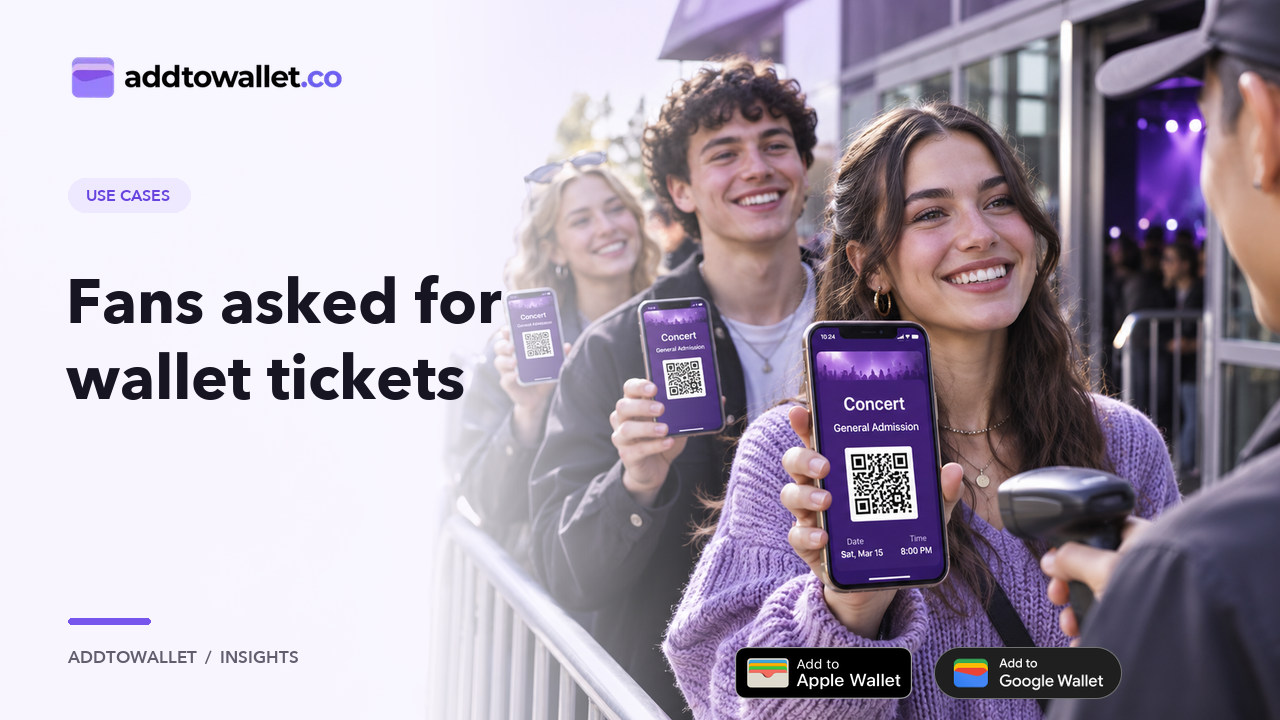
  • GuideOur Audience Asked for Wallet Tickets AddToWallet.co Delivered
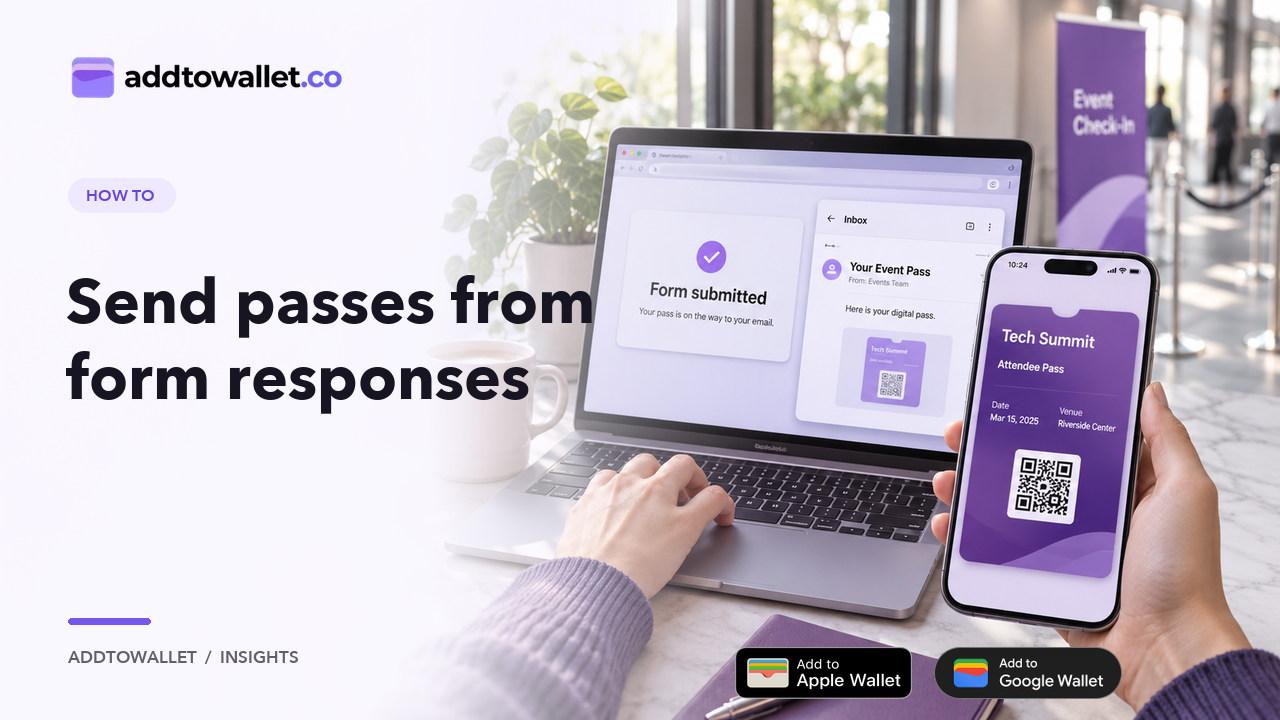
  • GuideCreate Wallet Passes from Form Responses
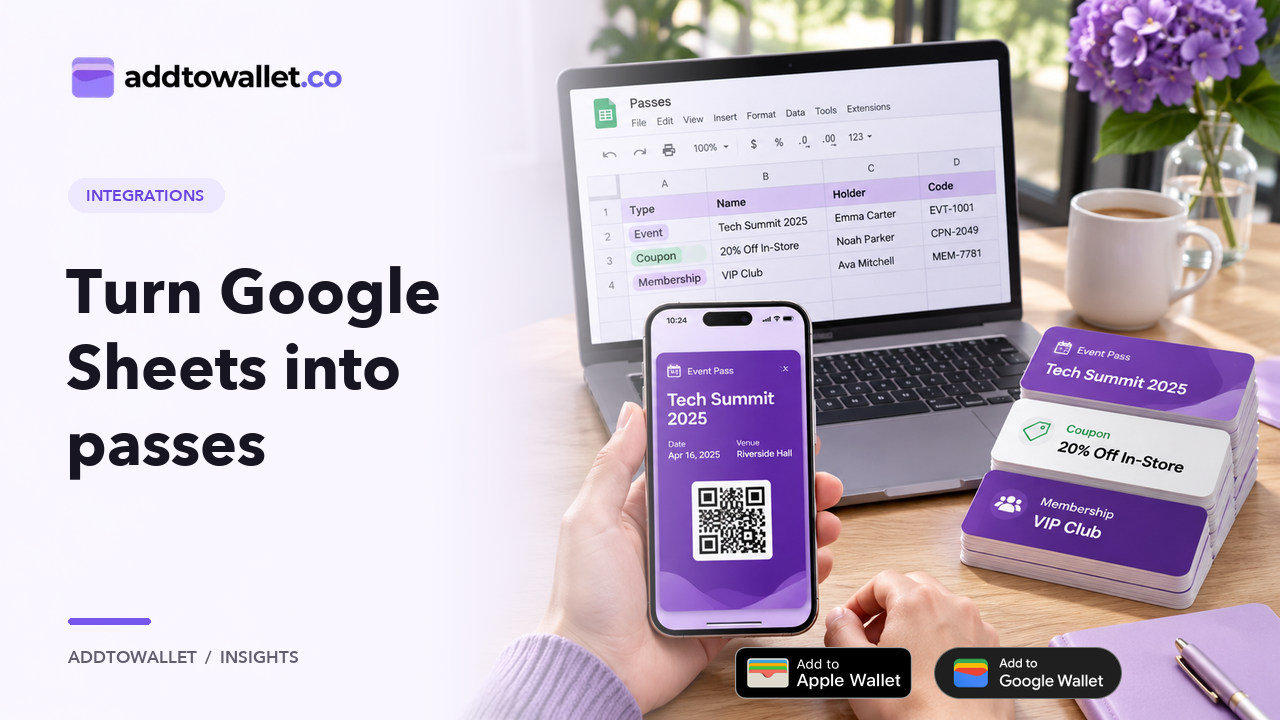
  • GuideWallet Pass Generator for Google Sheets
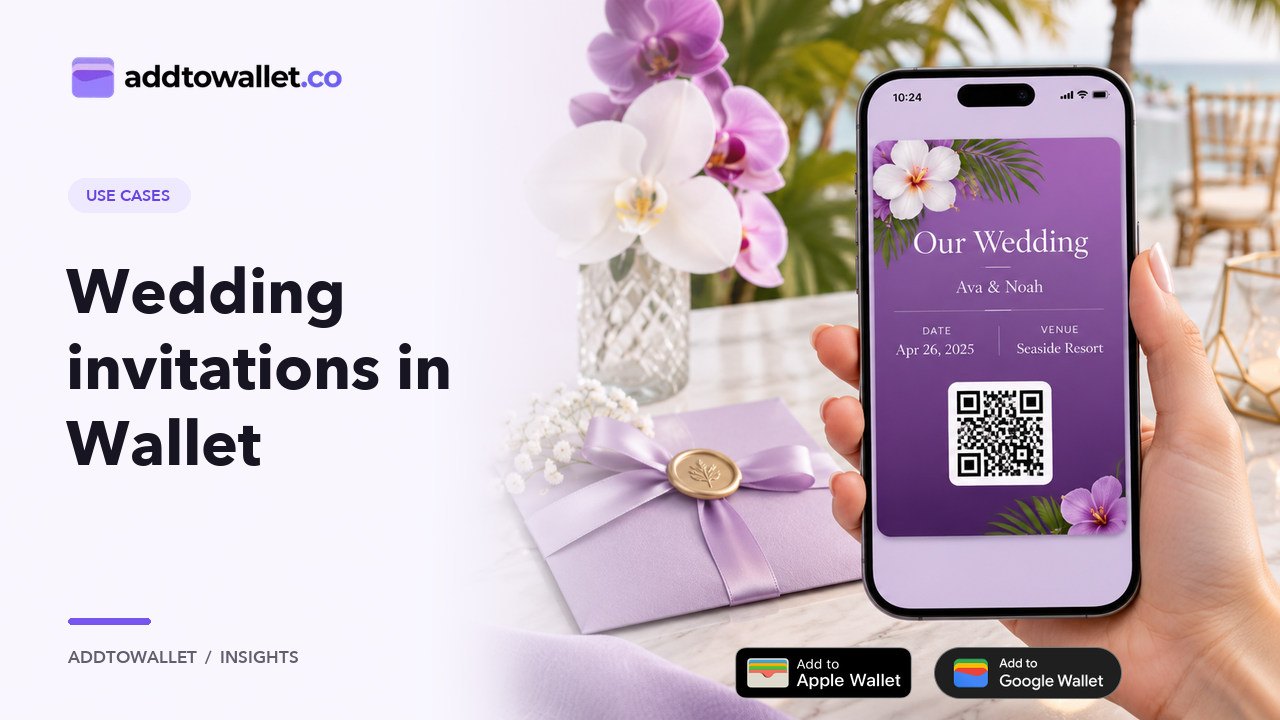
  • GuideWallet Passes for Wedding Invitations

Guide

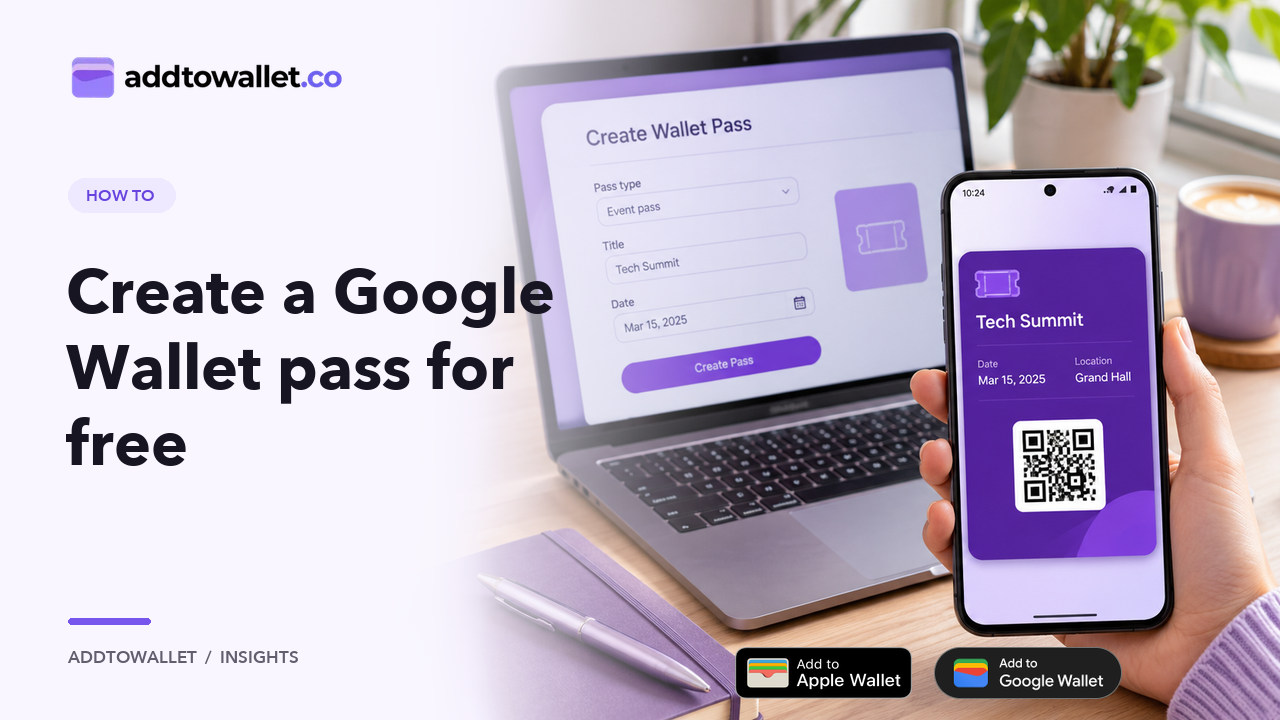
Create Apple wallet pass for free

By AddToWallet Team·Published June 29, 2024·Updated November 5, 2026·2 min read

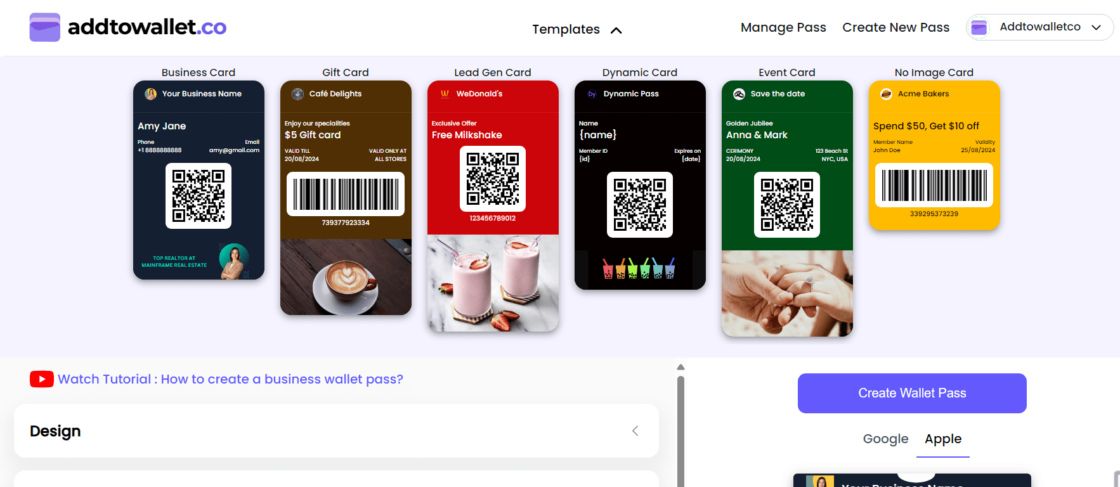
1. Select a Template

First, open the AddToWallet.co templates section. You can choose from various templates for business cards, lead generation passes, or membership passes. If you prefer, you can use the default template provided.
1. Select a Template

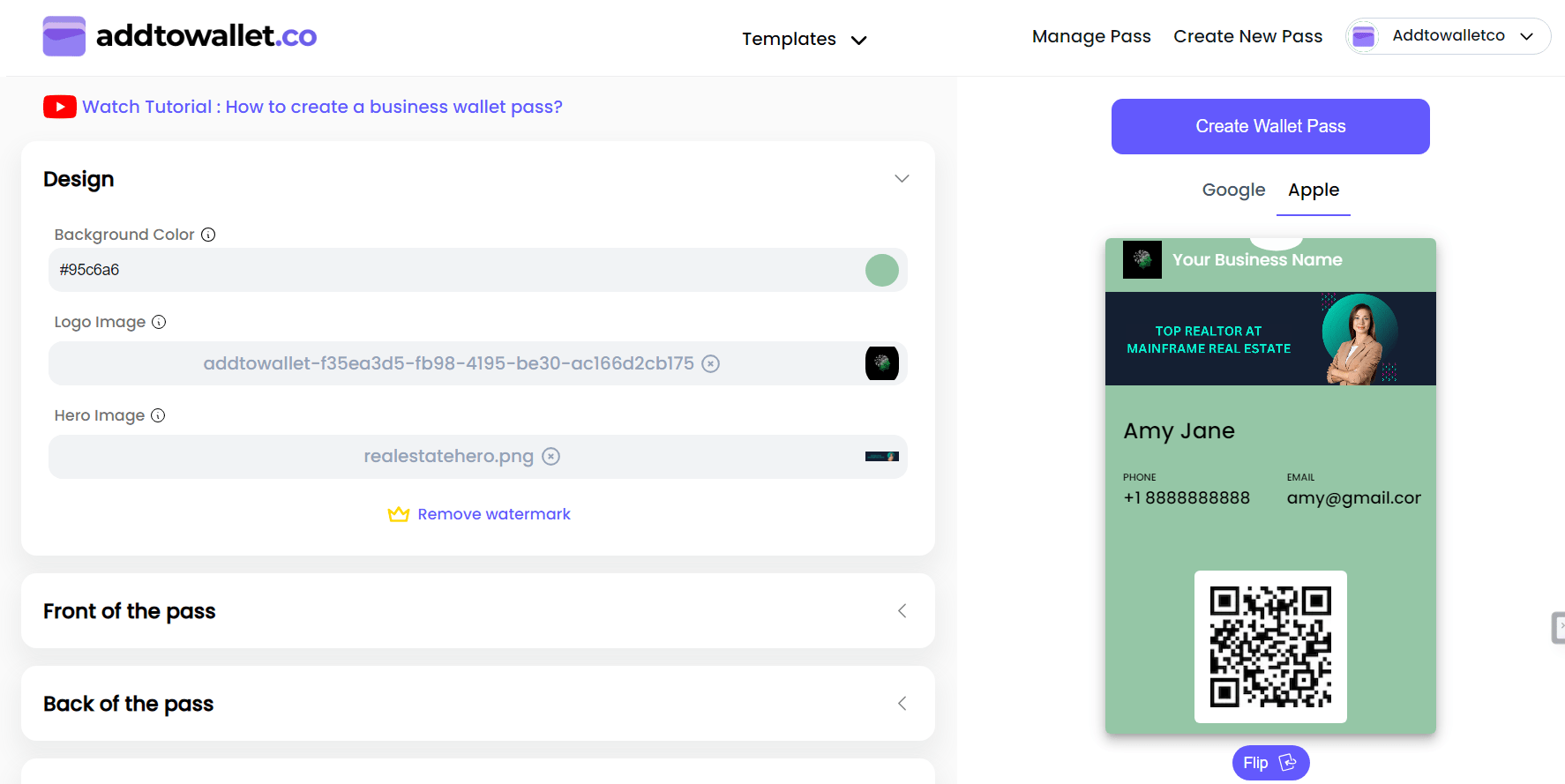
2. Customize Your Pass

After selecting a template, you’ll see a collapsible form where you can make necessary changes. You can customize the background color, images, front texts, and back texts of the pass.
2. Customize Your Pass

3. Create Your Wallet Pass

Once you’re satisfied with your customization, click the "Create wallet pass" button.

3. Create Your Wallet Pass

4. Copy the Generated Link

A link will appear on top of the preview. Copy this link by clicking copy icon.

4. Copy the Generated Link

5. Preview the Generated Pass and Add to Wallet

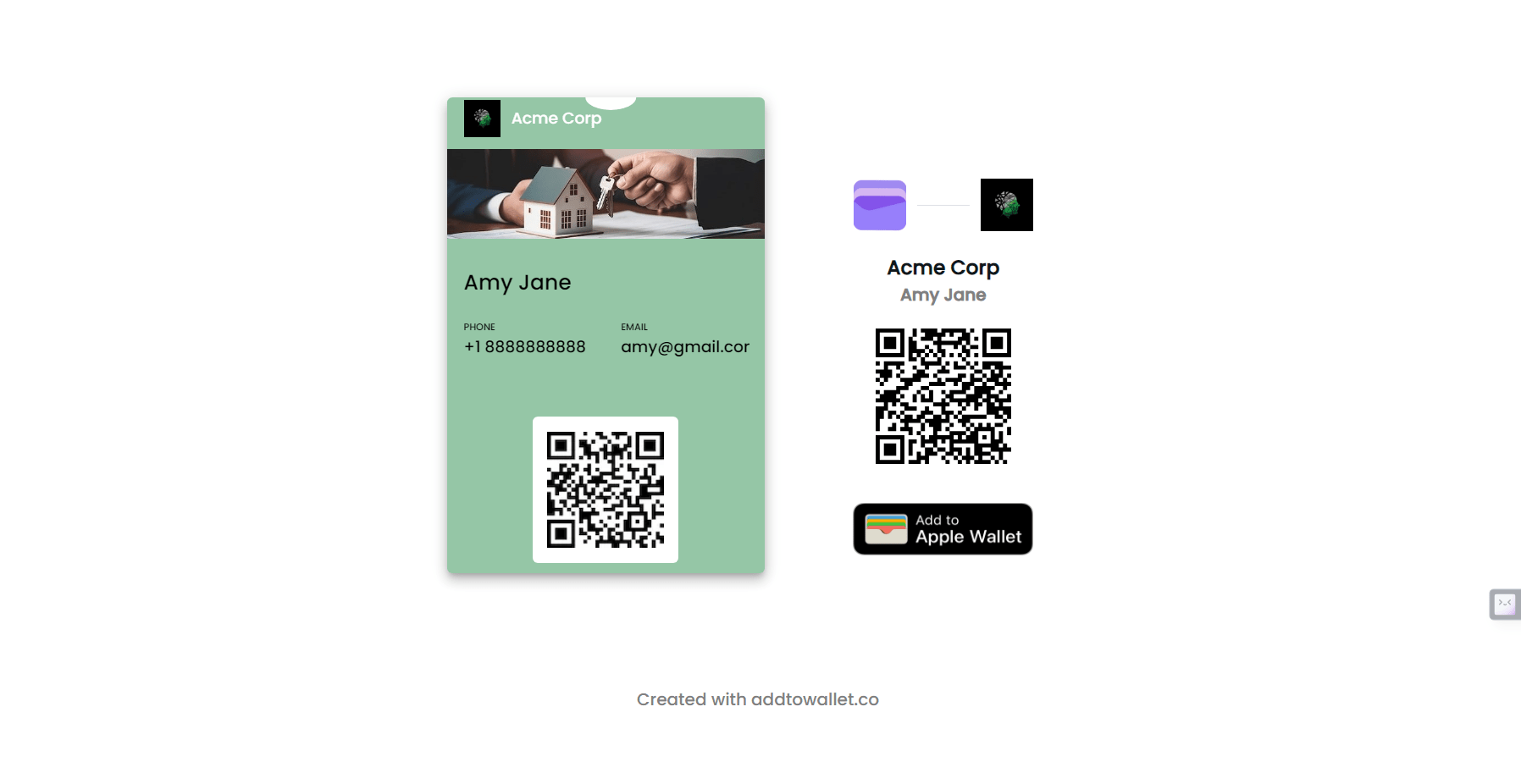
Once you have created your wallet pass, you can easily preview it clicking the preview icon next to copy icon and add it to your wallet.

5. Preview the Generated Pass and Add to Wallet

Preview and Add to Wallet

Click on the preview icon next to the generated link. This action will redirect you to download the pass. If you are using iOS or macOS, the pass will automatically preview and prompt you to add it to your wallet.
5. Preview the Generated Pass and Add to Wallet

Download as QR Code

You can also download the pass as a QR code. This QR code can be used in various ways, such as:

  • Posters
  • Printed media
  • Marketing materials

Using a QR code allows users to easily scan and add the pass to their wallet, providing a versatile way to distribute your passes.
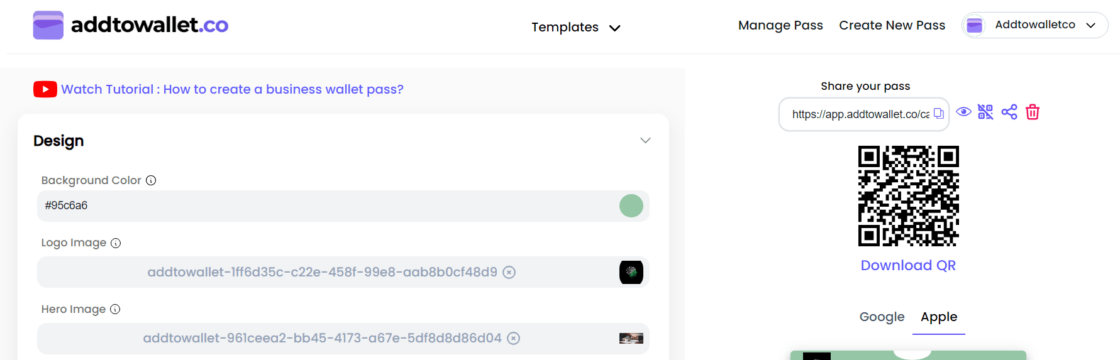
5. Preview the Generated Pass and Add to Wallet

Done!

This simple guide makes it easy for you to integrate a wallet pass button on your website using AddToWallet.co. Happy creating!

Create Wallet Pass Now

All guides

  • Guide10 reasons why incorporating Mobile Wallet Passes into your mobile strategy is essential
  • Guide5 Reasons why your store needs a wallet pass
  • GuideAdvantages of using Google and Apple wallet pass in businesses
  • GuideBest practices to design an amazing wallet pass
  • GuideBoost Engagement with Interactive Wallet Passes in Magazines
  • GuideConvert Pdf To Pass Using AddToWallet
  • GuideCreate Apple wallet pass for free
  • GuideCreate Apple Wallet passes for Your Business
  • GuideCreate Google wallet pass for free
  • GuideCreating Apple and Google Wallet Passes
  • GuideCreate Wallet Passes with the AddToWallet Zapier Integration
  • GuideDifferences between Apple and Google wallet
  • GuideEnhance audience interaction with wallet passes in Newspapers
  • GuideHidden Form Fields: Dynamic Expiry for Wallet Passes
  • GuideHow Google and Apple Wallet Pass Works
  • How-toHow to Add Amelia Booking Passes to Apple Wallet & Google Wallet
  • How-toHow to Add an Add to Wallet Button to Your Website
  • How-toHow to Add an Apple Wallet Button Easily
  • How-toHow to Add Bookly Booking Passes to Apple Wallet & Google Wallet
  • How-toHow to Add Location to Wallet Passes
  • How-toHow to Add Team Members to Your Account
  • How-toHow to Add Simply Schedule Appointments Bookings to Apple Wallet & Google Wallet
  • How-toHow to Add The Events Calendar Tickets to Apple Wallet & Google Wallet
  • How-toHow to Add LatePoint Appointments to Apple Wallet & Google Wallet
  • How-toHow to Add Sugar Calendar Tickets to Apple Wallet & Google Wallet
  • How-toHow to configure notifications for Apple & Google wallet passes
  • How-toHow to create a business pass for Apple and Google wallet
  • How-toHow to Create a wallet pass?
  • How-toHow to create a wallet pass using Zapier Integration?
  • How-toHow to create digital Concert Tickets with AddToWallet.co
  • How-toHow to create dynamic passes and manage users in AddToWallet
  • How-toHow To Create Gift Cards in Bulk
  • How-toHow to Create Hair Salon Gift Cards in Minutes
  • How-toCreate Loyalty Wallet Pass Using AddToWallet
  • How-toHow to Create Mobile Wallet Passes Using Google Sheets
  • How-toHow to Create & Scan Dynamic Wallet Passes Using AddToWallet
  • How-toHow To Distribute Google or Apple Wallet Pass
  • How-toHow to duplicate a wallet pass?
  • How-toHow to embed Google Wallet or Apple Wallet button on Shopify
  • How-toHow to embed Google wallet or Apple wallet button on Squarespace
  • How-toHow to embed Google Wallet or Apple Wallet button on Weebly
  • How-toHow to embed Google Wallet or Apple wallet button on Wix
  • How-toHow to embed Google Wallet or Apple Wallet button on WordPress
  • How-toHow to Generate JSON for Apple & Google Wallet Passes
  • How-toHow to generate leads using Google wallet or Apple wallet Pass wallet pass?
  • How-toHow to Use AddToWallet Node on N8N
  • How-toHow to integrate make.com with AddToWallet.co?
  • How-toHow to Secure Wallet Passes with Access Code Protection
  • How-toHow to Send Notifications Using Wallet Pass
  • How-toHow to Set Up Custom Domains with AddToWallet
  • How-toHow to Share Wallet Passes Using Flyers
  • How-toHow to test Apple Wallet beacons
  • How-toAddToWallet Order Pass App on Shopify
  • How-toHow to create dynamic wallet pass
  • How-toHow to Use Webhooks with AddToWallet
  • GuideOur Audience Asked for Wallet Tickets AddToWallet.co Delivered
  • GuideCreate Wallet Passes from Form Responses
  • GuideWallet Pass Generator for Google Sheets
  • GuideWallet Passes for Wedding Invitations
addtowallet.co

AddToWallet is a Mobile Wallet Pass creator to design custom Apple & Google Wallet passes for coupons, deals, gift cards, and loyalty cards.

Use Cases

  • Insurance
  • Fund raising
  • Fan-clubs
  • Restaurant
  • Higher Education

Solutions

  • Loyalty Pass
  • Coupons
  • Gift Cards
  • Event Tickets
  • Google Wallet
  • WalletPassBuilder

Company

  • FAQs
  • Blog
  • Product Updates
  • Privacy policy
  • Terms & conditions
  • Trust Center
© 2026 Hazelnut Ventures LLC