
Google Sheet Extension
PDF to Pass
Image to Pass
QR Code Generator
Barcode Generator
1) Go to Make.com and log in to your account.
2) Navigate to Your Scenario. In the make.com dashboard select the scenario where you want to create AddToWallet integration.
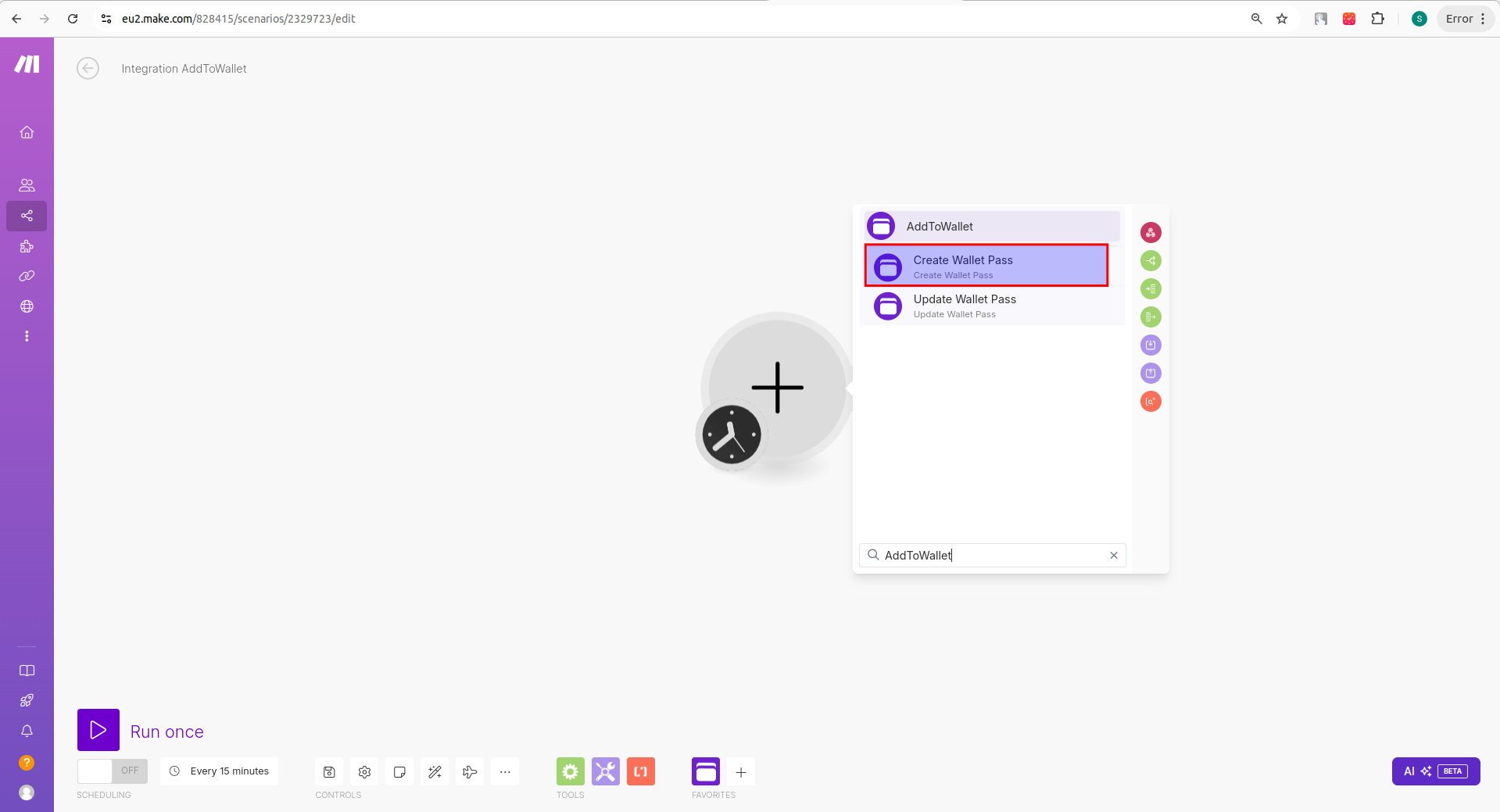
3) In the scenario editor, look for the "Add a Module" button. In the search bar, type "AddToWallet" and select "Create Wallet Pass".
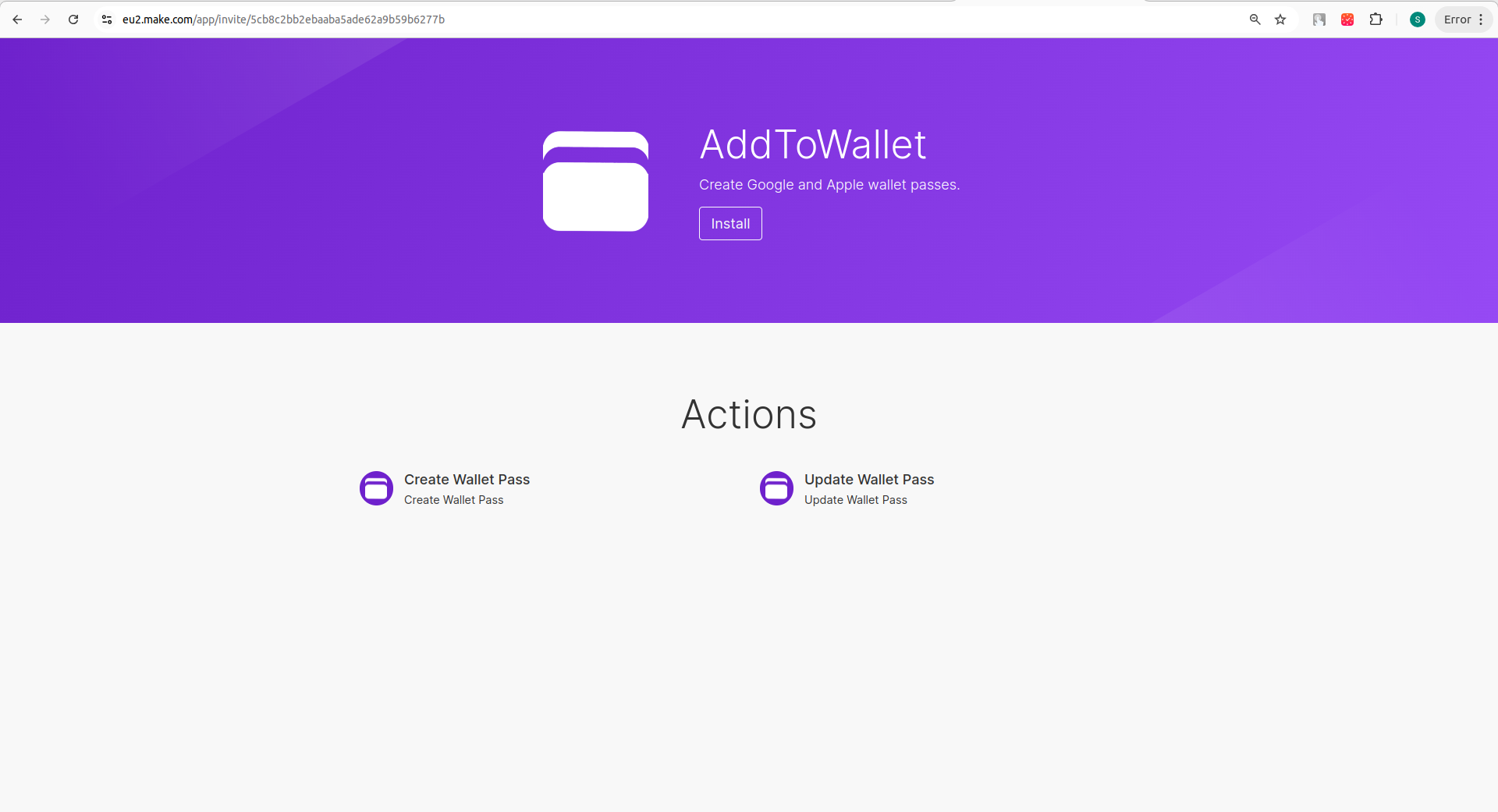
4) Install the "AddToWallet" module for your account using the link, if it does not load in your account.
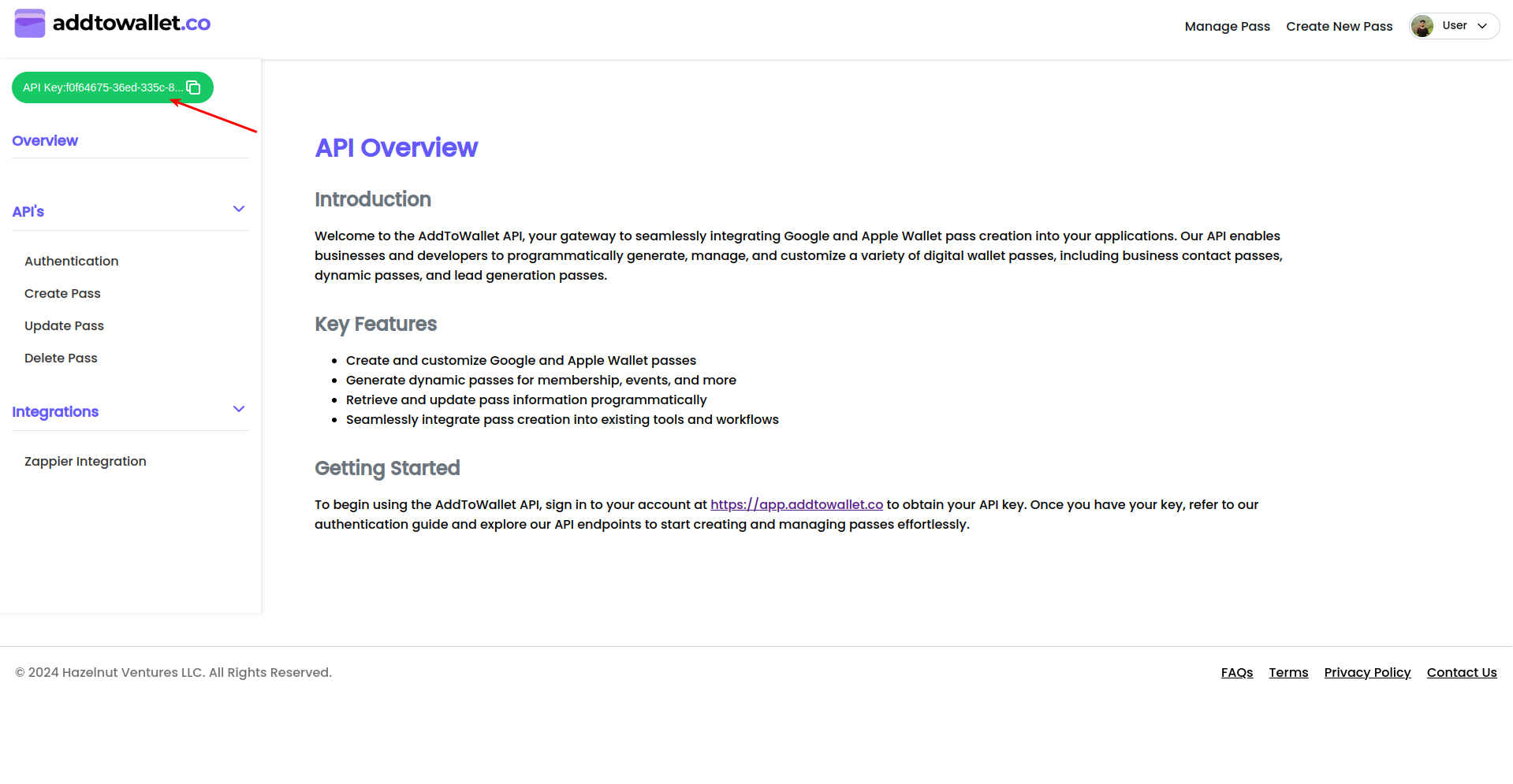
5) Obtain the API KEY from the AddToWallet platform documentation section. Follow the link to get your API KEY.
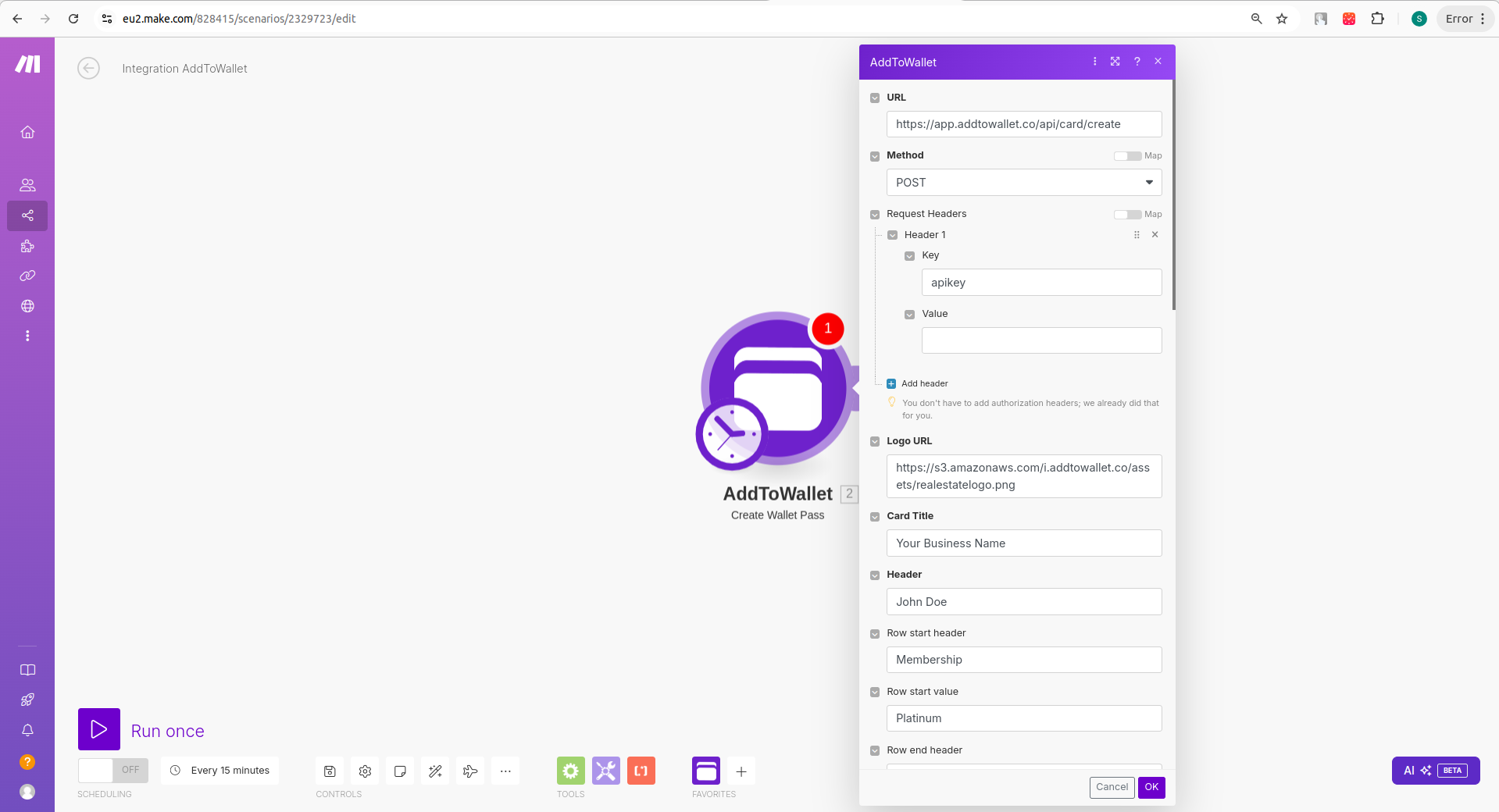
6) Fill in the module section with all the details you need for your pass and click on Save.
7) Right-click on the AddToWallet module within your scenario and select the Run option to test the integration.
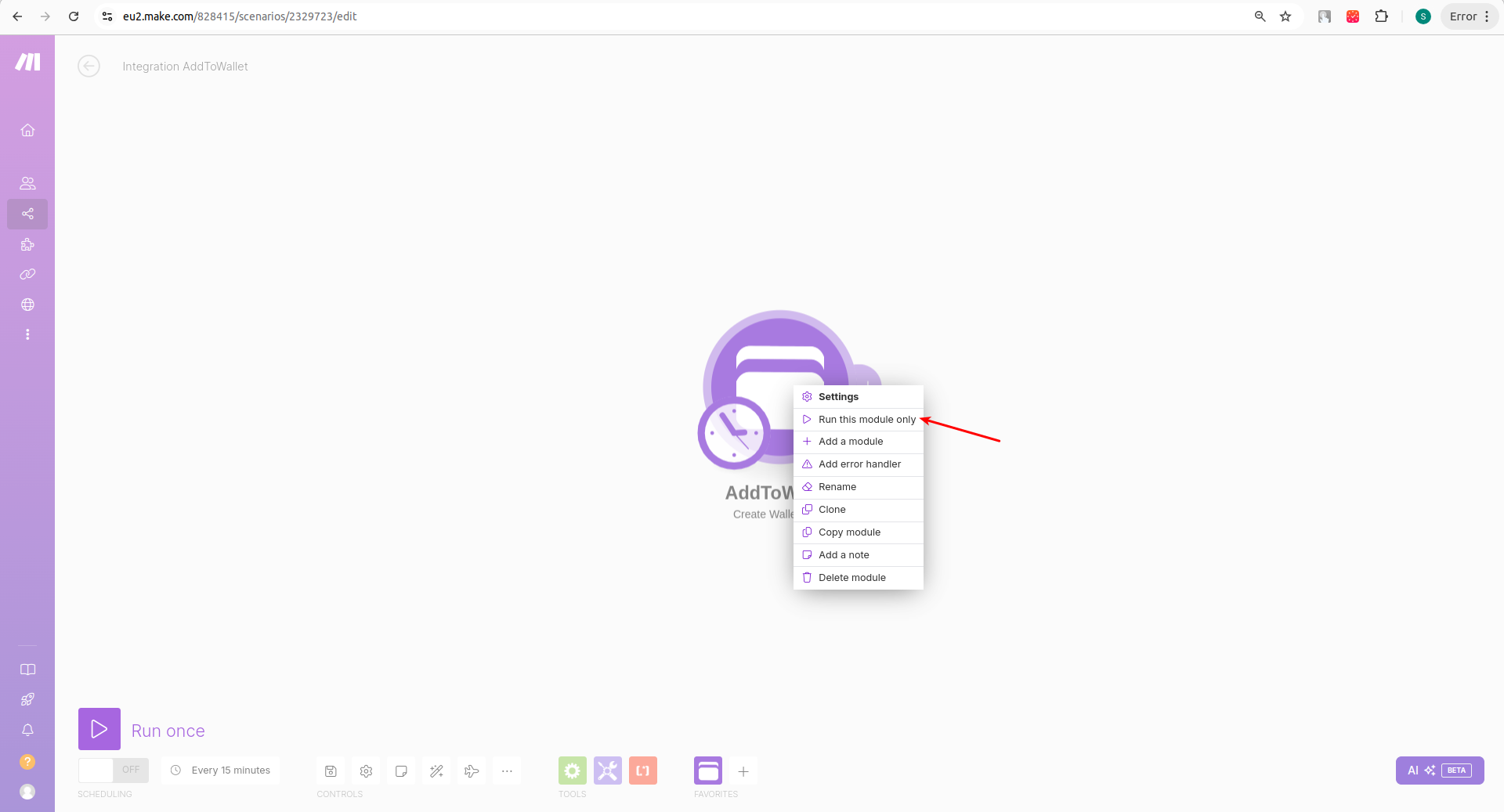
8) After running the module, check the response message that appears with the pass ID.
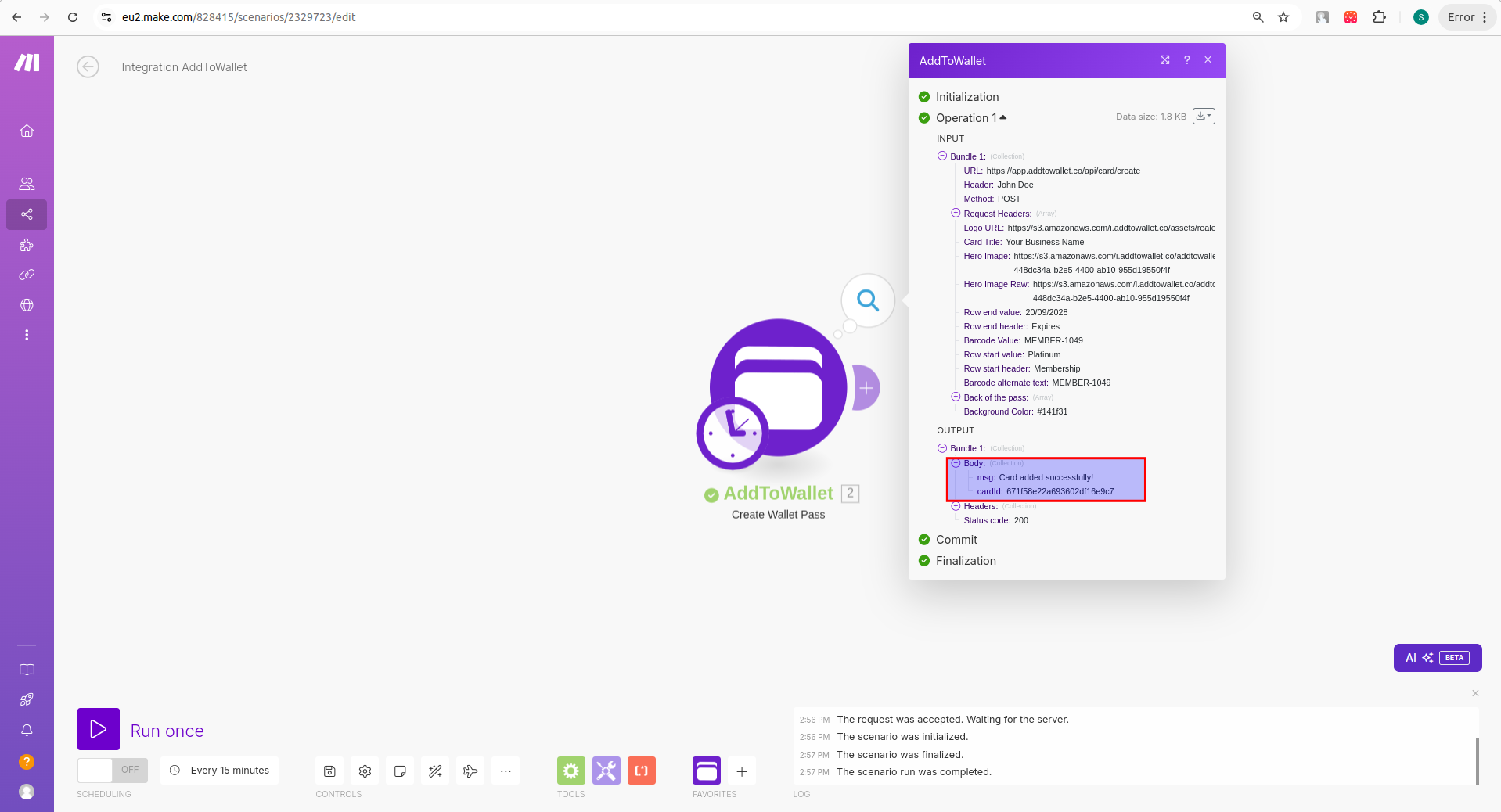
9) Pass ID can be used further in the flow or card can be previewed in the manage pass section on AddToWallet platform.