In WordPress go to Plugins → Add Plugin → Upload Plugin, choose the file, activate it, then open LatePoint → Wallet Pass. LatePoint must already be active.
How it works
1Install the plugin and paste your AddToWallet API key under LatePoint → Wallet Pass.
2A customer completes the LatePoint booking flow and confirms their appointment.
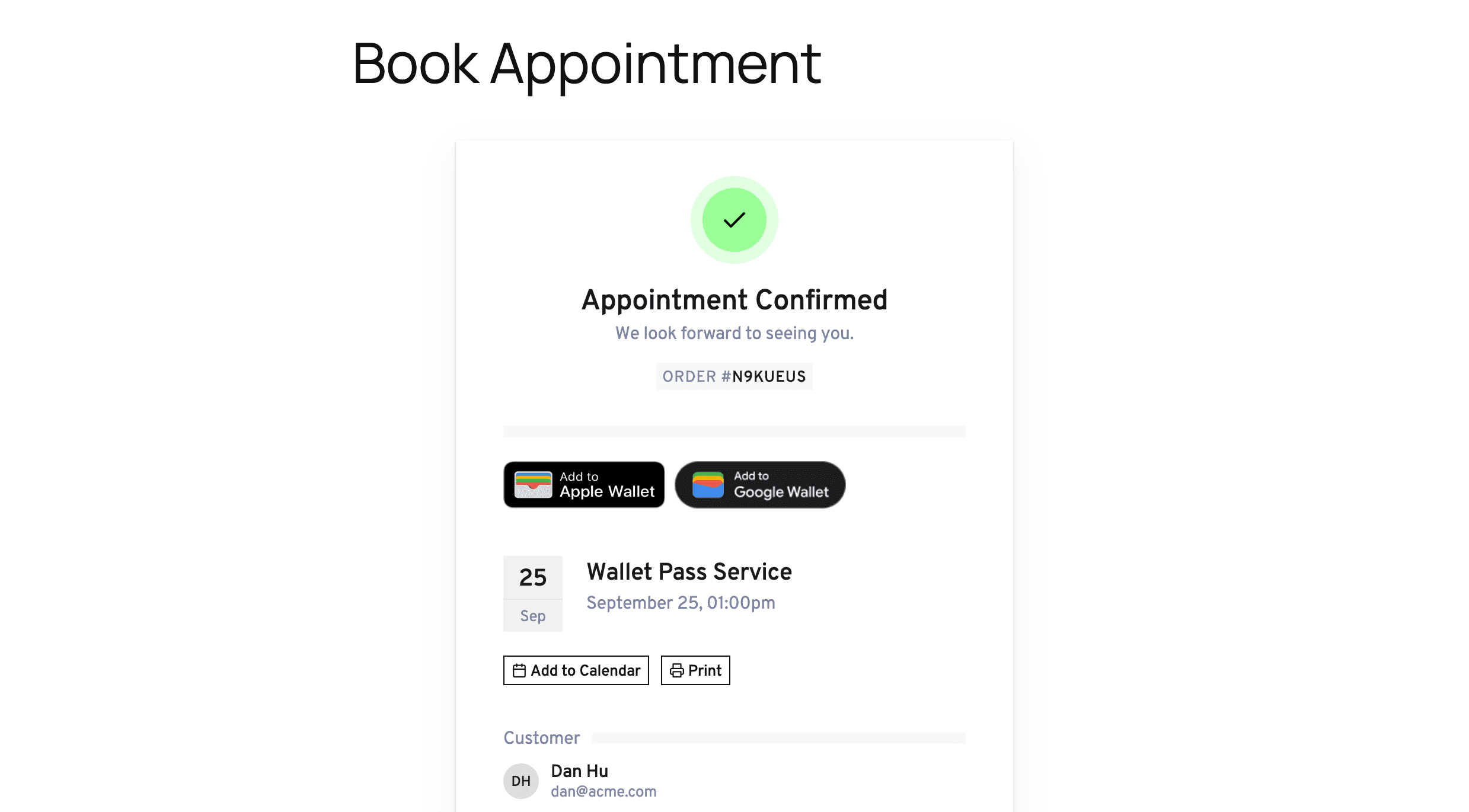
3The confirmation step shows Add to Apple Wallet and Add to Google Wallet badges.
What your customer sees
Wallet badges appear on the LatePoint confirmation step and in the customer dashboard booking tile. Both Apple and Google are offered. No theme edits are required.
Badges stay visible while the pass is being prepared, then link to the hosted pass page.
Both wallets are offered so customers on any device can save the appointment.
Returning customers can add the pass again from the customer dashboard.
What you configure
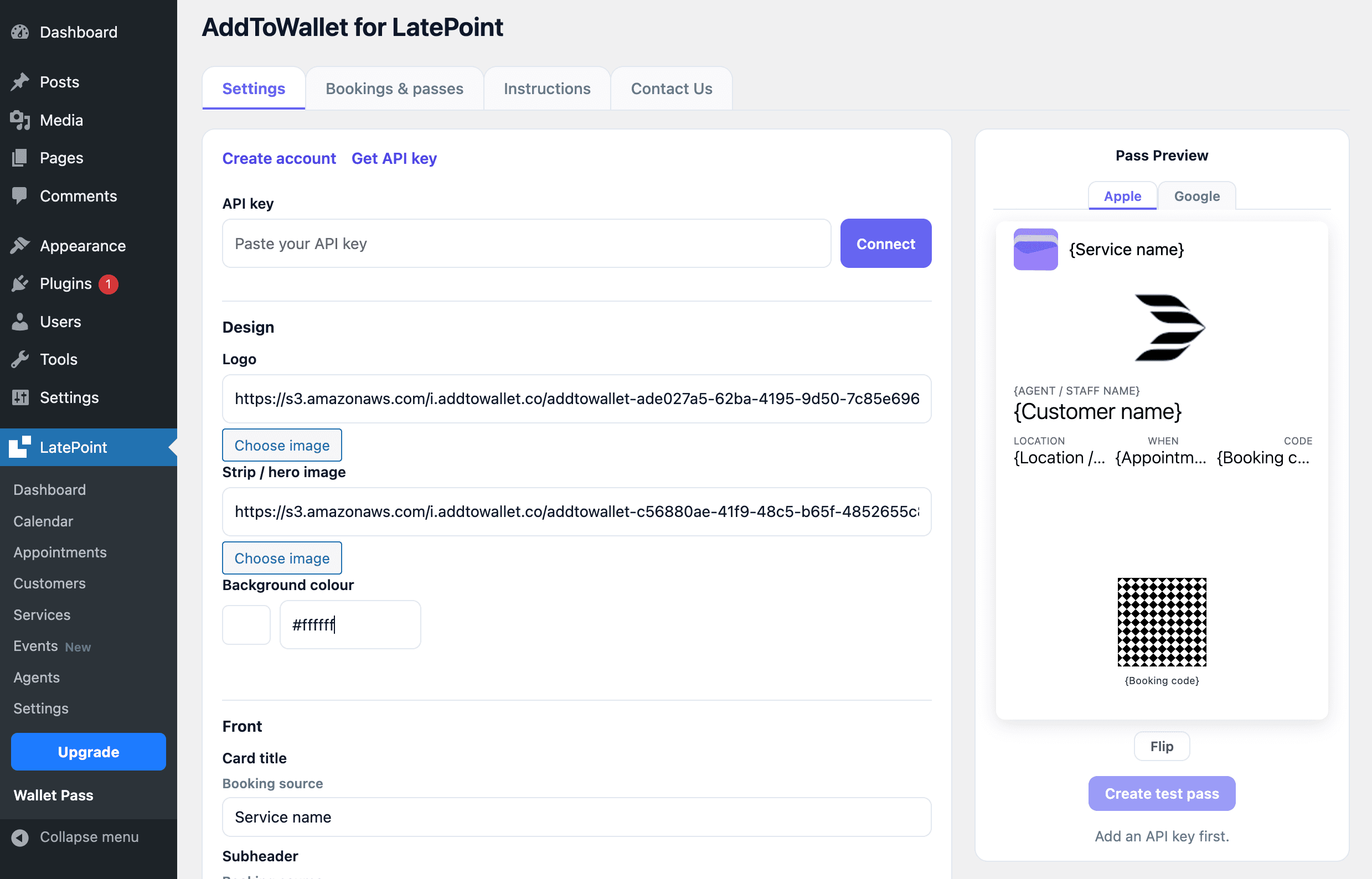
One settings screen under LatePoint → Wallet Pass, with tabs for bookings & passes and instructions.
API key
Stored on your server and never sent to the browser. Paste it once; leave the replace field blank to keep it.
Design
Logo, strip/hero image, and background colour for every appointment pass.
Front
Map booking sources (customer name, service, agent, location, booking code) to pass fields. Works with defaults out of the box.
Back
Link rows on the back of Apple and Google passes.
Pass preview
Apple and Google tabs with Flip — see the back before you go live.
What you get
Add to Apple Wallet and Add to Google Wallet on the booking confirmation step and customer dashboard
One pass per LatePoint booking — front-end widget, admin create, and recurring occurrences
Rescheduled appointments update the pass automatically
Cancelled, no-show, and rejected bookings expire the pass in Wallet
Field mapping from booking data to pass rows and barcode
Flippable in-plugin Apple and Google preview on Settings
Bookings & passes tab lists every appointment and its pass link
Requirements
WordPress
5.8 or newer
PHP
7.4 or newer
LatePoint
Requires the LatePoint plugin
AddToWallet
Premium or Events credits via your API key
Good to know
Each pass uses one credit. If your balance runs out, bookings continue but no pass is created. Recurring Pro bookings create one pass per occurrence. Cancelled, no-show, and rejected appointments expire the pass automatically.