Every appointment booked through Amelia becomes an Apple or Google Wallet pass, so it sits on your customer's phone instead of in an email they will not reopen.
In WordPress go to Plugins → Add Plugin → Upload Plugin, choose the file and activate it.
How it works
1Install the plugin and paste your AddToWallet API key.
2A customer books through any Amelia widget.
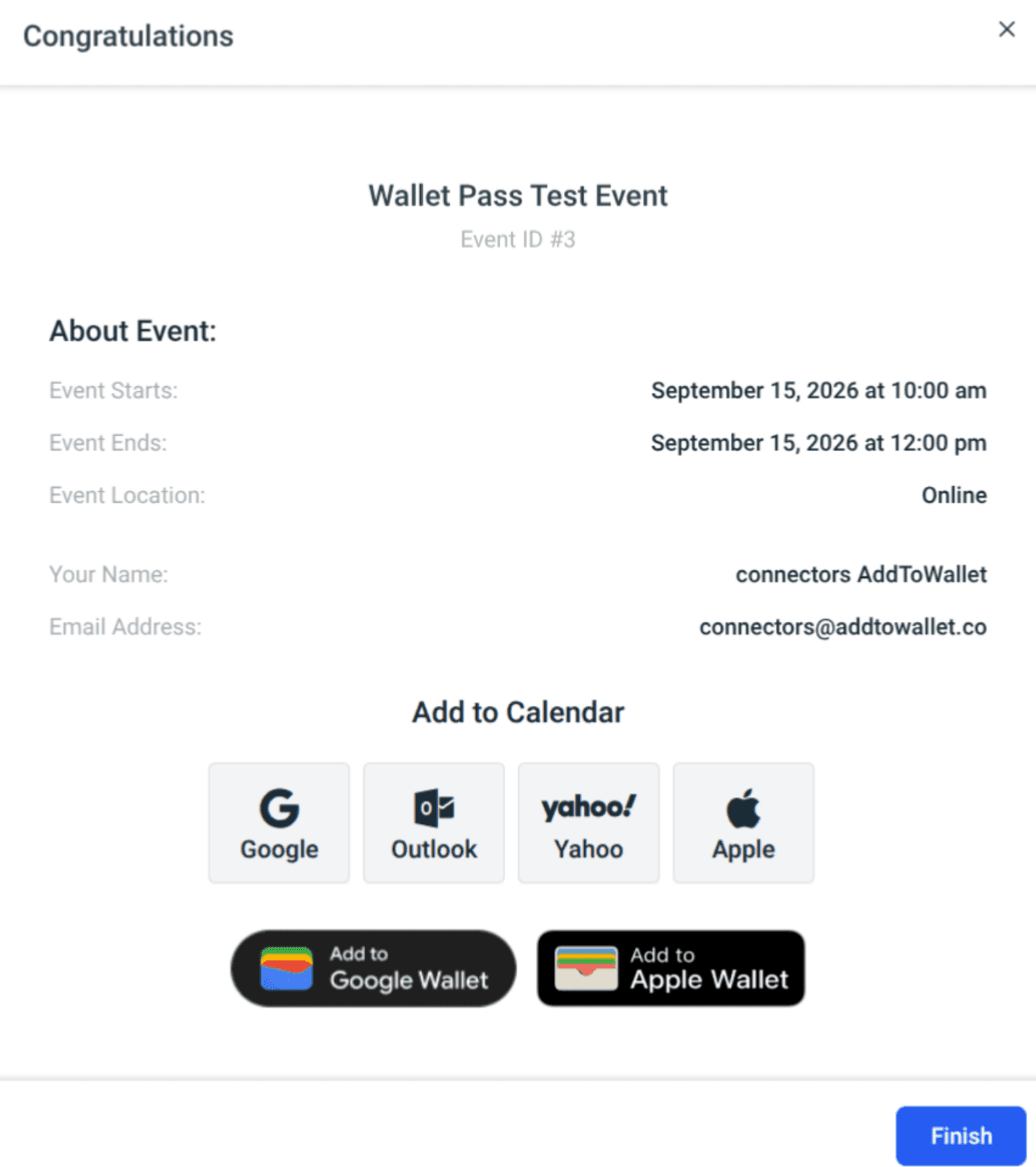
3The confirmation screen offers Add to Apple Wallet and Add to Google Wallet.
What your customer sees
The wallet buttons are added to Amelia's own confirmation screen, under its Add to Calendar row, so the booking flow is unchanged.
Both wallets are offered every time, so a customer booking on a laptop can still get the pass onto whichever phone they carry.
The badge matching their current device is shown first.
Nothing else on Amelia's confirmation screen changes.
What you configure
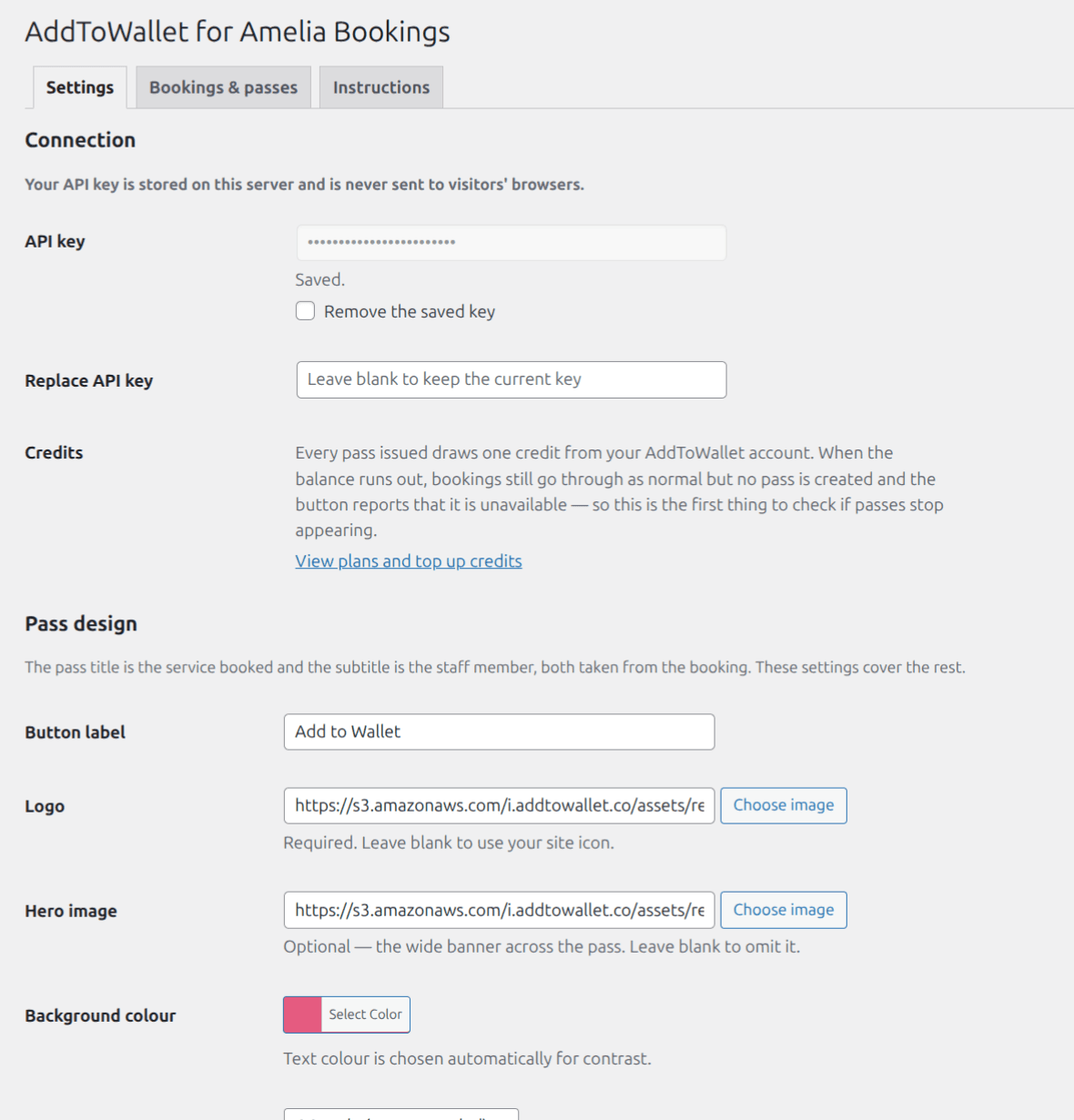
One settings screen in wp-admin, plus tabs for every booking and for the instructions.
API key
Stored on your server and never sent to the browser. Paste it once; leave the replace field blank to keep it.
Button label
The wording customers see before the wallet badges load.
Logo
Shown at the top of the pass. Falls back to your site icon if left blank.
Hero image
The wide banner across the pass. Optional, and omitted when blank.
Background colour
The pass colour. Text switches between black and white automatically for contrast.
Barcode
QR, Aztec, PDF417 or Code 128, encoding the booking id so staff can scan the customer in.
What you get
Apple and Google buttons on every booking, so nobody is stuck on the wrong device
Works with every Amelia widget: step-by-step, modal, catalog and events
Cancelled, rejected and no-show bookings expire the pass automatically
Choose the barcode: QR, Aztec, PDF417 or Code 128
Match the pass to your brand with a logo, hero image and colour
A searchable list of every booking and the pass it received
Requirements
WordPress
5.8 or newer
PHP
7.4 or newer
Amelia
Tested against 2.4.5
AddToWallet
An account with credits available
Good to know
Each pass uses one credit. If your balance runs out, bookings carry on as normal but no pass is created, so check that first if passes stop appearing. If you take payment through WooCommerce, or another gateway that redirects to a checkout page, Amelia never returns customers to its confirmation screen, so there is nowhere to show the buttons.